
Backups
Open Backups in the admin sidebar. The page covers two kinds of backup:
- Panel backup: a nightly snapshot of HostCraft itself (the panel database, PowerDNS database and configuration), so you can rebuild the panel after a disaster.
- Account backups: restic repositories and scheduled jobs that back up customer files and databases.
Every backup uses restic, so snapshots are encrypted and deduplicated.
Who can use it: server admins and super admins, for any account. Account owners manage their own account's repositories and jobs from Backups in their panel (see Backups), and resellers can view their pool's snapshots.
Panel backup
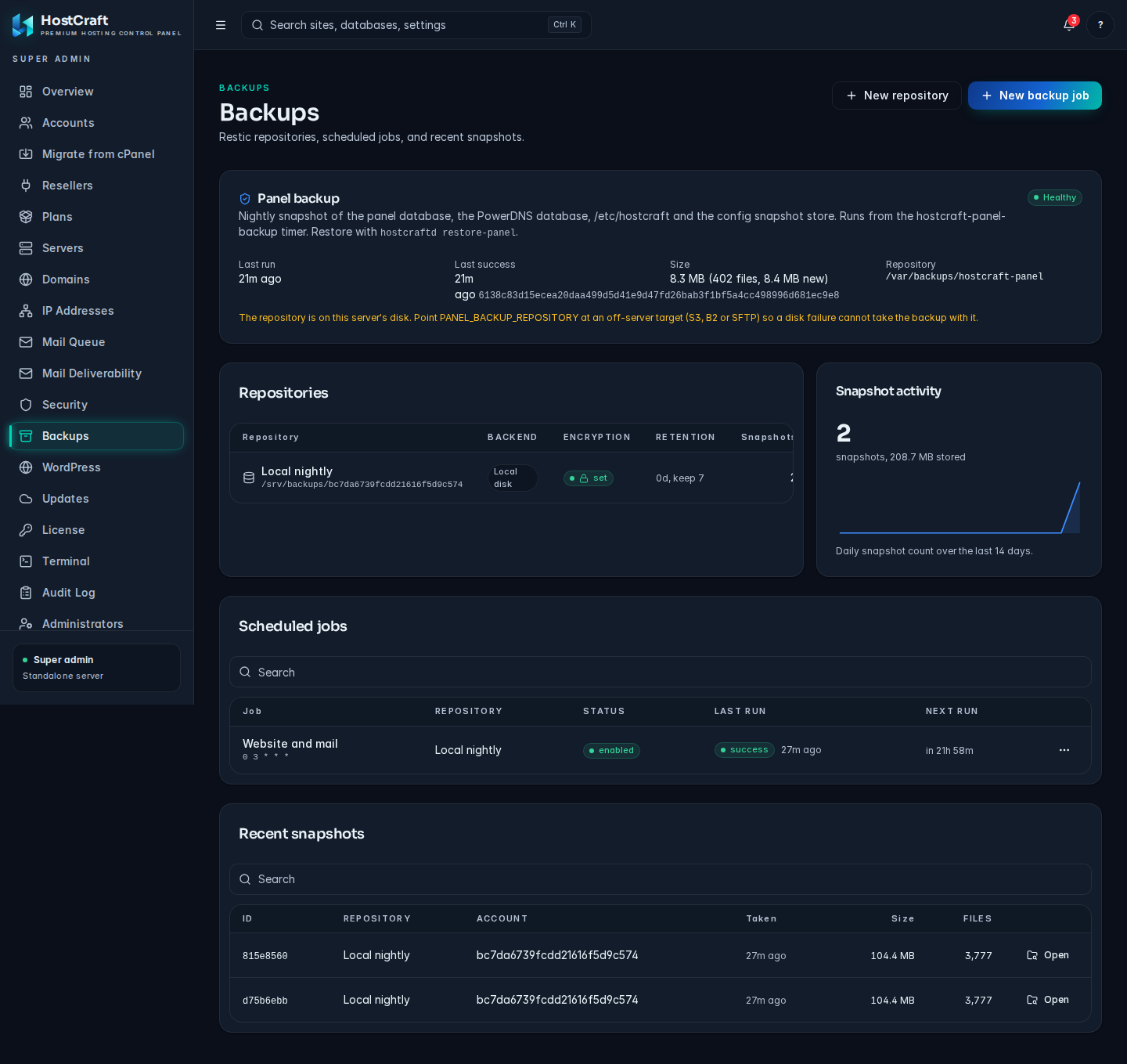
Section titled “Panel backup”The Panel backup card shows the health of the nightly snapshot that the hostcraft-panel-backup timer takes of the panel database, the PowerDNS database, /etc/hostcraft and the config snapshot store.
| Badge | Meaning |
|---|---|
| Healthy | The last run succeeded on schedule. |
| Waiting for first run | Configured but has not run yet. |
| Overdue | The last success is older than expected. Check the timer on the server. |
| Last run failed | The error is shown on the card. |
| Not configured | No repository is set. |
When it has run, the card shows Last run, Last success (with the snapshot ID), Size and Repository.
To configure it, set PANEL_BACKUP_REPOSITORY and PANEL_BACKUP_PASSWORD in /etc/hostcraft/panel-backup.env on the server, then run hostcraftd backup-panel once as root. To restore the panel from it, use hostcraftd restore-panel.
Repositories
Section titled “Repositories”A repository is the destination a backup job writes to. Each repository belongs to one account.
The repositories table
Section titled “The repositories table”| Column | Meaning |
|---|---|
| Repository | Name and location. |
| Backend | S3 compatible, Backblaze B2, SFTP or Local disk. |
| Encryption | set when an encryption password is stored. |
| Retention | Days to keep and how many recent snapshots to keep. |
| Snapshots and Size | What is stored in it now. |
Create a repository
Section titled “Create a repository”-
Click New repository.
-
Account: the account the repository belongs to.
-
Name: for example
offsite-s3. -
Backend and Location:
Backend Location format Credentials S3 compatible s3.amazonaws.com/bucket/pathorhttps://s3.example.com/bucket/path(works with Cloudflare R2, Wasabi, MinIO)Backend credentials (KEY=value per line): AWS_ACCESS_KEY_ID=...andAWS_SECRET_ACCESS_KEY=...Backblaze B2 bucket:pathB2_ACCOUNT_ID=...andB2_ACCOUNT_KEY=...SFTP user@host:/pathSSH private key and optional SSH port (default 22). The key is stored encrypted; the server's host key is trusted on first connection and pinned after that. Local disk A path on this server, for example /var/backups/resticNone -
Encryption password: encrypts every snapshot. Store it in a password manager. Without it the backups cannot be read.
-
Retention days (default 30) and Keep last (default 7).
-
Click Create. HostCraft initialises the encrypted restic repository at the destination.
Repository actions
Section titled “Repository actions”Open the repository's row menu:
- Stats and retention: shows Stored, Snapshots, Files and Dedup ratio, and lets you change the Name and retention: Days, Keep last, Weekly and Monthly. Click Save.
- Test connection: checks the destination is reachable and whether the repository is initialised.
- Prune now: removes snapshots outside the retention policy and reclaims space, after you confirm.
- Delete repository: removes the repository from HostCraft. A second prompt asks whether to also delete the remote restic data. Answer Cancel to keep the data at the destination.
Scheduled jobs
Section titled “Scheduled jobs”A job backs up chosen paths of an account to a repository on a schedule.
Create a job
Section titled “Create a job”- Click New backup job.
- Account, Name and Repository (only that account's repositories are listed; "No repository for this account" means you need to create one first).
- Schedule (cron): a standard five field cron expression. The default
0 2 * * *runs daily at 02:00 server time. - Paths (one per line): relative to the account's home directory.
.(the default) is the whole home. Absolute paths must stay inside the home. - Include databases: dumps every database the account owns into the snapshot as
.hostcraft-backup/databases/NAME.sql. With this ticked, paths become optional. - Exclude patterns (one per line, optional): for example
cache/or*.log. - Click Create job.
Job actions
Section titled “Job actions”The Scheduled jobs table shows each job's schedule, repository, status (enabled or paused), last run outcome and next run. Open the row menu:
- Run now: start a backup immediately.
- Run history: a drawer listing each run with its outcome, files and bytes processed, the snapshot ID, and the full error text for failed runs (restic errors and database dump failures).
- Edit: change the name, schedule, paths, databases and excludes, then Save.
- Pause schedule / Resume schedule.
- Delete job. Existing snapshots stay in the repository.
Snapshots
Section titled “Snapshots”Snapshot activity shows the number of snapshots, the total stored and a chart of snapshots per day over the last 14 days. Recent snapshots lists each snapshot with its short ID, Repository, Account, Taken, Size and Files.
Browse and restore a snapshot
Section titled “Browse and restore a snapshot”- Click a snapshot row or Open.
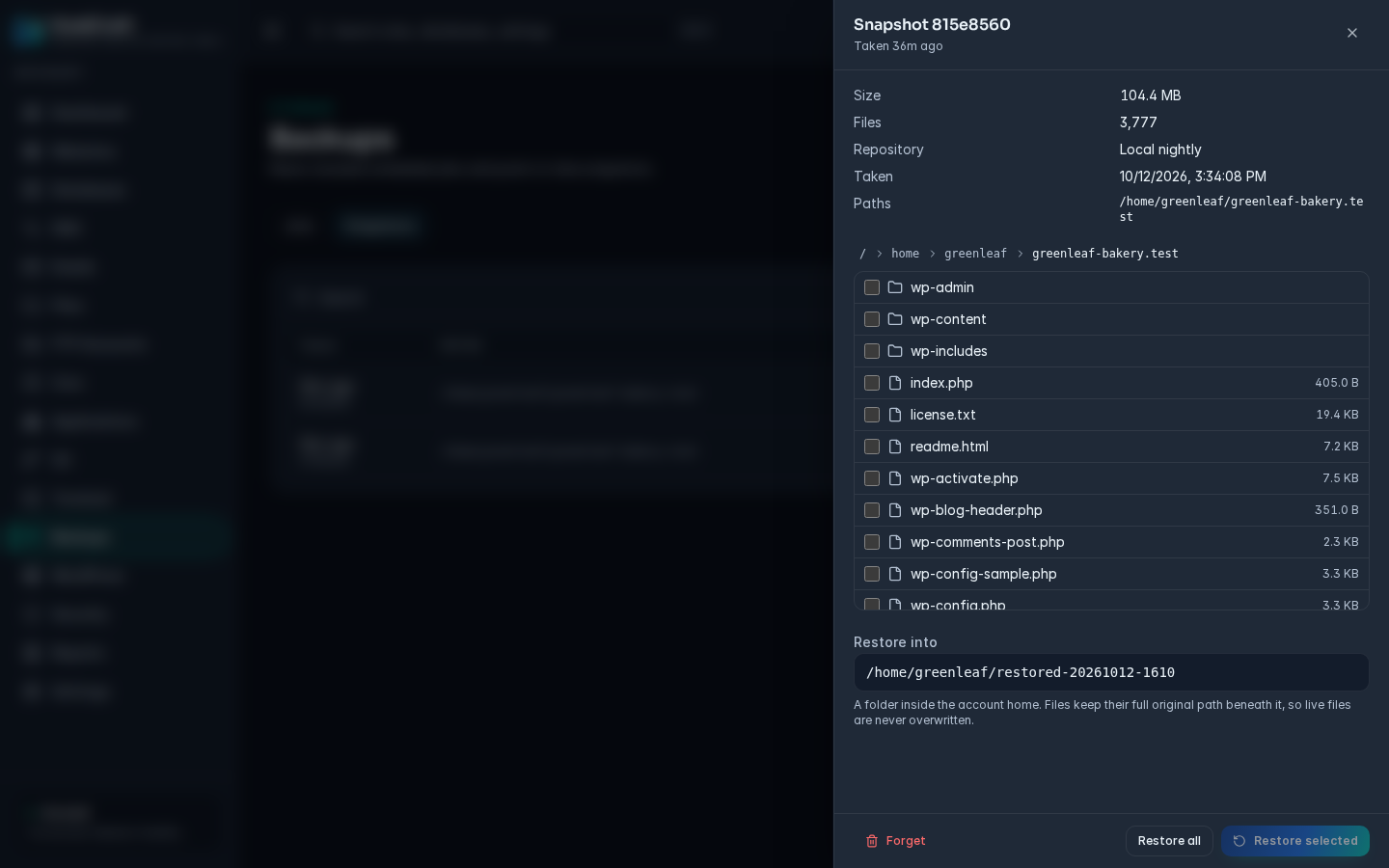
- The drawer shows its size, file count, repository, time taken and paths. An includes database dumps badge appears when databases were included.
- Browse the folders with the breadcrumb and folder names.
- Restore into: a folder inside the account's home. It defaults to
restored-<date>-<time>in the home. Files keep their full original path beneath this folder, so live files are never overwritten. - Either tick the files and folders you want and click Restore selected, or click Restore all for the whole snapshot.
After the restore, copy what you need from the restore folder into place, then delete the restore folder to free disk space.
To restore a database, restore .hostcraft-backup/databases/NAME.sql and import it from the account's Databases page or the terminal.
Forget a snapshot
Section titled “Forget a snapshot”In the drawer, click Forget, then Forget snapshot. The snapshot is removed from the repository. Run Prune now on the repository afterwards to reclaim the space.
Common backup problems
Section titled “Common backup problems”| Symptom | Fix |
|---|---|
| Test connection says unreachable | Check the location, credentials and that the server can reach the destination (firewall, bucket region, SFTP port). |
| A job shows failure | Open Run history and read the error. Common causes: wrong credentials, a full destination, or a database dump that failed. |
| Create job stays greyed out | Choose an account and a repository first. |
| Snapshots use more space than expected | Lower the retention numbers in Stats and retention, then Prune now. |
| Panel backup shows Overdue | Check systemctl status hostcraft-panel-backup.timer on the server and run hostcraftd backup-panel by hand to see the error. |