
Installation
HostCraft installs as a single Go binary (hostcraftd). The one-liner is the supported default. The manual path lets you inspect every step before running it.
Requirements
Section titled “Requirements”| Resource | Minimum | Recommended |
|---|---|---|
| OS | Ubuntu 26.04 LTS or Ubuntu 24.04 LTS (other distributions are refused) | Ubuntu 26.04 LTS |
| CPU | 8 vCPU | 16 vCPU |
| RAM | 32 GB | 64 GB |
| Disk | 200 GB SSD | 500 GB NVMe with /home on XFS |
| Architecture | x86-64 or ARM64 | |
| Network | Public IPv4, optional IPv6 |
The 8 vCPU / 32 GB floor is what the daemon's performance targets are measured against: 1000+ sites, p95 read latency under 100 ms. Smaller boxes work for development or low-site-count deployments but hit the ceiling sooner and are not supported for production migrations.
/home on XFS is recommended because HostCraft uses XFS project quotas for per-account disk limits. ext4 works but falls back to filesystem-level user quotas, which weakens per-account isolation.
DNS prerequisites
Section titled “DNS prerequisites”Before you run the installer, create an A record (and optionally AAAA) pointing your chosen panel hostname at the server's public IP. Caddy provisions a Let's Encrypt certificate for this hostname on first boot. That requires ports 80 and 443 to be reachable from the internet at the time of install.
panel.example.com A 203.0.113.10panel.example.com AAAA 2001:db8::1 # optionalOpen the following ports from the public internet before you run the installer:
| Port | Protocol | Purpose |
|---|---|---|
| 80 | TCP | HTTP customer sites, ACME HTTP-01 for site certificates |
| 443 | TCP | HTTPS customer sites |
| 2087 | TCP | HTTPS panel (Caddy) |
| 25 | TCP | Inbound SMTP |
| 587 | TCP | Mail submission |
| 993 | TCP | IMAPS |
| 995 | TCP | POP3S |
| 7700 | TCP | HostCraft REST/WebSocket API (keep behind VPN or firewall in production) |
Caddy is used as the TLS terminator for the panel, which is served on port 2087 (2086 redirects to it), because nginx owns 80 and 443 for customer sites. The HostCraft daemon listens on loopback only (127.0.0.1:7700) for security. Caddy handles auto-renewal and HTTP-to-HTTPS redirects. For IP-only or private development installs where public ACME is unavailable, Caddy falls back to an internal self-signed CA.
DNS preflight
Section titled “DNS preflight”The installer checks DNS before it installs anything:
- The panel hostname is resolved through public DNS (Cloudflare DNS over HTTPS, then
dig @1.1.1.1) and compared with the server's public addresses (interfaces plus an echo service, or--public-ips). A single-label name such asubuntu-s-1vcpu, a missing record, or a record pointing elsewhere produces a prompt on the terminal (also undercurl | bash, since prompts read from/dev/tty), a warning with--yesor when no terminal is available, and an abort with--strict-dns. ns1/ns2(or--nameservers) are checked for public A records. Missing ones are printed as the exact glue/A records to create at the registrar.- The detected addresses are saved as
server.public_ipsin/etc/hostcraft/config.yaml. The daemon only lets Caddy request a public certificate when the panel hostname resolves to one of them (or to a public address on an interface), so a wrong record never loops on ACME and never burns Let's Encrypt rate limits. After a failed attempt Caddy itself retries against the Let's Encrypt staging CA before trying production again. - Every public IP also gets a panel endpoint on Caddy's internal CA, so
https://<public-ip>:2087works (with a browser warning) before DNS is fixed. - The final banner prints
https://<hostname>:2087only after a trusted certificate is actually served; otherwise it prints the IP URL and what to fix. After fixing DNS, runsystemctl restart hostcraftdto request the certificate.
Servers behind 1:1 NAT
Section titled “Servers behind 1:1 NAT”If the server's NIC has a private address (such as 10.0.0.5) and the router maps a public address to it one to one, the installer detects it: the public IPv4 goes to server.public_ips and dns.default_ip, and the pair is saved as server.nat_map: 10.0.0.5=203.0.113.10. Services bind the private address; DNS records and everything shown to customers use the public one. Point the panel hostname's A record at the public address. Pass --public-ips and --nat-map when detection gets it wrong. Clients on the same private network reach the public address only if the router supports hairpin NAT (NAT loopback). See Configuration: Servers behind 1:1 NAT for dedicated IPs and restores.
One-liner install
Section titled “One-liner install”curl -fsSL https://hostcraft.io/install.sh | sudo bash -s -- \ --password='<random>' \ --panel-hostname=panel.example.comThe --password argument seeds the initial admin account. If you omit it, the installer generates a random password and prints it at the end. Do not use this password in production after first login; enrol a WebAuthn passkey instead (see First-boot ceremony).
Installer flags
Section titled “Installer flags”| Flag | Effect |
|---|---|
--email=<addr> |
Seed admin email. Prompted for when omitted. |
--password=<pass> |
Seed admin password. Omit to auto-generate. |
--panel-hostname=<host> |
FQDN for the panel. Caddy requests a LE cert for this host. |
--channel=stable |
Update channel: stable (default), beta, or dev |
--version=1.4.5 |
Pin a specific release version |
--legacy-php |
Also provision PHP 5.6, 7.0, 7.1, 7.2, 7.3 with legacy-mode hardening |
--skip-stack |
Skip provisioning managed services (advanced; for testing only) |
--skip-sig-verify |
Skip release manifest signature verification (offline disaster recovery only) |
--binary=<path> |
Sideload a local hostcraftd build (or set HOSTCRAFT_BINARY). Skips the manifest download and signature check for that binary only; every other path keeps signature verification mandatory. For air-gapped installs and test rigs. |
--public-ips=<ip,ip> |
Public addresses of this server (or HOSTCRAFT_PUBLIC_IPS). Default: detected. Set it behind NAT when detection is wrong. |
--nat-map=<priv=pub,...> |
1:1 NAT pairs, private NIC address = public address (or HOSTCRAFT_NAT_MAP). Default: detected when the first public IPv4 is not on any interface. See Servers behind 1:1 NAT. |
--yes |
Skip every prompt (or HOSTCRAFT_ASSUME_YES=1): admin email, panel hostname, SMTP relay and the DNS preflight confirmation. DNS problems become warnings. |
--strict-dns |
Abort when the panel hostname does not resolve to this server (or HOSTCRAFT_STRICT_DNS=1). |
--nameservers=<ns1,ns2> |
NS hostnames new DNS zones are created with (or HOSTCRAFT_NAMESERVERS). Defaults to ns1 and ns2 under the panel hostname's parent domain. |
Interactive prompts
Section titled “Interactive prompts”When a terminal is available (including curl ... | sudo bash, because the installer reads answers from /dev/tty), the installer asks for any value not given as a flag:
- Admin email, used for login, password reset and alerts. Typed addresses are validated;
@localhostis rejected. - Panel hostname, defaulting to
hostname -f. - SMTP relay (optional): host, port, username, password, From address and implicit TLS.
With --yes, or when no terminal is available, nothing is prompted. A missing admin email falls back to admin@localhost, which cannot receive password resets or alerts; change it in Admin > Users after first login. An email supplied as a flag that is not deliverable (such as admin@localhost) is accepted with a warning.
Ubuntu 26.04 notes
Section titled “Ubuntu 26.04 notes”Ubuntu 26.04 LTS (Resolute) is the primary target. Things that differ from 24.04:
- systemd 259 runs cgroup v2 only. HostCraft does not depend on cgroup v1 interfaces.
sudois provided by sudo-rs and the core utilities by uutils coreutils. The installer runs as root and does not call sudo itself.- Dovecot 2.4 uses a new configuration syntax. HostCraft renders 2.4-style config when it detects Dovecot 2.4.
What the installer provisions
Section titled “What the installer provisions”The installer detects the distro and brings up the full managed-services stack:
- nginx (stable branch from the nginx.org repository) with the OWASP CRS bundle wired into Coraza at
/etc/hostcraft/security/waf/owasp-crs/ - PHP-FPM at versions 7.4 through 8.5 from packages.sury.org (Debian and Ubuntu, including 24.04, since
ppa:ondrej/phphas no 26.04 series) or Remi (EL). New sites default to PHP 8.5.--legacy-phpadds 5.6 through 7.3. - MariaDB 11.8 LTS from the upstream MariaDB repository, with a
hostcraft_adminuser. Credentials written to/etc/hostcraft/database.env(mode 0600). - PowerDNS Authoritative 5.1 from repo.powerdns.com, with the
gmysqlbackend on a dedicatedpdnsdatabase. - Postfix, Dovecot, and Rspamd. On Ubuntu 26.04 this is Postfix 3.10 and Dovecot 2.4 from the archive, and Rspamd comes from the Ubuntu archive because upstream does not publish a 26.04 suite yet. Other releases use the upstream Rspamd repository.
- Snuffleupagus PHP RASP extension (v0.9.0), built from source with phpize for each installed PHP version because no distro repository packages it. PHP 5.6 is not supported upstream. The installer prints which versions built and which did not; pools on versions without the extension run without RASP rules, and the daemon only references the extension where the build succeeded.
- acme.sh at
/opt/acme.sh/acme.sh. - wp-cli at
/usr/local/bin/wp. - ClamAV (1.5 on Ubuntu 26.04;
clamdandfreshclam) with a daily LMD signature-refresh cron. - CrowdSec from packagecloud (falls back to the Ubuntu 24.04 suite when the host release is not published yet), with the local API up, a bouncer key minted via
cscliand stored in/etc/hostcraft/crowdsec.env. - Redis for the Rspamd backend and panel object cache.
- GoAccess for visitor analytics.
- restic for backup repositories.
- inotify limits raised via
/etc/sysctl.d/60-hostcraft.confto support fsnotify watchers across thousands of sites.
The installer also creates the hostcraft-admin group. The daemon serves its gRPC API on /run/hostcraft/hostcraftd.sock (mode 0660, group hostcraft-admin); root on the server can use it directly, for example sudo grpcurl -plaintext -unix /run/hostcraft/hostcraftd.sock list, and group members can use it with an API token. See Developer reference.
/usr/local/bin/hostcraftd is a symlink to /opt/hostcraft/bin/current/hostcraftd. Each release lives in /opt/hostcraft/bin/v<X.Y.Z>/; the current, stable and previous links drive in-panel updates and rollback (see Operations). The installer installs the release signing key shipped next to it (cosign.pub, or --update-pubkey=<file>) as /etc/hostcraft/update/cosign.pub.
Downloads and integrity
Section titled “Downloads and integrity”The installer downloads from two kinds of places:
- updates.hostcraft.io, JCR's update server: the HostCraft release (
manifest/<channel>/latestplus a detached.sig, andbin/<version>/<arch>/hostcraftd) and a mirror of every third-party release artifact it needs (FrankenPHP, Caddy, OWASP CRS and its WordPress plugin, SnappyMail, wp-cli, acme.sh) underdeps/, listed in the signeddeps/manifest.json. - Distribution package repositories (Ubuntu or EL, nginx.org, Sury or Remi PHP, MariaDB, PowerDNS, Rspamd, CrowdSec), which carry their own package signatures.
Signatures are checked with openssl against the HostCraft release key built into the installer (the same key as installer/cosign.pub); cosign is not needed. Third-party artifacts must also match the sha256 pinned in the installer's deps-pins block. If the mirror cannot be reached, the installer downloads from the upstream project instead and still accepts only the pinned bytes, so an upstream re-upload or outage cannot change what gets installed. Caddy is installed from the pinned release binary (with a caddy user and systemd unit), not from Caddy's apt repository.
| Flag / variable | Effect |
|---|---|
--mirror=<url> / HOSTCRAFT_MIRROR |
Artifact mirror (default https://updates.hostcraft.io) |
--mirror-pubkey=<file> / HOSTCRAFT_MIRROR_PUBKEY |
Key for the deps manifest (default: built-in release key). For private mirrors |
--updates-base=<url> / HOSTCRAFT_UPDATES_BASE |
Where the release manifest and binary come from |
--fetch-deps-only=<dir> |
Download and verify every pinned artifact for this architecture into <dir>, then exit. Useful to pre-check connectivity or stage an offline install |
Firewalls with an egress allowlist need updates.hostcraft.io and the distribution repositories above; github.com and objects.githubusercontent.com are only used when the mirror is unreachable.
Manual install
Section titled “Manual install”Download the binary directly if you want to inspect everything before running it. Save the release public key first: copy installer/cosign.pub from the HostCraft repository to /tmp/cosign.pub.
# 1. The signed release manifest, its detached signature and the# release public key (also at installer/cosign.pub in the repo)B=https://updates.hostcraft.iocurl -fsSL "$B/manifest/stable/latest" -o /tmp/manifest.jsoncurl -fsSL "$B/manifest/stable/latest.sig" -o /tmp/manifest.json.sigopenssl dgst -sha256 -verify /tmp/cosign.pub \ -signature <(base64 -d /tmp/manifest.json.sig) /tmp/manifest.json
# 2. The binary named in the manifest, checked against its sha256curl -fsSL "$(jq -r '.binary["linux/amd64"].url' /tmp/manifest.json)" -o /tmp/hostcraftdecho "$(jq -r '.binary["linux/amd64"].sha256' /tmp/manifest.json) /tmp/hostcraftd" | sha256sum -c -
# 3. Install the binary in the release layout (in-panel updates and# rollback need it) and the systemd unitV="$(/tmp/hostcraftd version | awk '{print $2}')"install -D -m 0755 /tmp/hostcraftd "/opt/hostcraft/bin/v$V/hostcraftd"for l in current stable; do ln -sfn "/opt/hostcraft/bin/v$V" "/opt/hostcraft/bin/$l"; doneln -sfn /opt/hostcraft/bin/current/hostcraftd /usr/local/bin/hostcraftdcurl -fsSL "$B/installer/stable/latest/hostcraft-installer.tar.gz" | tar -xzO packaging/hostcraftd.service \ > /lib/systemd/system/hostcraftd.servicesystemctl daemon-reload
# 4. Initialise the daemon (writes /etc/hostcraft/config.yaml and seeds the DB)hostcraftd init \ --panel-hostname=panel.example.comsystemctl enable --now hostcraftdLegacy PHP flag
Section titled “Legacy PHP flag”Pass --legacy-php to the one-liner installer (or set legacy_php_allowed: true in /etc/hostcraft/config.yaml and re-run provisioning) to install PHP 5.6, 7.0, 7.1, 7.2, and 7.3 alongside the modern versions.
Legacy PHP pools receive mandatory hardening: tight open_basedir, an aggressive disable_functions list, Snuffleupagus rules (where the extension built for that version; never on 5.6), and a stricter Coraza WAF profile. A persistent dashboard warning badge shows the EOL status and CVE count for the PHP version each site uses.
Legacy PHP plans carry an upcharge in the license model because they cost more in security operations. The legacy_php_allowed feature flag in the license JWT gates whether an operator can assign sites to legacy PHP versions.
First-boot ceremony
Section titled “First-boot ceremony”The seed admin account is created with a password-only credential. You have a 24-hour grace period to add a second factor. Before the grace period expires, enrol a WebAuthn passkey (recommended) or an authenticator app under Settings > Sign-in & 2FA.
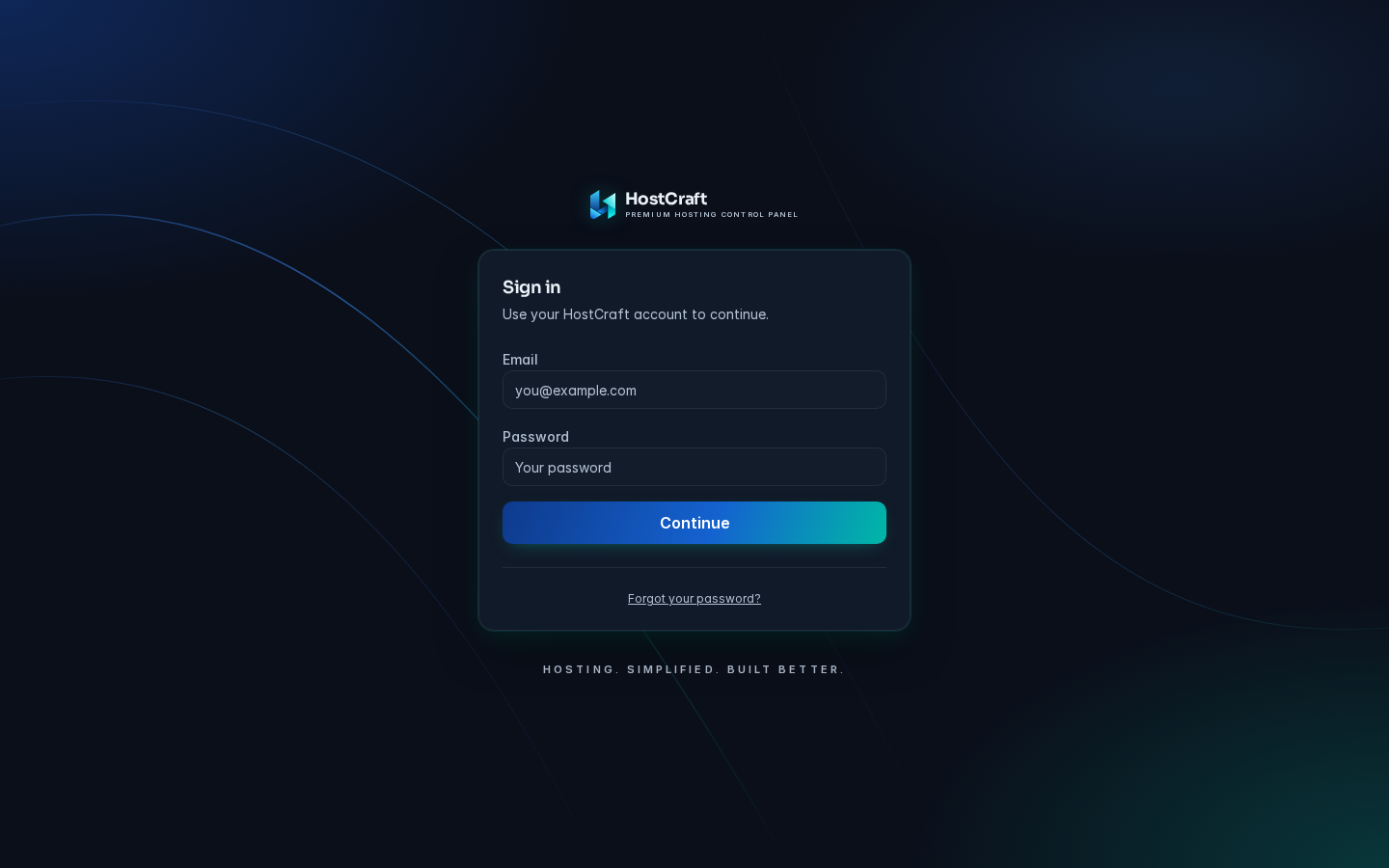
The sign-in screen you reach on first boot.
- Log in with the seed admin email and password.
- Go to Settings -> Security -> Passkeys.
- Click "Enrol passkey" and complete the browser WebAuthn ceremony (Face ID, Touch ID, hardware key, or platform authenticator).
- Optionally enrol TOTP as a secondary factor and save the ten recovery codes in a password manager.
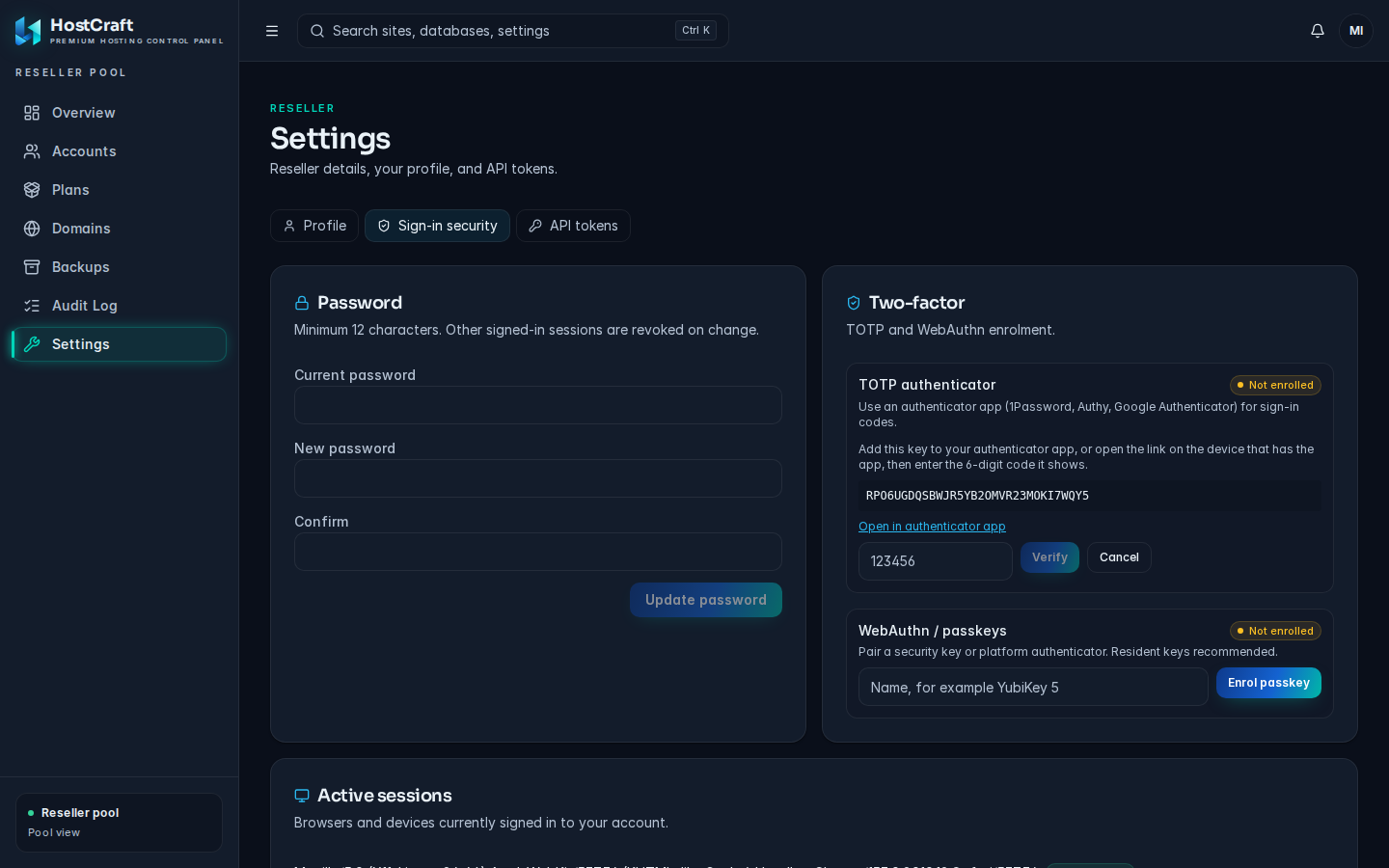
Sign-in security: enrol a passkey or an authenticator app.
Two-factor sign-in is required for super_admin and server_admin roles by default. A WebAuthn (W3C Level 2) passkey is recommended; an authenticator app (TOTP) also satisfies the policy. A banner shows the deadline on every page until a factor is enrolled. After the 24-hour grace period the panel shows only the enrolment screen until one is added. The roles and grace period are configurable under Admin > Settings > Sign-in policy.
Post-install verification
Section titled “Post-install verification”Run the doctor command immediately after install and after every update:
sudo hostcraftd doctordoctor probes the following and prints a pass/fail line for each:
| Probe | What it checks |
|---|---|
nginx |
nginx module reports healthy (service running, config applied) |
phpfpm |
Each provisioned PHP-FPM pool is running |
caddy |
Caddy (panel TLS front) is running |
account |
Account module state is consistent |
domain |
Domain module state is consistent |
web |
Site vhosts match panel state |
security |
Aggregate of the security stack (WAF, CrowdSec, ClamAV, FIM, network monitor) with a per-component breakdown |
Exit code 0 means all probes passed. Any non-zero exit means at least one probe failed; the output names the failing probe and the recommended fix. Do not put a box into production until doctor exits 0.
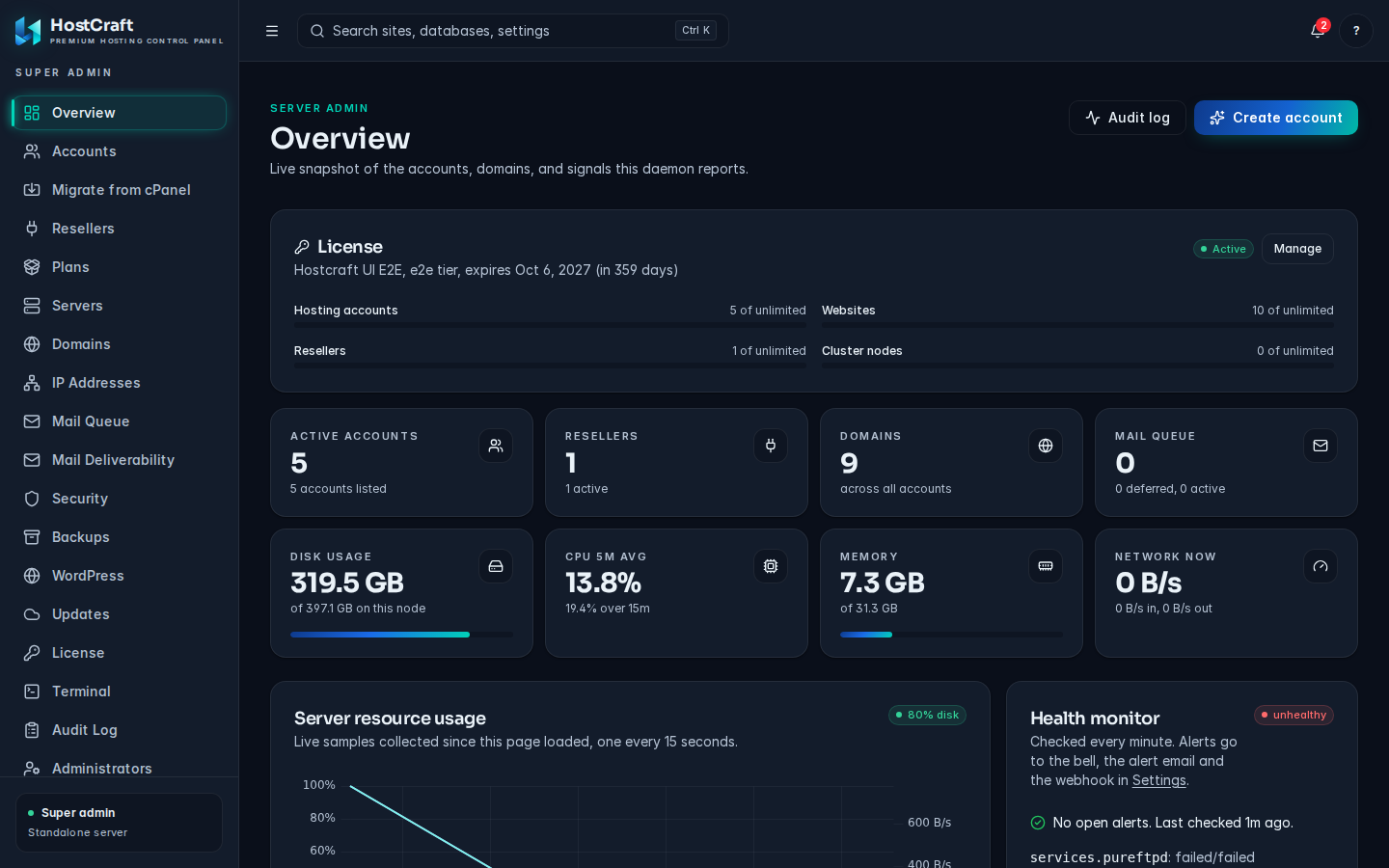
After a healthy install, the admin Overview shows live server state.