
WordPress
The WordPress page (WP Toolkit) gives you one place to manage every WordPress site on your account: install, update, clone to staging, back up, harden and scan for known vulnerabilities.
Open it from the sidebar: WordPress.
Who can use this page
Section titled “Who can use this page”| Role | Access |
|---|---|
| Account owner | Full access to the WordPress sites on their own account. |
| Sub-user | Sees the page only when the account owner granted WordPress access. The read-only support preset can open the hardening check and vulnerability list but cannot change anything. |
| Server administrator | Uses WordPress in the admin area, which lists installs across every account (see For server administrators). |
| Reseller | Not shown in the reseller area. |
| Mailbox user | No access. |
The WordPress screen
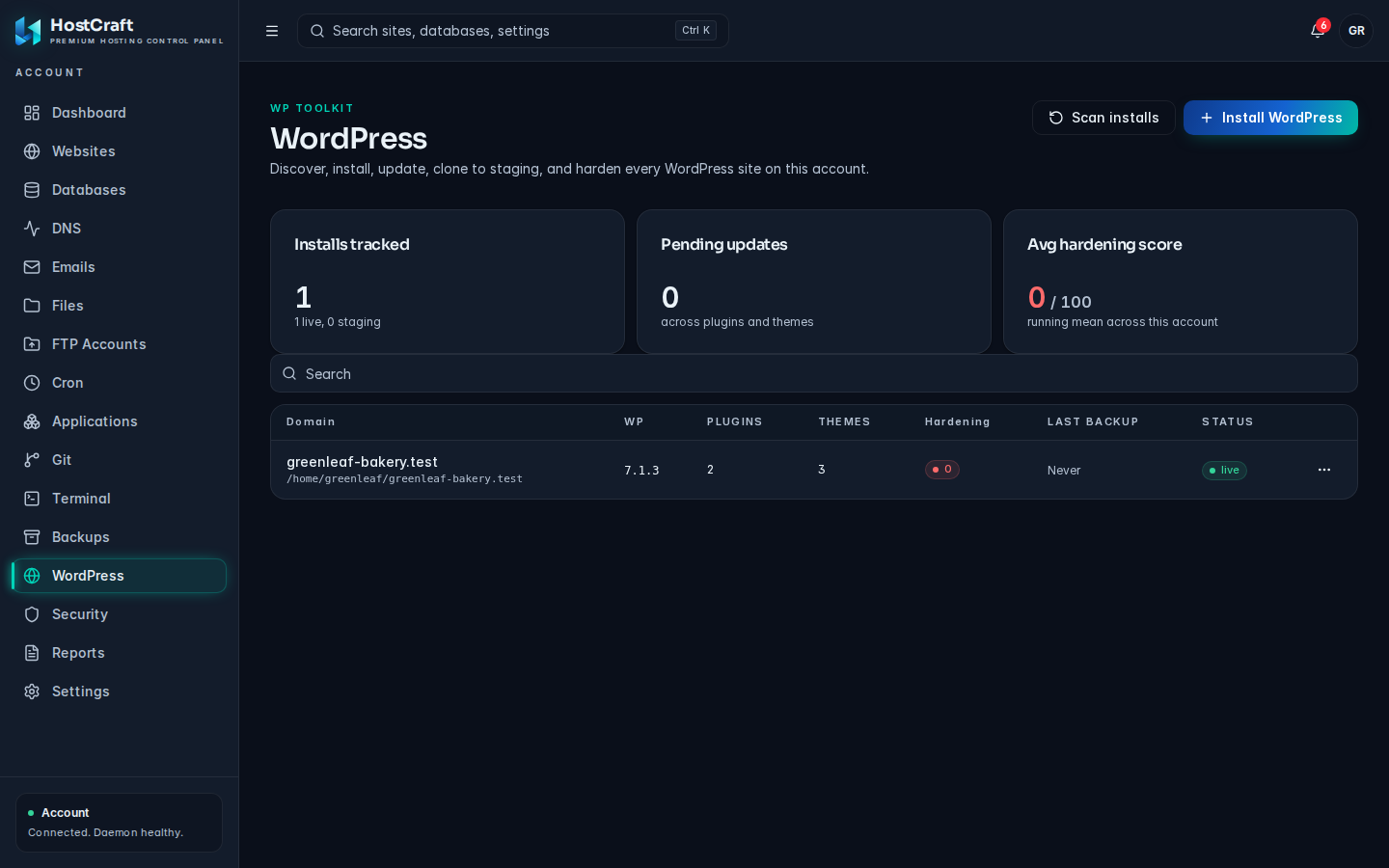
Section titled “The WordPress screen”Three summary cards sit at the top:
- Installs tracked: how many installs, and how many are live or staging.
- Pending updates: the number of plugin and theme updates waiting.
- Avg hardening score: the average score out of 100 across the account.
The table lists each install:
| Column | Meaning |
|---|---|
| Domain | The site's domain, with its folder below it. |
| WP | The WordPress version. |
| Plugins / Themes | How many are installed, with a badge when updates are available. |
| Hardening | The hardening score from 0 to 100. |
| Last backup | When a WP Toolkit backup was last taken, or never. |
| Status | live, staging, discovered (found by a scan), suspended or failed. |
Use the search box to filter by domain. Each row has an actions menu (the three dots) holding every action described below.
Find existing WordPress sites
Section titled “Find existing WordPress sites”Sites copied from cPanel, or installed by hand, are not tracked until you scan for them. Click Scan installs. HostCraft looks through your home directory for wp-config.php files and adds every WordPress site it finds to the table. Run it again any time you add a site outside the panel.
Install WordPress
Section titled “Install WordPress”- Click Install WordPress.
- Fill in the dialog:
- Domain: the domain the site will run on. The domain must already exist on your account (add it on the Websites page first).
- Site title: for example
My WordPress Site. - Admin username: the first administrator's login. Avoid
admin, which the hardening check flags. - Admin email: where WordPress sends admin notices.
- Admin password: the first administrator's password.
- Click Install. Every field is required.
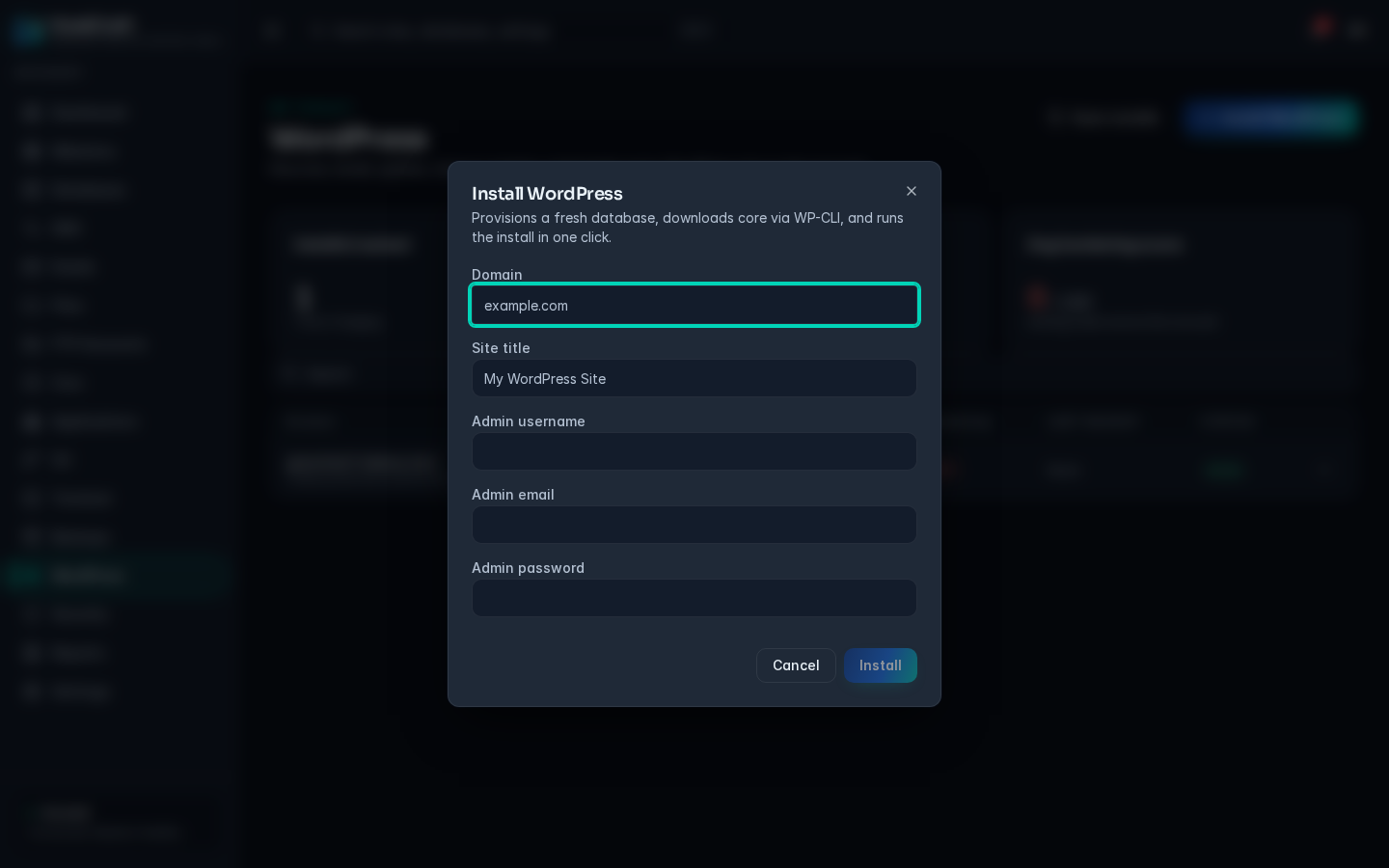
HostCraft creates a fresh database and database user, downloads WordPress with WP-CLI and runs the installer. The new site appears in the table when it is done.
Licence and plan limits
Section titled “Licence and plan limits”- Installing new WordPress sites needs the WordPress Toolkit feature in the server's licence. Without it the dialog shows an error saying WordPress Toolkit installs are not included, with a hint for the administrator. You can still scan, update, back up and harden sites you already have.
- Your hosting plan can limit how many WordPress installs an account may have. When it is reached you see "plan limit exceeded".
- While the server's licence is expired, new installs are paused. Existing sites keep working.
Updates
Section titled “Updates”Update core, plugins and themes
Section titled “Update core, plugins and themes”- Open the row's actions menu and choose Update core, plugins and themes.
- The dialog lists:
- WordPress core with the installed version. Optionally enter a Target version; leave it blank for the latest.
- Each plugin and theme with an update, showing the current and new version.
- Click Update next to one item, Update core, or Update everything to run them all one after another.
Updated items show an updated badge. If one fails, the dialog names it and the error. Updates run in place on the live site, so take a backup first, or use Smart update instead.
Smart update (staging test first)
Section titled “Smart update (staging test first)”Choose Smart update (staging test first) from the row's actions menu. HostCraft clones the site to a temporary staging copy, applies every core, plugin and theme update there, and tests that the copy still works. If it passes, the updated copy replaces the live site. If it fails, the staging copy is thrown away and the live site is left exactly as it was. A message confirms when Smart update has started.
Smart update is not offered on a staging install.
- Enable debug mode / Disable debug mode turns
WP_DEBUGon or off. Turn it off again when you are done: the hardening check flags it. - Search and replace runs
wp search-replaceacross every database table and handles serialized data correctly. Typical use is changing the site address after a move.- Enter Search for (for example
http://old.example.com) and Replace with (for examplehttps://new.example.com). - Click Preview to count the matches without changing anything.
- Click Replace and confirm to make the change. The dialog shows how many replacements were made.
- Enter Search for (for example
- Reset admin password: enter the WordPress Username and click Generate. The new password is shown once only. Copy it before you click Done.
Backups
Section titled “Backups”- Back up now saves the site's files and database. A message confirms when it is saved.
- Restore from backup lists the backups with their date, size and file count. Each is marked Manual backup or Taken before a staging promote. Click Restore and confirm. Files and the database go back to that backup; files added since are kept, and everything that existed in the backup is overwritten.
These WP Toolkit backups are separate from the account backups on the Backups page.
Staging
Section titled “Staging”A staging copy is a full copy of the site on a subdomain where you can test changes safely.
Clone to staging
Section titled “Clone to staging”- Open the row's actions menu and choose Clone to staging.
- Enter the Subdomain label (default
staging, givingstaging.yourdomain). Use lowercase letters, digits and hyphens. - Leave Copy media uploads ticked to copy the uploads folder, or untick it to save space and time.
- Click Clone.
Files and the database are copied and every URL is rewritten to the new address. The copy appears in the table with the status staging.
Promote or discard a staging copy
Section titled “Promote or discard a staging copy”On a staging row the actions menu offers:
- Promote staging to live: after you confirm, the live site is backed up first and then replaced by the staging copy. If something goes wrong you can restore the backup marked "Taken before a staging promote".
- Discard staging: after you confirm, the staging copy's files, database and website are removed. The live site is not touched.
You cannot clone a staging copy again; clone from the live site.
Security
Section titled “Security”Hardening check
Section titled “Hardening check”Choose Hardening check from the actions menu. HostCraft checks the site live against a hardening baseline and shows a score and one line per item with a status (pass, warn or fail), a severity and a recommendation.
| Item | What is checked |
|---|---|
wp_config_perms |
wp-config.php is not readable by other users. |
wp_content_perms |
Safe permissions on wp-content. |
file_perms |
Safe permissions on the site's files. |
auth_keys_fresh |
The secret keys in wp-config.php have been changed recently. |
disallow_file_edit |
The theme and plugin editor in wp-admin is turned off. |
automatic_updates |
Automatic updates are enabled. |
debug_off |
WP_DEBUG is off. |
table_prefix |
The database table prefix is not the default wp_. |
force_ssl_admin |
The wp-admin login is only served over HTTPS. |
xml_rpc_disabled |
XML-RPC is turned off. |
no_default_admin |
No user is called admin. |
wp_version_exposure |
The WordPress version is not advertised (for example by readme.html). |
- Apply fix appears on items that warn or fail. It fixes that one item and tells you whether it worked.
- Revert appears on passing items that can be undone, and puts the setting back.
Vulnerability scan
Section titled “Vulnerability scan”- Vulnerability scan checks the site's core, plugins and themes against the configured vulnerability feeds. A message tells you how many findings there are.
- Vulnerabilities lists the findings with severity, the affected plugin or theme and version, the CVE number, the version that fixes it and a Reference link.
- Update to fixed version updates that plugin or theme to the fixed version.
- Acknowledge dismisses a finding you have dealt with another way. Enter a Reason (for example "WAF rule blocks the exploit path; verified."). The dismissal is recorded in the audit log and the finding stays visible when you tick Show dismissed.
If there are no findings the dialog says "No known vulnerabilities". Scan again after every plugin or theme update.
Delete an install
Section titled “Delete an install”Choose Delete install from the actions menu and confirm. This drops the site's database and deletes its files. It cannot be undone, so take a backup first if you might need the site again.
For server administrators
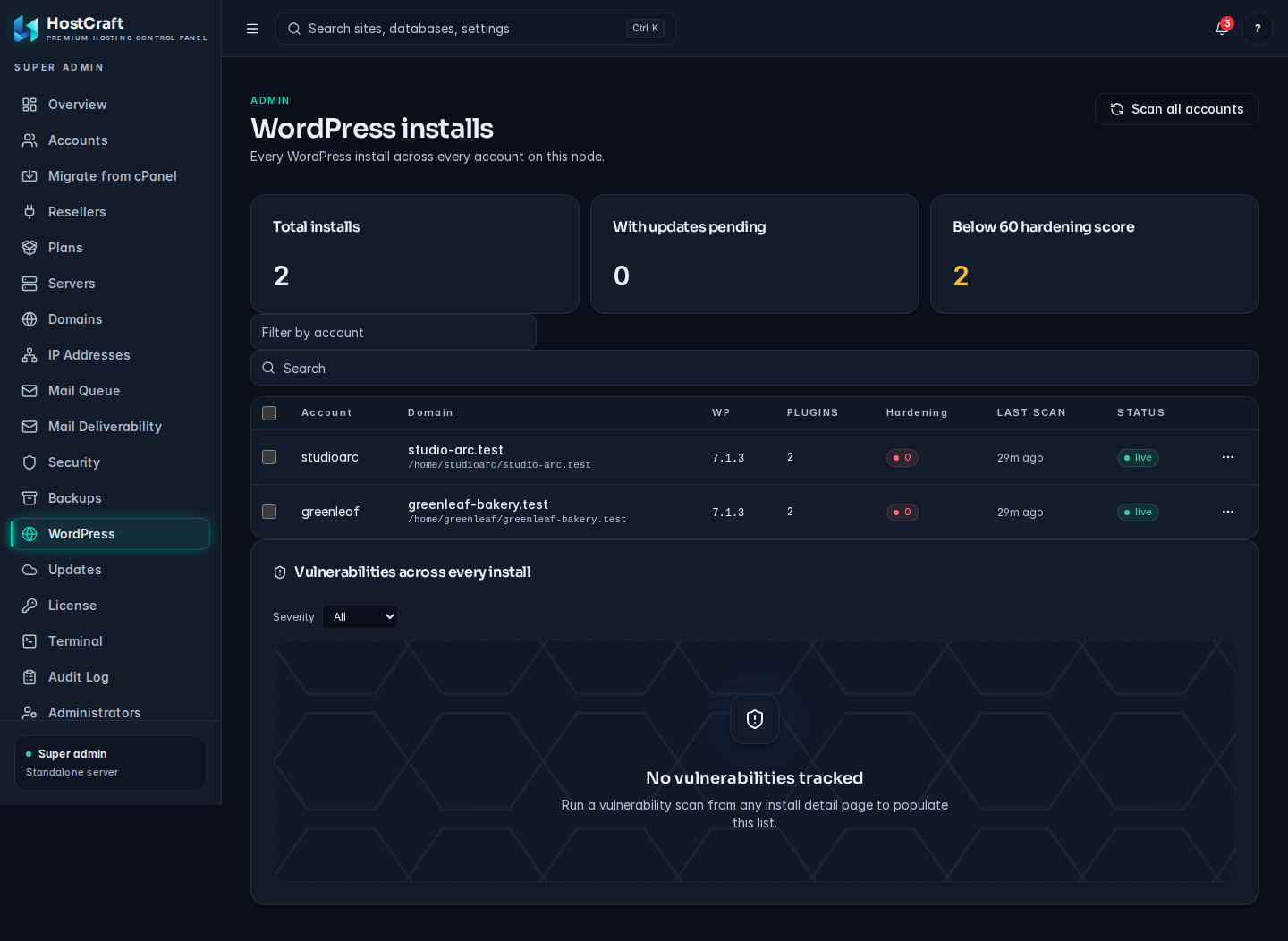
Section titled “For server administrators”WordPress in the admin area lists every install across every account on the server, with an Account column (currently showing the account ID), the Last scan time and the same actions menu on each row.
- Scan all accounts discovers WordPress sites in every account.
- Filter by account id limits the list to one account.
- The cards show Total installs, With updates pending and Below 60 hardening score.
- Select several installs and choose Smart update selected to Smart update them all.
- The vulnerabilities list groups findings across installs, can be filtered by Severity, and offers Schedule update for all affected installs.
Common problems
Section titled “Common problems”| Message or symptom | Cause and fix |
|---|---|
| WordPress Toolkit installs are not included in the licence | Installing new sites needs that licence feature. Ask the server administrator. |
| plan limit exceeded | Your plan's WordPress install limit is reached. Delete an install you no longer need, or ask for a larger plan. |
| A site you know exists is missing | Click Scan installs. |
| target is not a WordPress install | The folder has no working WordPress. Check that wp-config.php is present. |
| source is already a staging install | Clone from the live site, not from a staging copy. |
| Smart update did not change the live site | The test on the staging copy failed, so the live site was kept as it was. Run the updates on a manual staging copy to see what breaks. |
| Apply fix reports the fix did not succeed | Read the recommendation shown with the item. Some items, such as rotating secret keys, may need a manual step. |
| The reset password was lost | Run Reset admin password again; a new password is generated each time. |