
Files
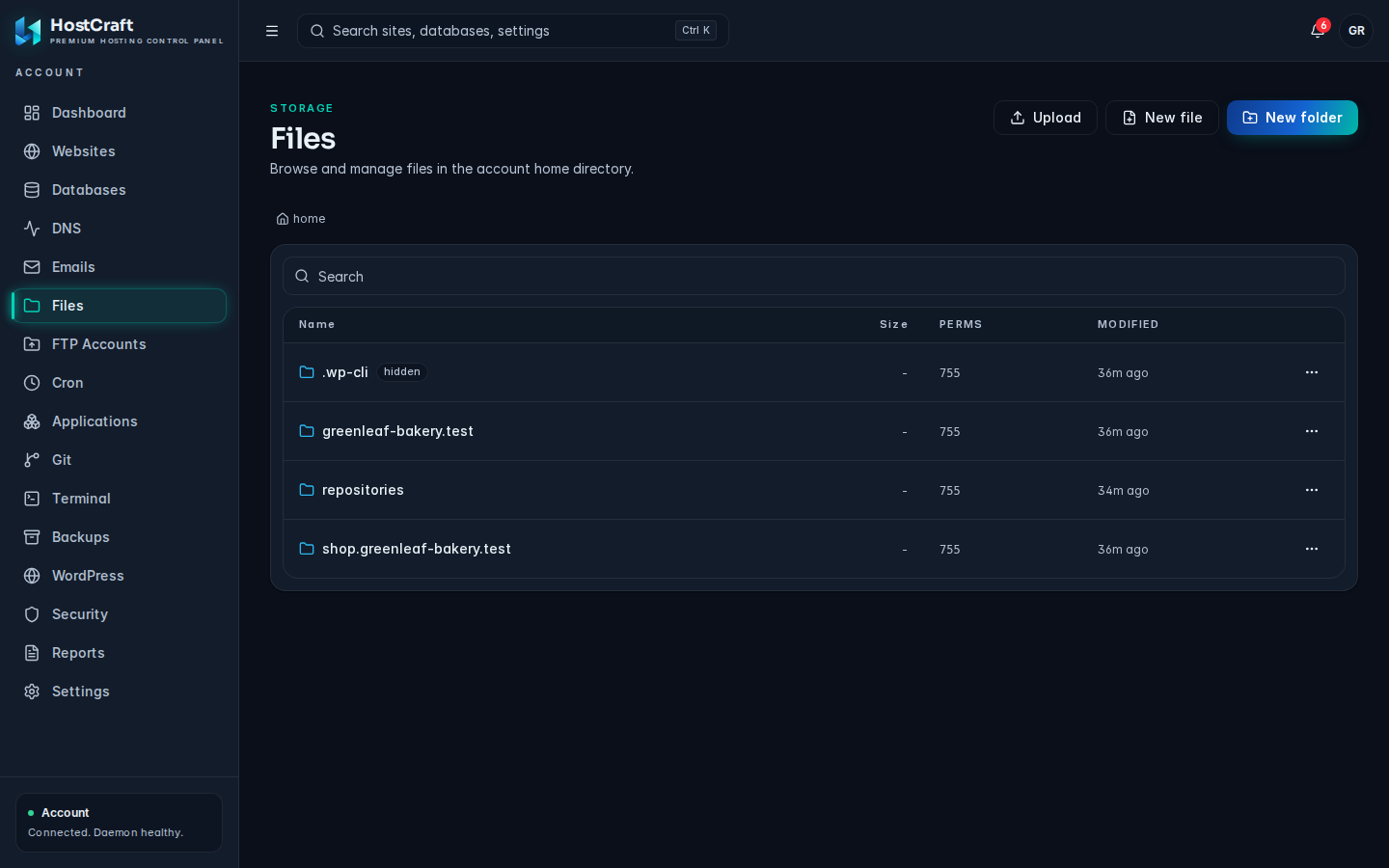
The Files page (sidebar, under Storage) is a file manager for your account home directory. Your websites, logs and configuration all live here. Everything you do happens as your account, and you can never leave your home directory: paths that try to reach outside it are refused.
Who can use this page
Section titled “Who can use this page”| Role | What they can do |
|---|---|
| Account owner | Browse, upload, download, create, edit, rename, copy, change permissions, compress, extract and delete. Changing the owner of a file is not included (server admins only). |
| Sub-user | Only what the account owner granted. With the read only support preset, files open in the editor read only and the action buttons are hidden. |
| Server admin | Everything, including Owner. |
| Reseller, mailbox user | No access. |
All actions stop working while the account is suspended.
Find your way around
Section titled “Find your way around”- The list shows folders first, then files, each with Name, Size, Perms (octal permissions such as
644) and Modified. - Hidden files (names starting with a dot, such as
.htaccess) are shown with a hidden tag. - Symbolic links show their target after an arrow and cannot be opened from the list.
- Click a folder name to open it. Use the breadcrumb above the list (starting at home) to go back up.
- Use the search box to filter the current folder by name. Click a column header to sort.
Upload files
Section titled “Upload files”- Open the folder you want to upload into.
- Click Upload and select one or more files.
- The button shows progress for each file as it uploads.
If a file with the same name already exists, you are asked "... exists. Overwrite?" Choose Cancel to skip that file and continue with the rest.
Uploads count against your disk quota. An upload that would exceed it is refused (see Common errors).
Download a file
Section titled “Download a file”Click the download button on the file's row, or open the actions menu and choose Download. Folders cannot be downloaded directly: compress the folder first and download the archive.
Create a folder or an empty file
Section titled “Create a folder or an empty file”- Click New folder, type a name, and confirm. The folder is created inside the current folder with permissions
755. - Click New file, type a name, and confirm. An empty file is created with permissions
644. If a file with that name already exists, nothing is overwritten and you see an error.
Edit a file
Section titled “Edit a file”- Click the file name, or choose Edit from its actions menu.
- The file opens in a text editor dialog.
- Make your changes and click Save. "Saved." confirms the write. The file keeps its existing permissions.
Files larger than 4 MB cannot be edited in the browser. The editor shows "File is larger than one read window; editing is disabled. Download it instead." Download it, edit it locally, and upload it again.
Rename or move
Section titled “Rename or move”Choose Rename from the actions menu and type the new name. Renaming stays in the same folder. If something already exists with the new name, the rename is refused with "destination exists".
Choose Copy from the actions menu. You are asked for the destination path, prefilled with the same name plus .copy in the same folder. Enter any path inside your home, for example /public_html/backup/index.php. Folders are copied with all their contents. A folder cannot be copied into itself, and an existing destination is not overwritten.
Change permissions
Section titled “Change permissions”- Choose Permissions from the actions menu.
- Enter the mode as 3 or 4 octal digits, for example
644for files or755for folders. Anything else shows "Permissions must be 3 or 4 octal digits, for example 644." - For a folder, you are asked "Apply recursively to contents?" Choose OK to change everything inside it as well.
Common values: 644 for normal files, 600 for files with secrets such as wp-config.php, 755 for folders.
Change owner (server admins)
Section titled “Change owner (server admins)”Choose Owner and enter user:group. For folders you can apply it recursively. Account owners do not have this permission and the action is refused for them.
Compress files or folders
Section titled “Compress files or folders”- Choose Compress from the actions menu.
- Enter the archive path. It defaults to the same name with
.zipadded. - The name decides the format: end it in
.zip,.tar,.tar.gzor.tgz. Any other ending shows "Archive name must end in .zip, .tar or .tar.gz."
When it finishes the page shows "Created ... (size)." An existing archive with the same name is not overwritten.
Extract an archive
Section titled “Extract an archive”Extract appears in the actions menu for .zip, .tar, .tar.gz and .tgz files.
- Choose Extract.
- Enter the folder to extract into. It defaults to the folder the archive is in.
The page shows "Extracted N entries into ...". Extraction is kept inside your home directory.
Delete
Section titled “Delete”Choose Delete from the actions menu and confirm. For a folder the prompt warns "This removes its contents." Deleting is permanent: there is no recycle bin. You cannot delete your home folder itself.
Common errors
Section titled “Common errors”| Message | Cause and fix |
|---|---|
| path escapes account chroot | The path points outside your home directory, or tries to remove the home itself. Use a path inside your home. |
| account suspended | The account is suspended. Contact your host. |
| quota exceeded (... bytes used of ...) | Not enough disk quota left. Delete files or ask for more space. |
| file exists / destination exists / output exists | Something already has that name. Pick another name or delete the old item first. |
| source is a directory; recursive required | Use the menu's Copy on the folder, which copies recursively. |
| destination is inside the source directory | A folder cannot be copied into itself. Choose another destination. |
| unsupported archive | Only .zip, .tar, .tar.gz and .tgz can be extracted. |
| Could not open file | The file could not be read, for example because it was deleted. Refresh the list. |
Other ways to reach your files
Section titled “Other ways to reach your files”For bulk transfers, use an FTP or FTPS client with an FTP account, or run commands in the Terminal.