
Updates and license
Updates
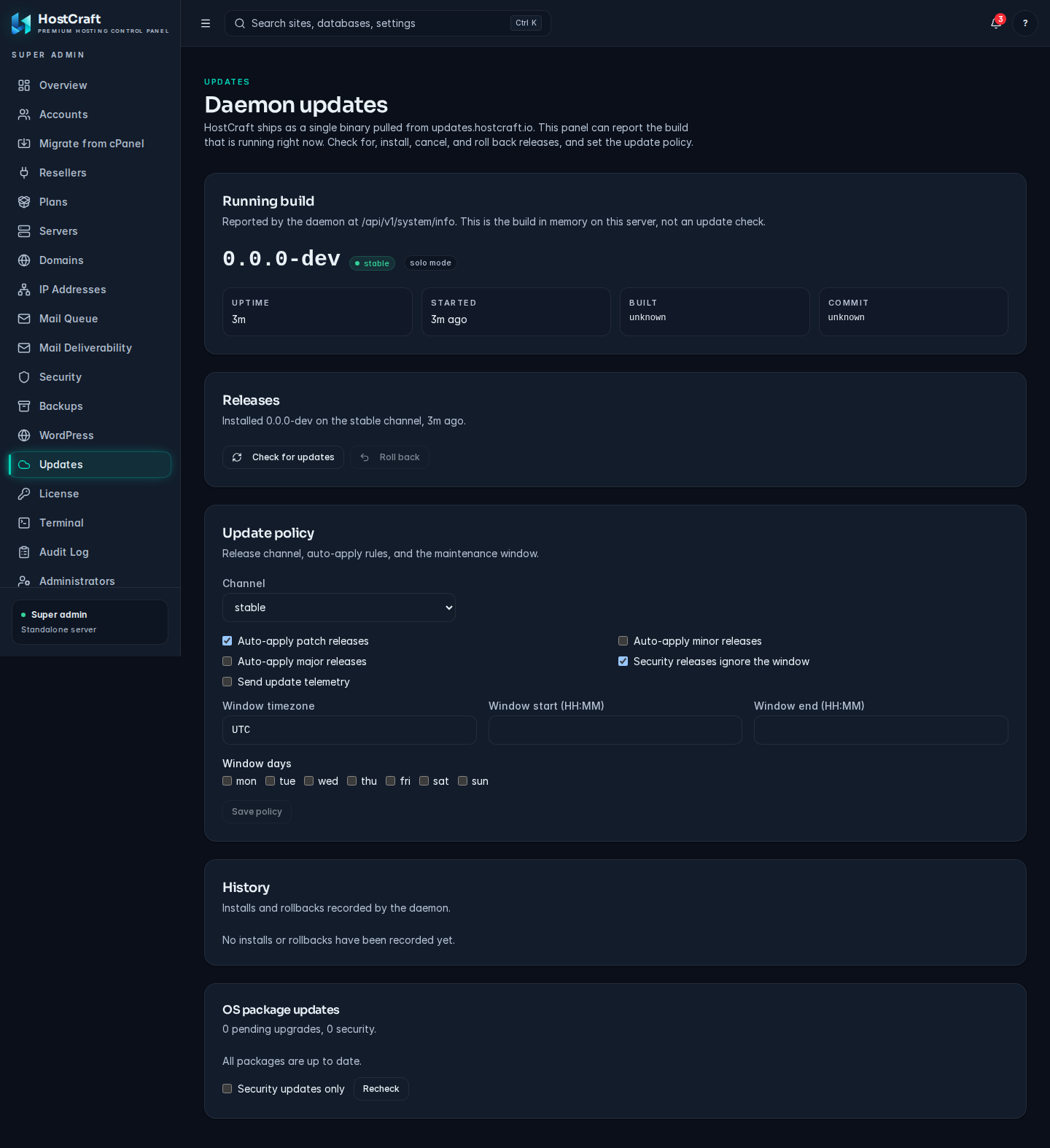
Section titled “Updates”Open Updates in the admin sidebar. The page is titled Daemon updates. HostCraft ships as a single signed binary pulled from the update server; this page shows the build that is running, checks for new releases, installs and rolls back, and sets the update policy.
Who can use it: server admins and super admins.
Running build
Section titled “Running build”Shows the running version, its channel (stable, beta or dev) and mode, plus Uptime, Started, Built and Commit. This is the build in memory now, not an update check.
If the rest of the page shows Update service is not configured, the daemon has no release signing key configured, so checking and installing are disabled on this server. The running build is still shown.
Check for and install an update
Section titled “Check for and install an update”- In Releases, click Check for updates.
- If a release is available, you see its version, channel and badges: security for a security-critical release, and N migrations when it changes the panel database. A Changelog link opens the release notes.
- Click Install and confirm. The daemon restarts during the swap, so the panel is briefly unavailable.
- While the install runs, Cancel workflow stops it.
After an install the Releases card may show health check pending: the release is rolled back automatically if it does not pass its post-update health check.
If the result says releases are paused by the update server killswitch, nothing can be installed until the release is cleared upstream. If it says your version is the latest on your channel, there is nothing to do.
Roll back
Section titled “Roll back”Roll back returns to the previous build (it is greyed out when no previous build is recorded). Read the confirmation carefully:
- The panel database and
/etc/hostcraftare restored from the snapshot taken when the current version was installed, so panel changes made since then (accounts, settings, tokens) are lost. - Customer files, mail and databases are not touched.
- The daemon restarts.
If the newer release ran database migrations that cannot be undone without data loss, a second prompt explains this and asks whether to roll back anyway.
Update policy
Section titled “Update policy”- Channel: stable (recommended for production), beta or dev.
- Auto-apply rules: Auto-apply patch releases, Auto-apply minor releases, Auto-apply major releases.
- Security releases ignore the window: install security releases as soon as they are available.
- Send update telemetry.
- Maintenance window: Window timezone (an IANA name such as
Australia/Sydney), Window start (HH:MM), Window end (HH:MM) and Window days. - Click Save policy. Reset discards unsaved changes.
Automatic installs only happen inside the window, on the ticked days.
History
Section titled “History”Lists every install and rollback with the from and to versions, the outcome, a rollback badge where relevant, when it started, who ran it and any error.
OS package updates
Section titled “OS package updates”The page also shows the OS package updates card, described in Servers and cluster.
License
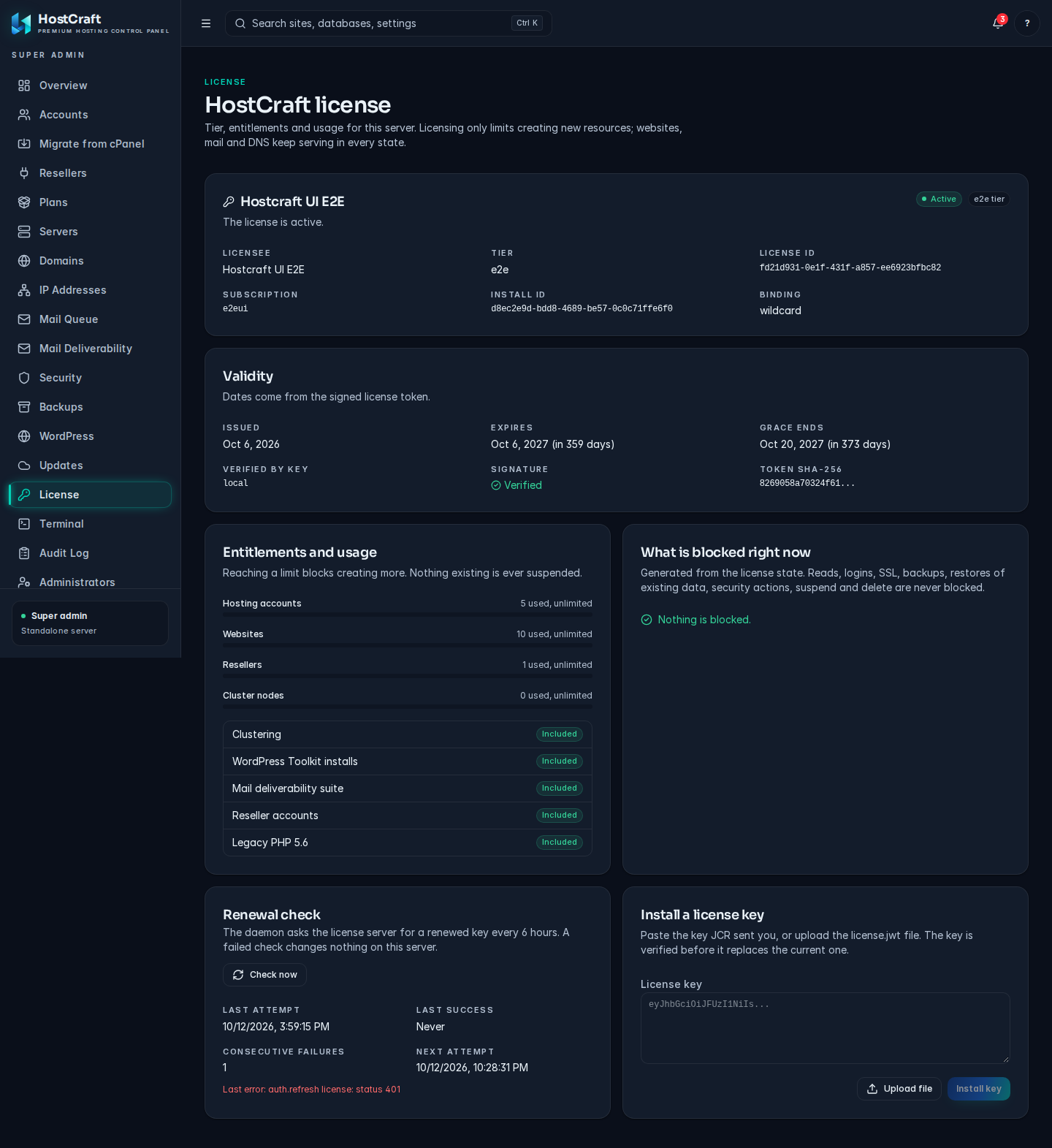
Section titled “License”Open License. The page is titled HostCraft license and shows your tier, entitlements and usage. Licensing only limits creating new resources: websites, mail and DNS keep serving in every license state.
Who can use it: server admins and super admins can view it. Only super admins can install a license key.
License states
Section titled “License states”| State | What it means |
|---|---|
| Free tier | No license is installed. The permanent free tier never expires and all hosting services run normally, within the free tier caps. |
| Active | The license is valid. |
| Expiring soon | Renew to avoid restrictions on creating new resources. |
| Grace period | The license has expired or been revoked, and the grace period is running. Nothing is blocked yet. |
| Restricted | The grace period has ended. Creating accounts, sites, resellers and cluster nodes, and running cPanel imports, is blocked until you renew. Existing sites keep serving. |
| Lapsed | The license lapsed more than 90 days ago. Administrative changes are limited until it is renewed. Sites, mail and DNS keep serving, and SSL renewals, backups and security actions keep working. |
A warn only badge means the server reports license problems without blocking anything.
What the page shows
Section titled “What the page shows”- Licensee, Tier, License id, Subscription, Install id and Binding (whether the license is bound to this install).
- Validity: Issued, Expires, Grace ends, Verified by key, Signature and Token SHA-256.
- Entitlements and usage: bars for Hosting accounts, Websites, Resellers and Cluster nodes against your limits, and the features your license includes (for example WordPress Toolkit installs, the mail deliverability suite, resellers, clustering and legacy PHP 5.6). Reaching a limit blocks creating more. Nothing existing is ever suspended.
- What is blocked right now: the exact list of actions the current state blocks. Reads, logins, SSL, backups, restores of existing data, security actions, suspend and delete are never blocked.
- Warnings if the system clock has gone backwards (check NTP) or if this is a development build.
On the free tier, Purchase a license links to the pricing page.
Install a license key
Section titled “Install a license key”As a super admin:
- In Install a license key, paste the key JCR sent you into License key, or click Upload file and choose your
license.jwtfile. - Click Install key.
The key is verified before it replaces the current one. "License installed." confirms success; otherwise the reason is shown.
If you are not a super admin, the card tells you to ask the server owner, or to run hostcraftd license install --file license.jwt as root on the server.
Renewal check
Section titled “Renewal check”When a refresh URL is configured, the daemon asks the license server for a renewed key every 6 hours. A failed check changes nothing on this server. The card shows Last attempt, Last success, Consecutive failures, Next attempt and the last error. Click Check now to check immediately.
Common license problems
Section titled “Common license problems”| Symptom | Fix |
|---|---|
| "This server's HostCraft license blocked the request." in a create dialog | You reached a cap or the license is Restricted. Read What is blocked right now, then renew or upgrade. |
| Binding says "does not match this install" | The license was issued for another install. Ask JCR for a key bound to this server's Install id. |
| Clock warning | Fix time synchronisation (NTP) on the server. |
| License status unavailable: "Your role cannot view the license." | Sign in as a server admin or super admin. |