
Servers and cluster
Open Servers in the admin sidebar. What you see depends on whether this HostCraft server runs standalone or as a cluster panel.
- Standalone: one server hosts every account. The page shows this server's details and maintenance cards.
- Cluster panel: the panel coordinates and one or more agent nodes host accounts. The page adds the topology, node list, account placement, enrolment tokens and a live event feed.
Clustering needs a license that includes it. On the free tier the cluster node cap applies.
Standalone server
Section titled “Standalone server”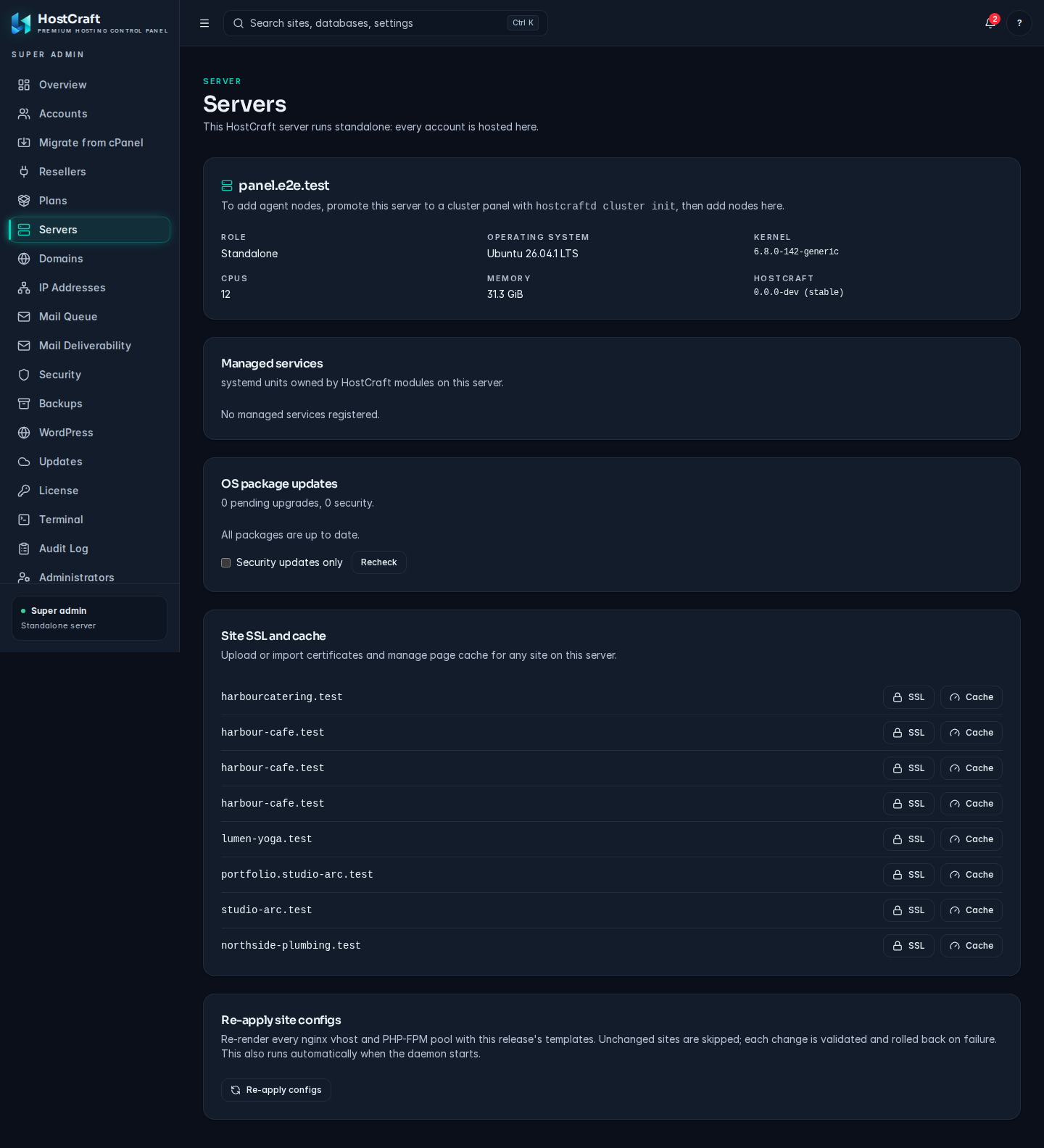
The first card shows the hostname and Role (Standalone), Operating system, Kernel, CPUs, Memory and HostCraft version and channel.
To turn this server into a cluster panel so you can add agent nodes, run hostcraftd cluster init on the server as root, then return to this page. See Cluster mode for the full procedure.
Below it are the maintenance cards, which also appear on a cluster panel.
Managed services
Section titled “Managed services”Lists the systemd units owned by HostCraft modules on this server (for example the web server, PHP pools, mail and DNS services), with their state (active, failed, activating and so on) and how long they have been in that state.
- Stop (shown for running units) takes the service offline for every site and user that depends on it until you start it again. The panel's own
hostcraftdunit cannot be stopped from here. - Start (shown for stopped units).
- Restart briefly interrupts the service.
Each action asks you to confirm. If the action ran but the new state could not be read, you see "Action completed, but the current state could not be read" and the list refreshes.
OS package updates
Section titled “OS package updates”Lists pending upgrades from the operating system package manager, security updates first, with the installed and available versions. Tick Security updates only to hide other updates, and click Recheck to refresh. This card is read-only; to install OS security patches automatically, see Automatic security updates in Settings.
Site SSL and cache
Section titled “Site SSL and cache”Lists every site on the server with two buttons:
- SSL opens the SSL certificates dialog for that site. From there you can issue a certificate (choose the Certificate authority, Validation method and, for DNS validation, the DNS provider, plus optional Additional names) or upload one (Certificate (PEM), Private key (PEM) and optional Chain (PEM, optional)).
- Cache opens the Page cache dialog, where you set TTL (seconds) and Max size (MB), see entries, size and hit ratio, and purge the cache.
Re-apply site configs
Section titled “Re-apply site configs”Re-apply configs re-renders every nginx vhost and PHP-FPM pool with the templates of the running HostCraft release. Unchanged sites are skipped, and each change is validated and rolled back if it fails. This also runs automatically when the daemon starts, so you normally only need it after editing templates or when told to by support.
The result reads, for example, "120 sites checked. Vhosts: 3 updated, 117 unchanged. Pools: 0 updated, 120 unchanged." Any failures are listed with the site ID and error.
Cluster panel
Section titled “Cluster panel”Stat strip
Section titled “Stat strip”- Panel nodes: one today. (An HA panel pair is planned for a later release.)
- Agent nodes: how many agents have joined.
- Healthy / total: with a bar showing the healthy share.
- Events (24h): joins, health changes and decommissions in the last day.
Topology
Section titled “Topology”The panel sits in the middle with each agent around it. Line colour shows health (green healthy, amber degraded, red or dashed when unreachable). Click any node to open its detail drawer.
Nodes table
Section titled “Nodes table”| Column | Meaning |
|---|---|
| Hostname | Node hostname and IP. Click to open the detail drawer. |
| Role | panel or agent. |
| Status | healthy, degraded, unreachable or decommissioning. |
| Version | The HostCraft version the node runs. |
| Last heartbeat | Heartbeats arrive every 10 seconds. |
| Accounts | Accounts hosted on the node. |
| Joined | When the node joined. |
| Cert expires | When the node's cluster certificate expires. Amber under 30 days, red under 14 days or expired. |
Filter with the Role and Status chips. Row menu actions: View detail, Trigger health check and, for agents, Decommission. Tick several nodes and choose Run health check to check them together.
Add an agent node
Section titled “Add an agent node”You need a second server with HostCraft installed in agent mode and network access to the panel.
- Click Add agent node (or Mint enrolment token when no agents exist yet).
- Target role: Agent (executes workflows).
- Click Mint token. The token expires in 24 hours and can be used once.
- Click Copy command, then run the copied
hostcraftd join ...command as root on the new server. - Click I have copied it. Wait for the join. The dialog waits and closes by itself once the new node appears.
Treat the token like a password: anyone who runs the command on a host that can reach the panel joins the cluster. Unused tokens are listed under Enrolment tokens with a countdown; click Revoke to cancel one.
Node detail drawer
Section titled “Node detail drawer”Shows the node ID, IP, version, join time, last heartbeat, certificate expiry, capabilities and, for agents, how many accounts, sites, mailboxes and databases it hosts. Buttons: Health check, Rotate certificate and, for agents, Decommission. When the certificate expires within 30 days a red banner with Rotate now appears at the top.
Rotate a node certificate
Section titled “Rotate a node certificate”- Open the node's drawer and click Rotate certificate (or Rotate now).
- Review the four steps (issue new certificate, push to agent, await acknowledgement, retire old certificate) and click Rotate certificate.
The agent serves both certificates during a 10 day overlap, so there is no downtime. You can close the dialog; the workflow continues in the background and shows in Live events. See also the Cluster certificate rotation runbook.
Move an account to another server
Section titled “Move an account to another server”The Account placement card appears when the cluster has more than one node.
- Click Move account.
- Account: each account is listed with the node it is on.
- Target server: pick a healthy node, or leave Least loaded agent.
- Click Start move.
While the account moves, panel changes to it are frozen. Its home directory, mail, databases, cron, certificates and DNS are copied to the target. The sites keep serving from the current server until the copy on the target answers with the same content, then DNS is switched and the source copy is cleaned up.
The card lists every move with its progress (for example "Streaming data, 2.1 GiB of 5.0 GiB"). A failed move shows the error and the note "The account stayed on its source server."
Decommission an agent node
Section titled “Decommission an agent node”- Open the node's row menu or drawer and click Decommission.
- If the node hosts accounts, Drain accounts first must stay ticked (the request is refused otherwise). Under Move accounts to, choose a target node or leave Least loaded agent, per account.
- Leave Notify the agent before removal ticked. Untick it only when the node is already unreachable.
- Type the node's hostname to confirm and click Decommission node.
The workflow drains the accounts, stops the agent, revokes its certificate so it cannot rejoin, and removes it from the registry. Progress shows in the dialog, under Account placement and in Live events. See the Cluster node decommission runbook.
Live events
Section titled “Live events”A running timeline of joins, departures, health changes, certificate rotations, decommissions and account moves. Live means the feed is connected; Reconnecting means it is catching up. Use the pause button to freeze the feed while you read it.
Common errors
Section titled “Common errors”| Symptom | Fix |
|---|---|
| A node stays unreachable | Check the agent's hostcraftd service and that it can reach the panel. Use Trigger health check after fixing it. |
| Decommission is refused | The node still hosts accounts. Tick Drain accounts first. |
| Move account is greyed out | The cluster has only one node. |
| Enrolment never completes | The token may have expired (24 hours) or already been used. Mint a new one. |