
My mailbox and webmail
This page is for people who use a single mailbox, for example staff at a business whose website is hosted on HostCraft. If you manage the whole hosting account, see Email instead.
Getting a login
Section titled “Getting a login”Your account owner creates your login from the Emails page with Create webmail login (see Give a mailbox user their own login). They give you:
- your email address, which is your username, and
- a panel sign-in password.
You also need your mailbox password. That is the password your mail apps use, and it is also needed to open webmail. It can be different from your sign-in password.
Your login only reaches your own mailbox. You cannot see other mailboxes, websites or account settings.
Sign in
Section titled “Sign in”- Open the panel address your hosting provider gave you.
- Enter your full email address and your sign-in password.
- You land on My mailbox.
The sidebar for mailbox users has two items: My mailbox and Webmail.
My mailbox
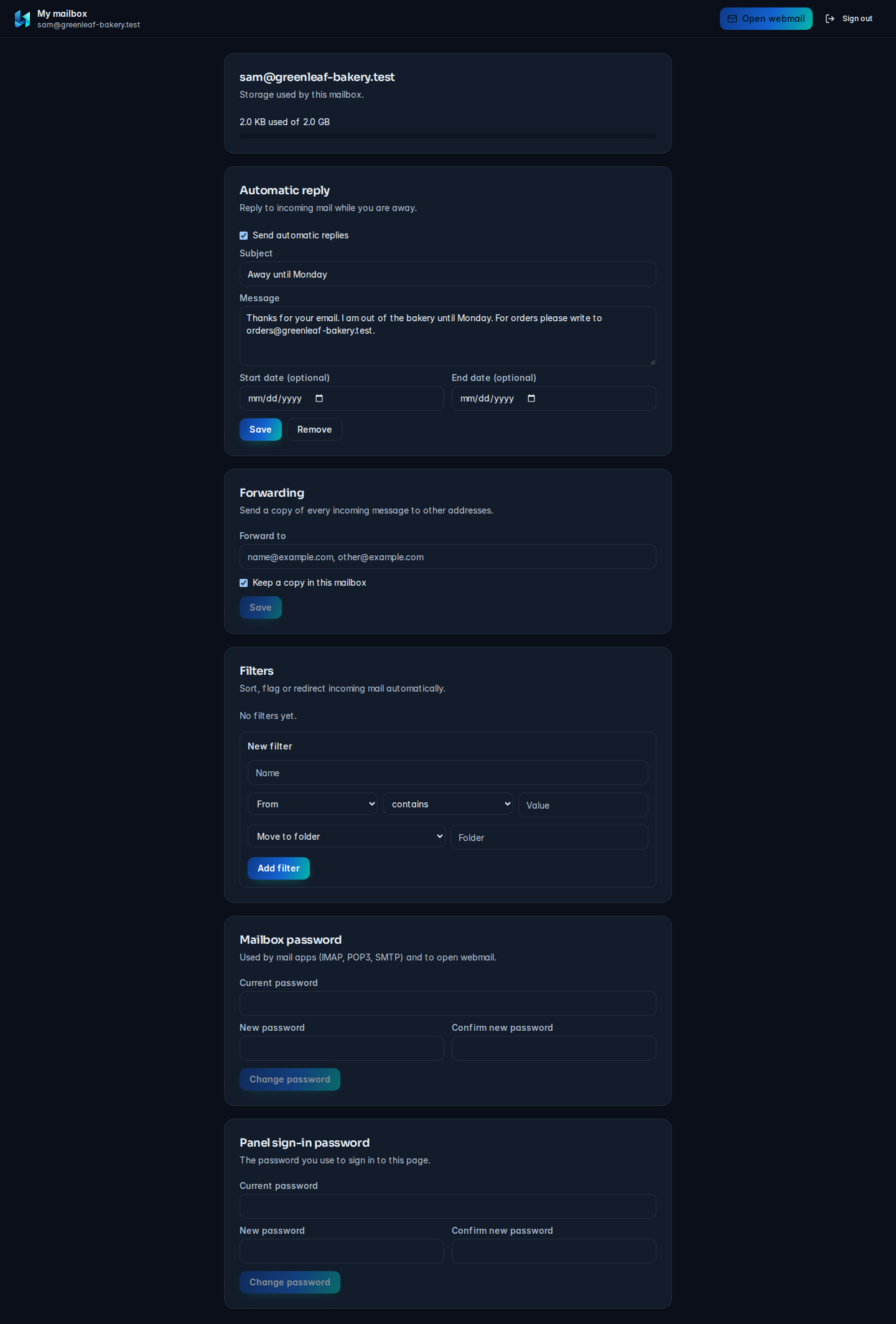
Section titled “My mailbox”The header shows your address, an Open webmail button and Sign out. Below it are six cards.
Storage
Section titled “Storage”The first card is titled with your address and shows how much space you use, for example "1.2 GB used of 2.0 GB". If there is no limit it says "(no quota limit)". When you are close to the limit, delete old mail or ask your account owner for a larger quota. Only the account owner can change the quota.
Automatic reply
Section titled “Automatic reply”Send an automatic reply while you are away.
- Tick Send automatic replies.
- Edit the Subject (it starts as "Out of office").
- Write the Message. It is required.
- Optionally pick a Start date (optional) and End date (optional). Replies start at the beginning of the start date and stop at the end of the end date. The end date cannot be before the start date.
- Click Save. You see "Automatic reply is on."
To keep the text but stop replying, untick Send automatic replies and click Save ("Automatic reply saved and off."). To delete it completely, click Remove.
Forwarding
Section titled “Forwarding”Send a copy of every incoming message to other addresses.
- In Forward to, enter one or more addresses separated by commas, spaces or semicolons.
- Leave Keep a copy in this mailbox ticked to keep your own copy. Untick it to forward only.
- Click Save. You see "Forwarding saved."
Click Stop forwarding to turn it off.
Filters
Section titled “Filters”Filters sort, flag or redirect incoming mail automatically. Your existing filters are listed in the order they run, each with a plain summary such as If from contains "newsletter" then fileinto Newsletters.
To add a filter:
- Under New filter, type a Name.
- Choose a field: From, To, Cc, Subject, Body or Size (bytes).
- Choose how to compare: contains, is or matches (for size: greater than or less than).
- Enter the Value.
- Choose an action: Move to folder (enter a Folder), Redirect to address (enter the address in Redirect to), Add flag (enter a Flag) or Discard (deletes the message).
- Click Add filter. You see "Filter added."
New filters run after the existing ones. Use Turn off and Turn on to pause a filter, and the bin icon to delete it.
Be careful with Discard: discarded mail is gone and cannot be recovered.
Mailbox password
Section titled “Mailbox password”This is the password mail apps (IMAP, POP3, SMTP) and webmail use.
- Enter your Current password.
- Enter the New password (at least 8 characters) and repeat it in Confirm new password.
- Click Change password.
After the change you see "Mailbox password changed. Update it in your mail apps." Every phone and computer that collects your mail needs the new password.
Panel sign-in password
Section titled “Panel sign-in password”This is the password you use to sign in to this page. Change it the same way. You see "Sign-in password changed." Changing it does not affect your mail apps.
Webmail
Section titled “Webmail”Webmail is SnappyMail, a full mail client in your browser.
- Click Open webmail in the header, or Webmail in the sidebar.
- Enter your Mailbox password.
- Click Open webmail.
The panel checks the password and signs you in to SnappyMail. From the webmail screen you can return with Manage my mailbox or Sign out.
If the screen says "This login is not linked to a mailbox yet. Ask your hosting provider to link it.", your login has no mailbox attached. Contact your account owner.
Common problems
Section titled “Common problems”| Problem | Fix |
|---|---|
| Webmail says the password is wrong | Webmail needs the mailbox password, not your sign-in password. |
| "The new passwords do not match." | Type the same new password in both fields. |
| Mail app stopped working after a password change | Enter the new mailbox password in the app. |
| Mailbox is full | Delete or archive old mail, empty Trash, or ask the account owner to raise the quota. |
| "Could not load your mailbox." | Sign out and in again. If it continues, contact your account owner. |
| Forgot your sign-in password | Use the reset option on the sign-in page, or ask your account owner. |