
Cron Jobs
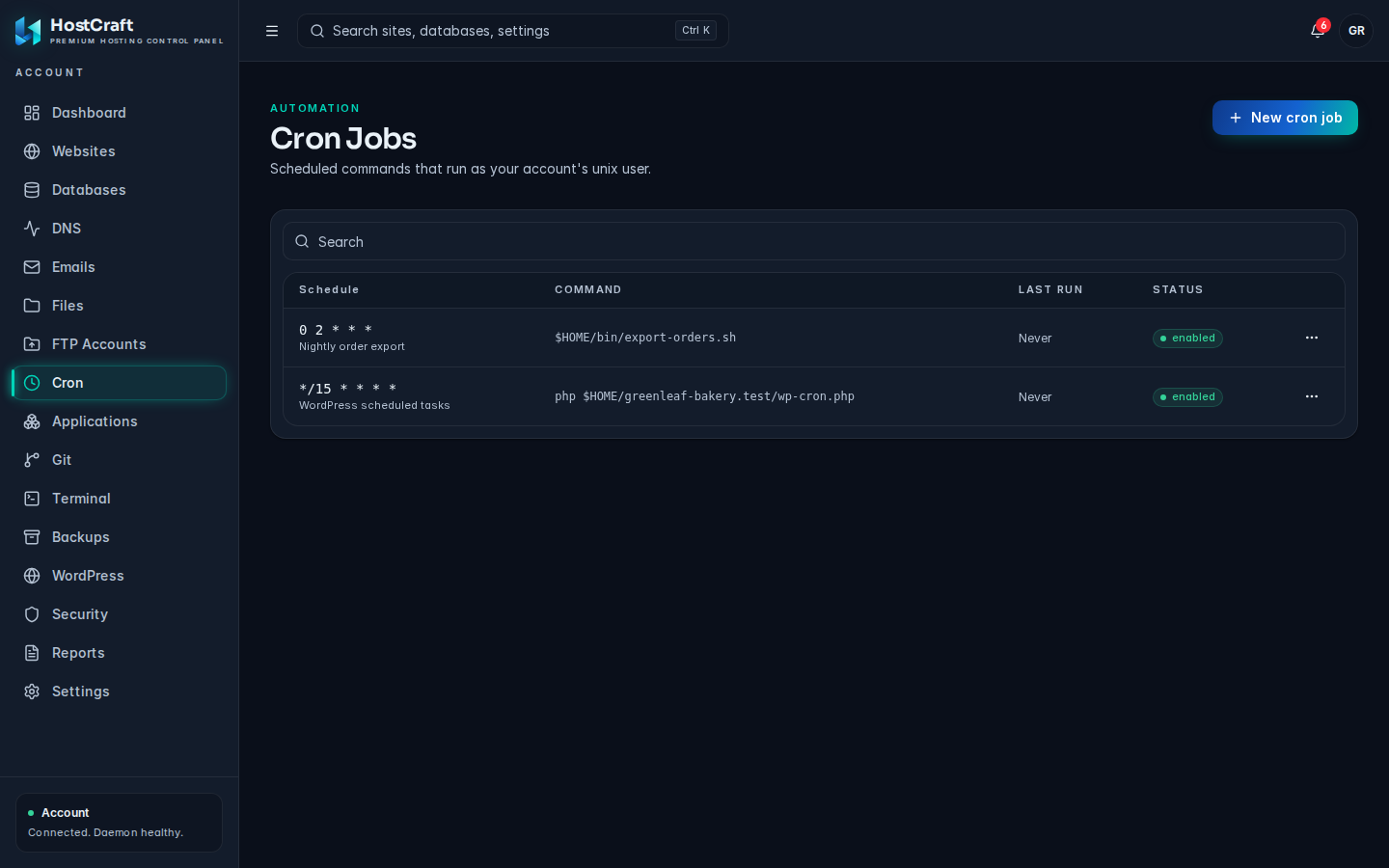
The Cron page (sidebar, under Automation, titled Cron Jobs) runs commands on a schedule without you being there: queued emails, application schedulers, cache clearing, reports and similar background tasks. Every job runs as your account's system user.
Who can use this page
Section titled “Who can use this page”| Role | What they can do |
|---|---|
| Account owner | Create, edit, run, pause, resume and delete jobs, and read run history. |
| Sub-user | Only what the account owner granted. The read only support preset sees the list and Run history only. |
| Server admin | Full access across every account. |
| Reseller, mailbox user | No access. |
The job list
Section titled “The job list”| Column | Meaning |
|---|---|
| Schedule | The cron expression, with the description underneath if you gave one. |
| Command | The command that runs. |
| Last run | When it last ran, or Never. |
| Status | enabled or paused. |
Use the search box to filter by command or description.
Create a job
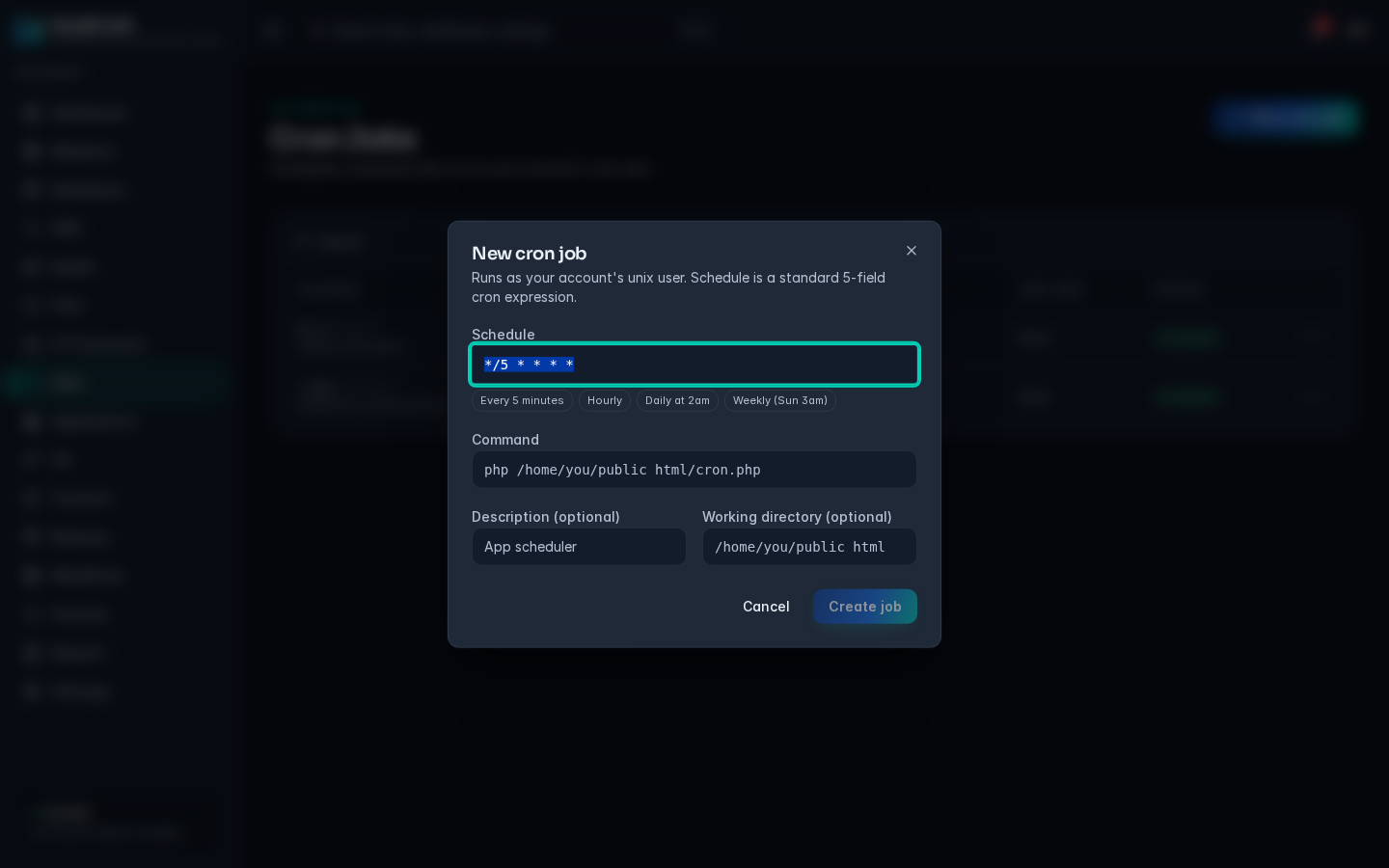
Section titled “Create a job”- Click New cron job.
- In Schedule, type a cron expression or click a preset:
- Every 5 minutes (
*/5 * * * *, the default) - Hourly (
0 * * * *) - Daily at 2am (
0 2 * * *) - Weekly (Sun 3am) (
0 3 * * 0)
- Every 5 minutes (
- In Command, enter the command, for example
php /home/you/public_html/cron.php. - Optionally add a Description (for example "App scheduler") so you can recognise the job later.
- Optionally set a Working directory, the folder the command starts in, for example
/home/you/public_html. - Click Create job.
The job is enabled straight away and runs at the next matching time.
Schedule syntax
Section titled “Schedule syntax”A schedule has exactly five fields separated by spaces:
minute hour day-of-month month day-of-week| Field | Allowed values |
|---|---|
| Minute | 0-59 |
| Hour | 0-23 |
| Day of month | 1-31 |
| Month | 1-12, or names such as jan |
| Day of week | 0-7 (0 and 7 both mean Sunday), or names such as mon |
*means every value.*/15means every 15th value.1,15is a list.1-5is a range.
Times follow the server's time zone. Shortcuts such as @daily are not accepted: use the five field form.
| Expression | Runs |
|---|---|
*/5 * * * * |
every 5 minutes |
0 * * * * |
at the start of every hour |
30 2 * * * |
daily at 2:30am |
0 9 * * 1-5 |
9am Monday to Friday |
0 0 1 * * |
midnight on the 1st of each month |
Test a job with Run now
Section titled “Test a job with Run now”Open the job's actions menu and choose Run now. The job runs immediately, outside its schedule, and the result appears in Run history. Do this after creating or editing a job, before relying on the schedule.
Read run history
Section titled “Read run history”Open the actions menu and choose Run history (read only users click the history button). The dialog lists the most recent 25 runs, newest first. Each run shows:
- exit 0 in green for success, or the non zero exit code in red for a failure
- when it started, and what triggered it (the schedule or a manual run)
- click a run to expand its standard output and error output, or "No output."
Output is kept up to 64 KB per stream. Longer output is cut from the start and marked ...(truncated).
Edit a job
Section titled “Edit a job”Choose Edit from the actions menu, change Schedule, Command, Working directory or Description, and click Save. Changes are written to the account crontab immediately.
Pause, resume or delete
Section titled “Pause, resume or delete”- Pause job stops the job from running on its schedule but keeps it. The status shows paused.
- Resume job turns it back on.
- Delete job removes it after you confirm "Delete this cron job?".
- Use full paths to programs and files. Cron does not load your interactive shell profile.
- Test the command in the Terminal first.
- Avoid schedules that start a new run before the last one finishes.
Common errors
Section titled “Common errors”| Message | Cause and fix |
|---|---|
| expected 5 fields, got N | The schedule needs exactly five fields. |
| minute: ... / hour: ... / day-of-week: ... | A value is out of range or badly written in that field. Check the table above. |
| schedule does not fire within 4 years | The expression can never match, for example 0 0 31 2 * (31 February). |
| account_id, schedule_cron, command required | Schedule or command was left empty. |
| Exit code other than 0 in history | The command failed. Expand the run to read the error output. |