
Domains and IP addresses
Domain inventory
Section titled “Domain inventory”Open Domains in the admin sidebar. The page is titled Domain inventory and lists every domain on this server, across every account.
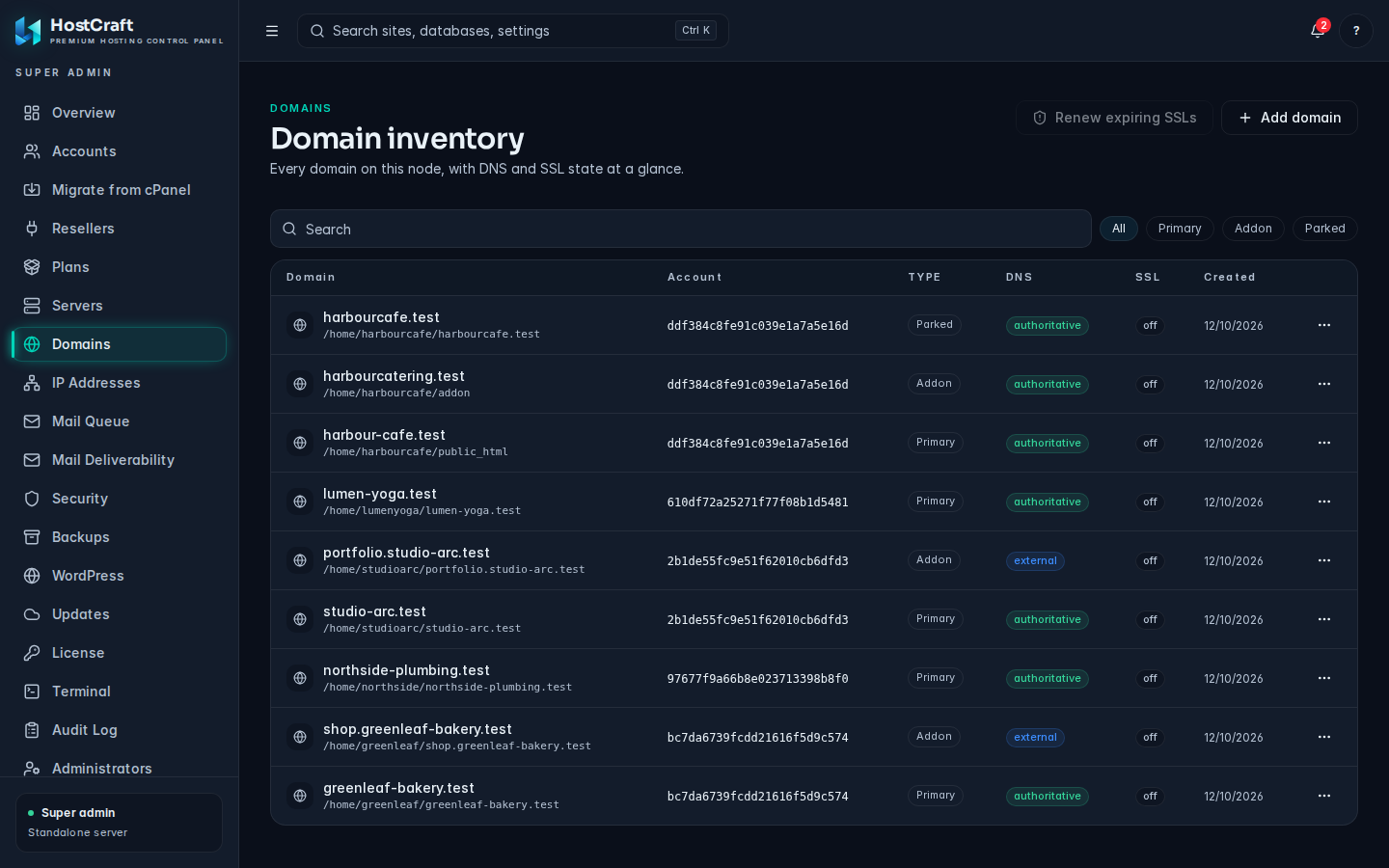
The domains table
Section titled “The domains table”| Column | Meaning |
|---|---|
| Domain | The domain name, with its document root underneath. |
| Account | The ID of the account that owns it. |
| Type | primary, addon or parked. |
| DNS | authoritative when this server hosts the DNS zone, external when DNS is hosted elsewhere. |
| SSL | enabled or off. |
| Created | The date the domain was added. |
Filter by type with the All, primary, addon and parked chips. Search by domain name or account ID.
Domain types
Section titled “Domain types”- Primary: the account's main domain.
- Addon: an extra website with its own document root.
- Parked: an alias that serves the same site as another domain on the same account.
Add a domain to an account
Section titled “Add a domain to an account”Who can do this: server admins. Account owners add domains to their own account from Websites in their panel.
- Click Add domain.
- Account: choose the account that will own the domain.
- Domain name: for example
example.com. - Type: Primary, Addon (the default) or Parked.
- For a parked domain, choose Parks onto: the existing domain on the same account that it aliases.
- Document root (optional): leave blank to use the account's web root.
- Host DNS for this domain on this server: ticked by default. Untick it when the customer's DNS stays with another provider; you then need to point the domain's records at this server yourself.
- Click Add domain.
HostCraft creates the web server vhost and, when DNS is hosted here, the DNS zone with the server's default nameservers.
Renew expiring SSL certificates
Section titled “Renew expiring SSL certificates”Renew expiring SSLs (with a count in brackets) queues renewal for every issued certificate that is inside its renewal window (30 days before expiry unless the certificate has its own window). Uploaded certificates and revoked certificates are skipped, because HostCraft cannot renew them. The button is greyed out when nothing is due.
To upload or import a certificate for one site, use Site SSL and cache on the Servers page (see Servers and cluster).
View a domain's DNS or remove a domain
Section titled “View a domain's DNS or remove a domain”Open the domain's row menu:
- View DNS opens the DNS editor for that zone.
- Remove domain asks you to confirm, then removes the vhost and DNS zone. Website files are kept.
Common domain errors
Section titled “Common domain errors”| Message | Fix |
|---|---|
| "Choose an account." | Pick the owning account first. |
| "Enter a valid domain name, for example example.com." | Remove http://, paths, spaces or a trailing dot. |
| "Choose the existing domain this parked domain points to." | Select a domain under Parks onto. If the list says "This account has no domains to park onto", add a primary or addon domain first. |
| "A domain cannot be parked onto itself." | Choose a different target. |
IP addresses
Section titled “IP addresses”Open IP Addresses. This is the equivalent of WHM's IP Functions. It lists every address the server can serve sites on and lets you give an account, or one site, a dedicated IP.
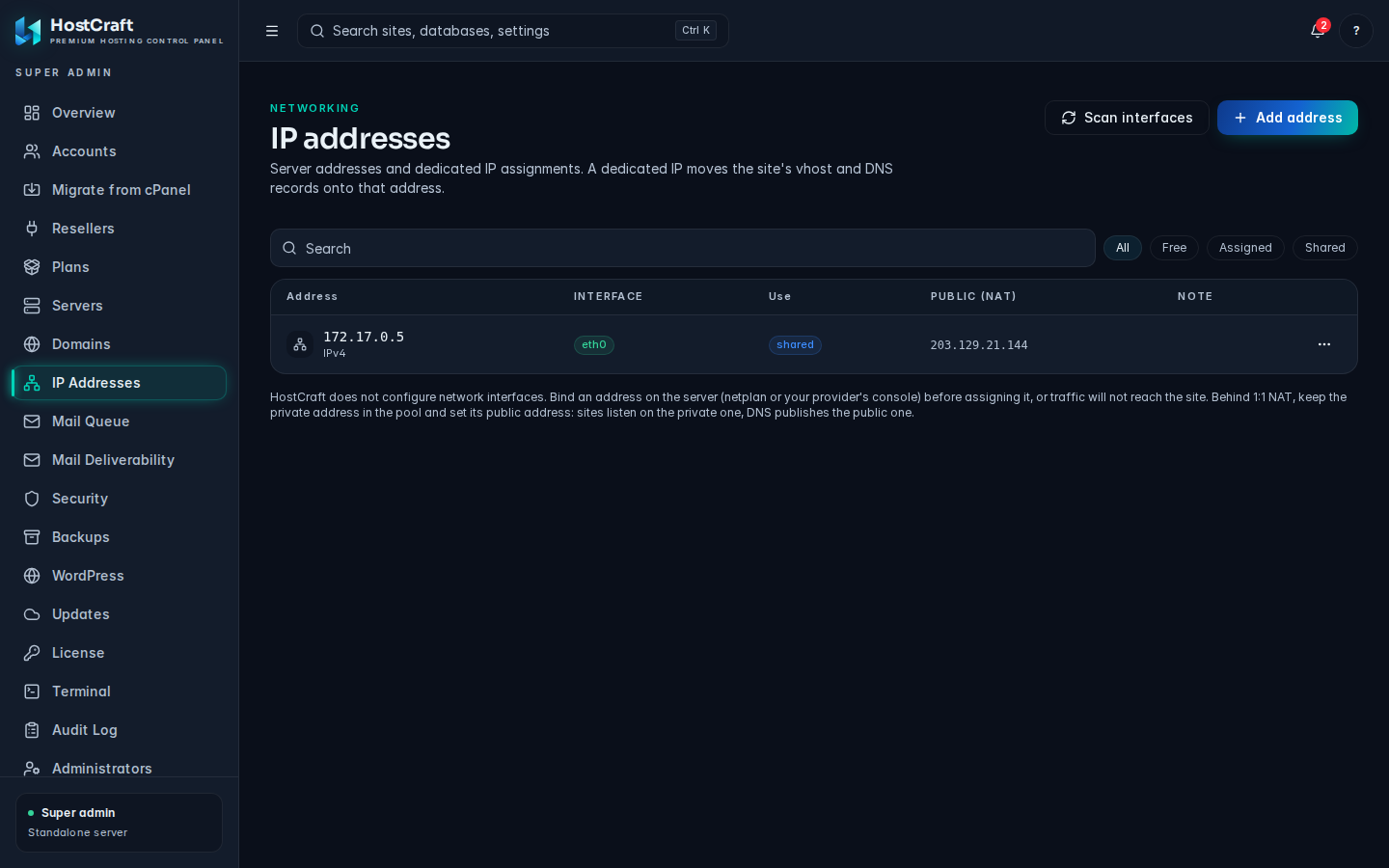
The IP table
Section titled “The IP table”| Column | Meaning |
|---|---|
| Address | The IP address and whether it is IPv4 or IPv6. |
| Interface | The network interface it is bound to, or not bound when HostCraft cannot see it on any interface. |
| Use | shared (the address most sites use), free (available for assignment) or dedicated (assigned, with the account and "all sites" or the one site). |
| Note | Your own free text. |
Filter with the all, free, assigned and shared chips.
Add addresses to the pool
Section titled “Add addresses to the pool”- Scan interfaces imports every address bound on the server's interfaces. A message tells you how many new addresses were added.
- Add address adds one by hand. Use this for an address reached through NAT, or one you have not bound yet. Enter the Address and an optional Note (up to 200 characters), then click Add.
Assign a dedicated IP
Section titled “Assign a dedicated IP”- Open the row menu of a free address and click Assign as dedicated IP.
- Account: choose the account.
- Scope: leave Every site of the account or pick one site.
- Click Assign.
The chosen sites are moved to listen on that address, and the account's DNS A or AAAA records move to it.
Release a dedicated IP
Section titled “Release a dedicated IP”Open the row menu of an assigned address and click Release, then confirm. The sites move back to the shared address and DNS follows.
Edit the note or remove an address
Section titled “Edit the note or remove an address”- Edit note: free text such as the provider or the customer the address was bought for.
- Remove from pool: only for free addresses. Shared and assigned addresses cannot be removed.
Common IP errors
Section titled “Common IP errors”| Message | Fix |
|---|---|
| "Enter an IPv4 or IPv6 address." | The address field is empty. |
| "Choose an account." | Pick an account in the assign dialog. |
| The site does not answer on its new IP | The address is probably not bound on the server. Bind it, then check the Interface column shows the interface name. |