
Security
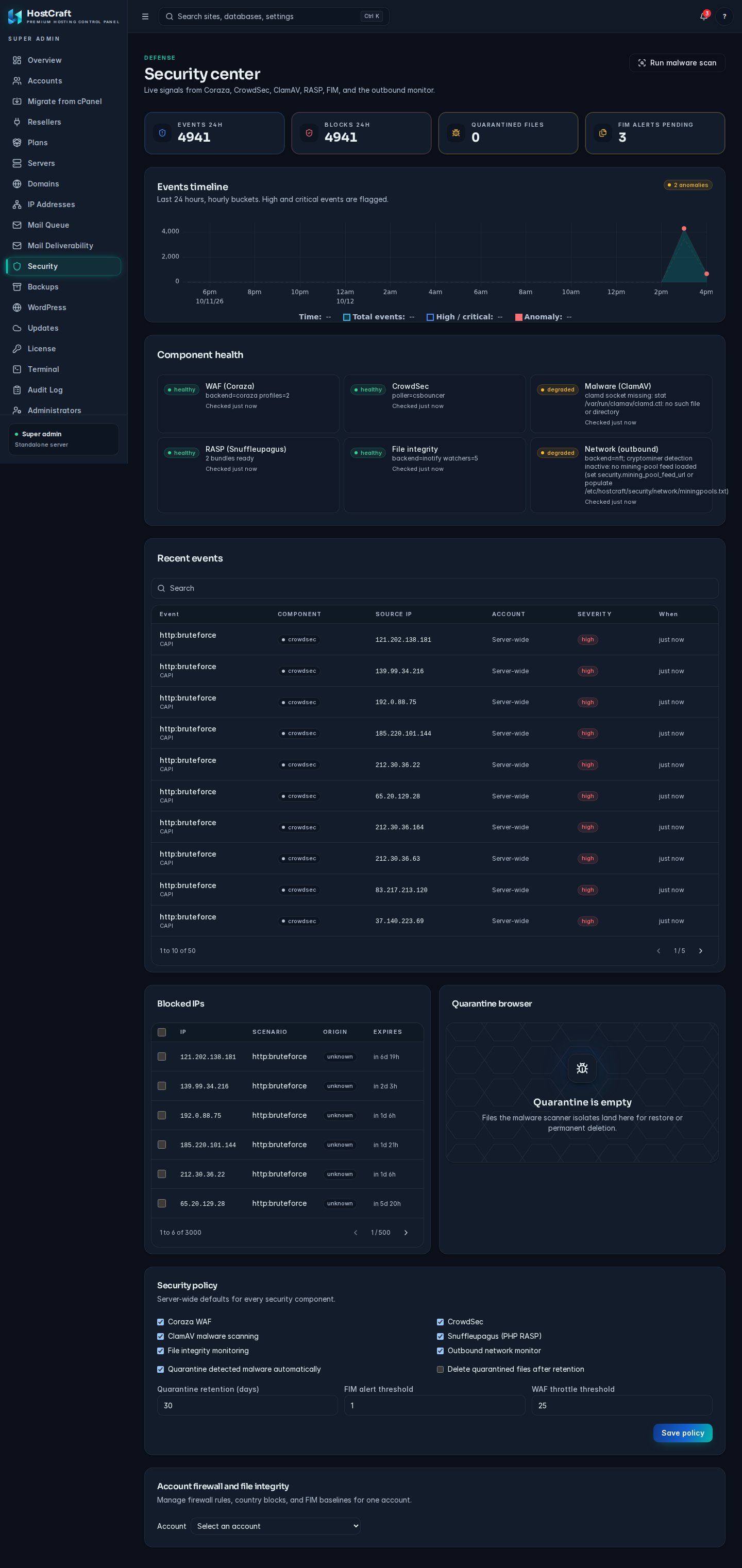
Open Security in the admin sidebar. The page is titled Security center and brings together live signals from Coraza (the web application firewall), CrowdSec, ClamAV, Snuffleupagus (PHP runtime protection, called RASP), file integrity monitoring (FIM) and the outbound network monitor.
Who can use it: server admins and super admins. Account owners see a read-only view of their own events under Security in their panel.
If the security stack is not enabled on this server, the page shows Security stack not enabled instead. Once it is enabled, the signals appear here.
Summary and timeline
Section titled “Summary and timeline”- Events 24h, Blocks 24h, Quarantined files and FIM alerts pending.
- Events timeline: hourly counts over the last 24 hours. Hours with high or critical events are flagged, and the badge shows how many anomalies were found.
Component health
Section titled “Component health”One tile each for WAF (Coraza), CrowdSec, Malware (ClamAV), RASP (Snuffleupagus), File integrity and Network (outbound). Each shows healthy, degraded or unhealthy, with detail text and when it was last checked. A component that is switched off or not installed (for example ClamAV on a server installed with --no-clamav) shows unhealthy with the reason.
Run a malware scan
Section titled “Run a malware scan”Click Run malware scan (top right). A full scan of the server starts and a message shows its scan ID. Infected files are quarantined automatically when Quarantine detected malware automatically is on in the security policy.
Recent events
Section titled “Recent events”Lists events with Event (rule and detail), Component, Source IP, Account (or Server-wide), Severity (info, low, medium, high, critical) and When. Search by rule, detail, IP or account.
Click a row to open the Security event drawer with the full detail, source country, site and event ID. Click Acknowledge to mark that you have looked at it; the drawer then shows who acknowledged it and when.
Blocked IPs
Section titled “Blocked IPs”Lists active CrowdSec decisions and manual bans with IP, Scenario (and country), Origin and Expires.
- Click Unblock on a row to lift a block.
- Tick several rows and choose Unblock selected.
If a customer reports they cannot reach their site, search their IP here first.
Quarantine browser
Section titled “Quarantine browser”Lists files the malware scanner has isolated: Path, Account, Detection (signature and scanner) and Size.
- The restore icon puts the file back where it was. Only restore a file you are sure is a false positive.
- The bin icon deletes it permanently after you confirm.
- Tick several rows to Restore selected or Delete selected.
Security policy
Section titled “Security policy”Server-wide defaults for every security component.
- Tick the components that should run: Coraza WAF, CrowdSec, ClamAV malware scanning, Snuffleupagus (PHP RASP), File integrity monitoring and Outbound network monitor.
- Quarantine detected malware automatically: move infected files to quarantine as soon as they are found.
- Delete quarantined files after retention: purge quarantine after the retention period.
- Quarantine retention (days): how long quarantined files are kept.
- FIM alert threshold: the threshold at which file integrity changes raise an alert.
- WAF throttle threshold: the threshold at which the WAF starts throttling a source.
- Click Save policy. "Policy saved." confirms it.
Account firewall and file integrity
Section titled “Account firewall and file integrity”Manage firewall rules, country blocks and FIM baselines for one account at a time.
- Choose the Account from the list.
- The Firewall and File integrity cards for that account appear.
Firewall rules
Section titled “Firewall rules”Rules allow or deny traffic to the account by IP, network or country. Rules are listed in priority order with their action (allow or deny), source, protocol, port and note.
To add a rule:
- Choose Deny or Allow.
- Choose IP or Network (CIDR) and enter the source, for example
203.0.113.7or203.0.113.0/24. - Choose TCP, UDP or Any.
- Optionally enter a Port (leave blank for all ports) and a Note.
- Click Add rule. New rules go to the end of the list.
Use Disable / Enable to switch a rule off without deleting it, and the bin icon to delete it.
Blocked countries
Section titled “Blocked countries”Type a two letter country code (for example CN) and click Block country. Click the x on a country chip to unblock it.
Server-level blocks lists blocks that apply to the whole server and therefore also affect this account (read-only here; manage them under Blocked IPs).
File integrity
Section titled “File integrity”Shows the baseline (how many files, total size and when it was captured) and the changes detected since: new, modified or deleted files with their paths.
- Tick changes you expected (for example after a plugin update) and click Accept selected to fold them into the baseline.
- Accept all accepts every pending change after you confirm.
Investigate unexpected changes before accepting them: a modified PHP file you did not change is a common sign of compromise.
Common problems
Section titled “Common problems”| Symptom | What to do |
|---|---|
| Security stack not enabled | The daemon reports that the security components are not wired on this server. See Security for how the stack is installed, then reload the page. |
| Could not load security data with Retry | The daemon could not read the security summary. Click Retry; if it persists, check the daemon log. |
| A component tile shows a failure | Read its detail text, then check that service under Servers, Managed services. |
| A legitimate visitor is blocked | Find their IP under Blocked IPs and click Unblock. If the WAF keeps blocking them, raise the WAF throttle threshold or review the rule in the event detail. |
| Block country stays greyed out | Country codes must be exactly two letters. |