
Node.js and Python applications
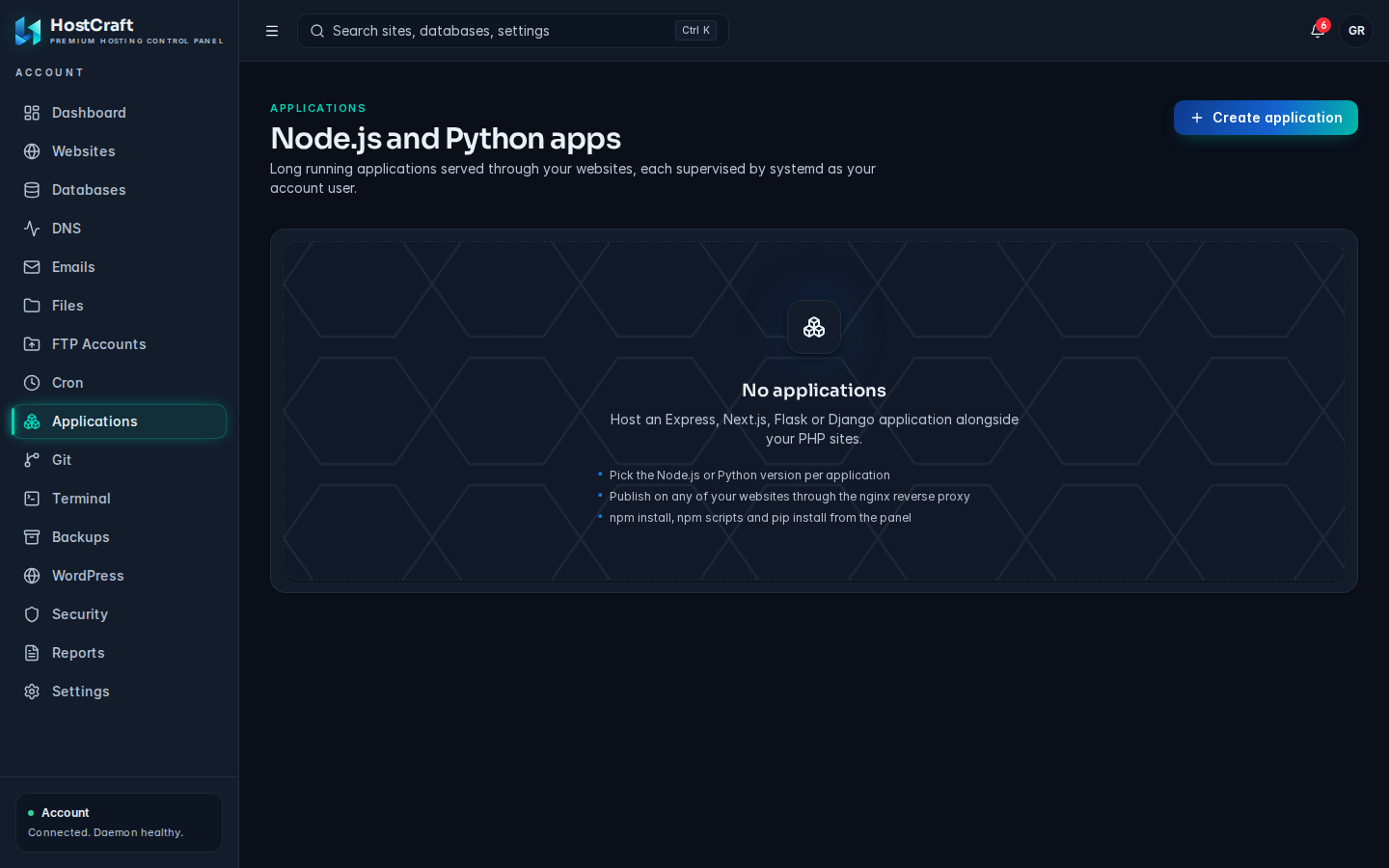
The Applications page is the HostCraft equivalent of cPanel's "Setup Node.js App" and "Setup Python App". Each application runs as your account user under systemd, is restarted automatically if it exits, and listens on a private port. You can publish it on one of your websites, and nginx then forwards that website's traffic to it.
Open it from the sidebar: Applications.
Who can use this page
Section titled “Who can use this page”| Role | Access |
|---|---|
| Account owner | Full access to the account's applications. |
| Sub-user | Sees the page only when the account owner granted application access. The read-only support preset can view applications and logs but cannot create, start, stop, edit or remove them. |
| Server administrator, reseller | Not shown in the admin or reseller areas. |
| Mailbox user | No access. |
The applications table
Section titled “The applications table”| Column | Meaning |
|---|---|
| Application | The name, and below it the startup file inside the application root (for example ~/apps/api/app.js). |
| Runtime | Node.js or Python, the version, and the mode (production or development). |
| URL | The website the app is published on, or 127.0.0.1:PORT when it is not published. |
| Status | running, starting (up but not yet listening on its port), restarting, crashed, stopped or unknown. |
Create an application
Section titled “Create an application”- Click Create application.
- Fill in the dialog:
- Runtime: Node.js or Python.
- Version: the versions installed on this server. If the list says "None installed on this server", ask the server administrator to install that runtime.
- Name: a short name such as
api. Lowercase letters, digits and hyphens, starting with a letter or digit, up to 40 characters. - Mode: Production or Development. For Node.js this sets
NODE_ENV. - Application root: the folder relative to your home directory, for example
apps/api. Use letters, digits,.,_,-and/. Hidden folders and..are not allowed. - Startup file: for Node.js the file that starts your app (default
app.js; it must end in.js,.mjsor.cjs) and must listen onprocess.env.PORT. For Python a WSGI module that exposesapplication(defaultpassenger_wsgi.py). - Application URL: choose a website to publish the app on, or Not published (port only). Only websites that do not already have an app are listed.
- Environment variables: click Add variable for each name and value.
- Click Create.
If the startup file does not exist yet, a small starter file is created so the app runs straight away. Replace it with your own code.
What publishing on a website does
Section titled “What publishing on a website does”When you pick a website under Application URL, that website is switched to a reverse proxy in front of your application. If you later remove the application or unpublish it, the website is put back the way it was.
Environment variables
Section titled “Environment variables”- Names start with a letter or underscore and use letters, digits and underscores.
- Values must be a single line, under 4096 bytes.
- Up to 100 variables per application.
- These names are set by HostCraft and cannot be overridden:
PORT,HOME,PATH,USER,LOGNAME,VIRTUAL_ENV,NODE_ENV,PYTHONUNBUFFERED.
Start, stop and restart
Section titled “Start, stop and restart”Open the row's actions menu:
- Restart restarts a running app. Do this after installing packages or changing code.
- Stop stops it. The status changes to stopped.
- Start starts a stopped app.
Edit an application
Section titled “Edit an application”- Open the row's actions menu and choose Edit.
- Change the Version, Mode, Startup file, Application URL or Environment variables. The runtime and application root cannot be changed; create a new application for that.
- Click Save and restart. The service is rewritten and the app restarts.
If the app uses a version that has since been removed from the server, the version list shows it as (not installed). Pick an installed version.
Install packages and run scripts
Section titled “Install packages and run scripts”Open the row's actions menu and choose Logs and tools. The drawer shows the service name and the private port the app listens on.
Under Package manager:
- Node.js: Run npm install, or type a script name from your
package.json(for examplebuild) and click Run script. - Python: Run pip install -r requirements.txt. Packages are installed into the application's own virtual environment.
These commands can take a few minutes. When they finish you see the command's output and whether it succeeded or failed with an exit code. Restart the application afterwards to load the new packages.
Script names may use letters, digits and : _ . -, up to 64 characters.
Read the logs
Section titled “Read the logs”Logs and tools also shows Recent log output: what the application printed to standard output and standard error. Check here first when the status is crashed or starting.
Remove an application
Section titled “Remove an application”- Open the row's actions menu and choose Remove.
- Confirm. The service is deleted and its website is restored. Files in the application root are kept.
Limits
Section titled “Limits”Your hosting plan can limit how many applications an account may run. When the limit is reached, creating another one fails with "application limit reached".
Common problems
Section titled “Common problems”| Message or symptom | Cause and fix |
|---|---|
| Status stays starting | The app is running but not listening on its port. A Node.js app must listen on process.env.PORT. |
| Status is crashed | The app keeps exiting. Open Logs and tools and read Recent log output. Missing packages are a common cause: run npm install or pip install, then Restart. |
| runtime version not installed | The chosen version is not on this server. Pick another version. |
| python entry file must be a module file such as passenger_wsgi.py | Use a .py file name made of letters, digits and underscores. |
| node startup file must end in .js, .mjs or .cjs | Rename the startup file, or enter the correct one. |
| path must be relative | Enter the application root without a leading /, for example apps/api. |
| NAME is set by HostCraft and cannot be overridden | Remove that variable; HostCraft sets it for you. |
| A website is missing from Application URL | Each website can host only one application. Remove or unpublish the other app first. |