
Backups
HostCraft backs up accounts with restic. Every snapshot is encrypted, deduplicated against earlier snapshots, and stored in a repository (S3 compatible storage, Backblaze B2, an SFTP server, or a local disk). A backup job says what to back up, where, and on what schedule. Each run of a job produces a snapshot you can browse and restore from.
Who sees what:
| Role | Page | What they can do |
|---|---|---|
| Admin | Backups (/admin/backups) |
Create and manage repositories, create jobs for any account, view all snapshots, check the panel backup |
| Reseller | Backups (/reseller/backups) |
View snapshots across the accounts in their pool |
| Account owner | Backups (/backups) |
Create and manage jobs for their own account, browse and restore snapshots |
| Sub-user | Backups | Visible only with the backup read permission. The Read-only support preset can browse but not run, edit or restore |
| Mailbox user | none | Mailbox users do not have a Backups page |
Repositories are created by an administrator. An account owner can only pick from the repositories that already belong to their account.
Account owners: the Backups page
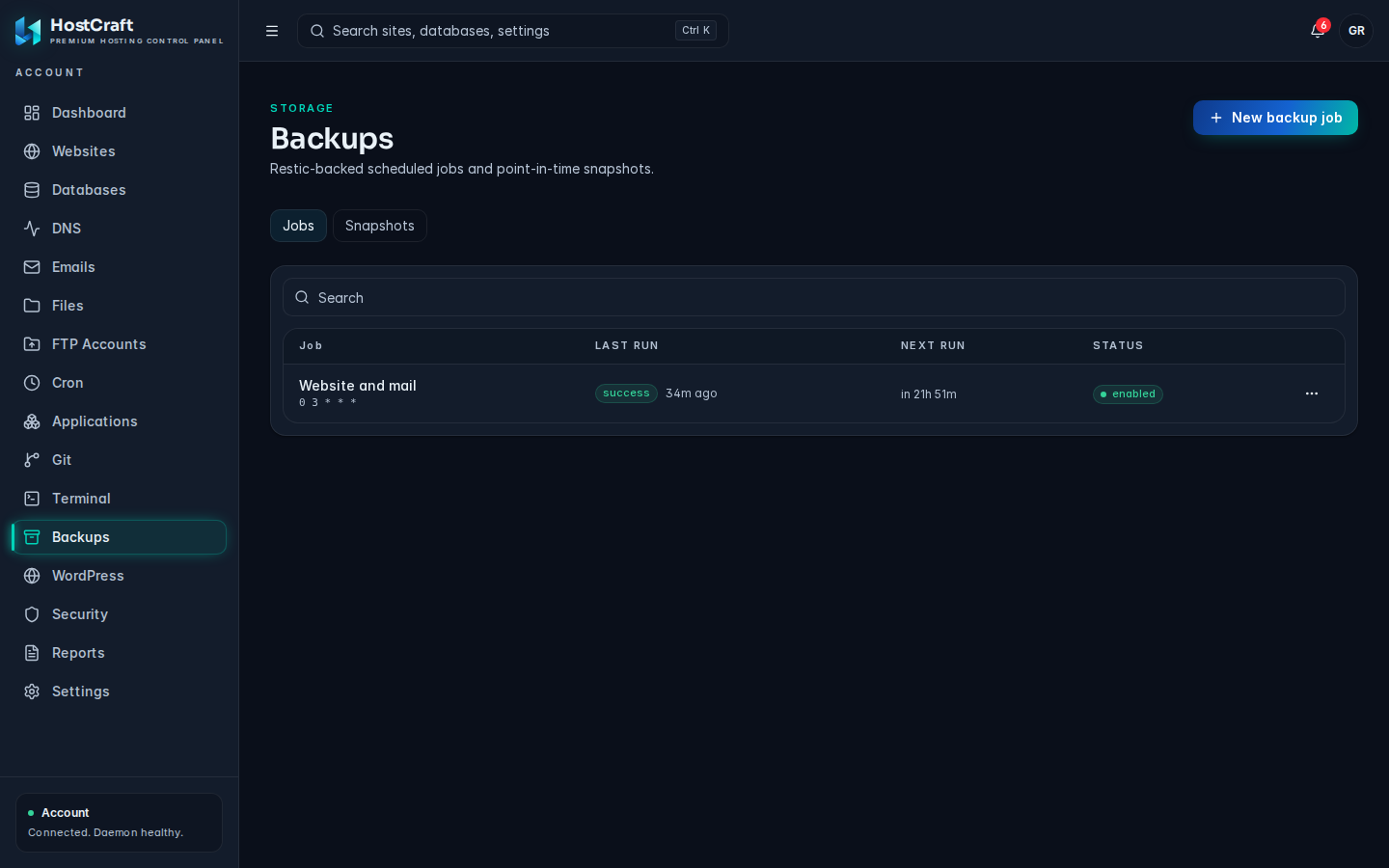
Section titled “Account owners: the Backups page”Open Backups in the sidebar. The page has two tabs: Jobs and Snapshots.
The Jobs tab
Section titled “The Jobs tab”Each row is one scheduled job:
- Job: the job name, with its cron schedule underneath.
+ databasesmeans the job also dumps your databases. - Last run: the outcome of the most recent run (
success,failure,partialorrunning) and how long ago it was. Never means it has not run yet. - Next run: when the schedule fires next, for example "in 2h 15m". Shows
-while the job is paused. - Status:
enabledorpaused.
Use the search box to filter jobs by name.
Create a backup job
Section titled “Create a backup job”- Click New backup job.
- Fill in the form:
- Name: any label, for example
Nightly full. - Repository: choose one of your account's repositories. If the list says No repository for this account, ask your hosting provider to create one for you.
- Schedule (cron): a standard five-field cron expression. The default
0 2 * * *runs every day at 02:00 server time. - Paths (one per line): folders to back up, relative to your home directory.
.(the default) means your whole home directory. Absolute paths are accepted only if they stay inside your home directory. - Include databases: ticked by default. Every database on your account is dumped into the snapshot as
.hostcraft-backup/databases/NAME.sql. If this is ticked you may leave Paths empty to back up only databases. - Exclude patterns (one per line, optional): restic exclude patterns, for example
cacheor*.log.
- Name: any label, for example
- Click Create job. The job is enabled immediately.
Some useful schedules:
| Schedule | Meaning |
|---|---|
0 2 * * * |
Every day at 02:00 |
0 */6 * * * |
Every six hours |
30 3 * * 0 |
Sundays at 03:30 |
Job actions
Section titled “Job actions”Open the ... menu at the end of a job row:
- Run now: starts a backup immediately. A "Backup NAME started" message confirms it.
- Run history: opens a drawer listing past runs of the job. The subtitle says whether the job covers Files and databases or Files only. A new job shows "This job has not run yet."
- Edit: change the name, schedule, paths, Include databases and exclude patterns. The repository cannot be changed; create a new job to use a different one. Click Save.
- Pause schedule / Resume schedule: stops or restarts scheduled runs without deleting the job. You can still use Run now while paused.
- Delete job: asks for confirmation, then removes the job. Snapshots it already made stay in the repository.
The Snapshots tab
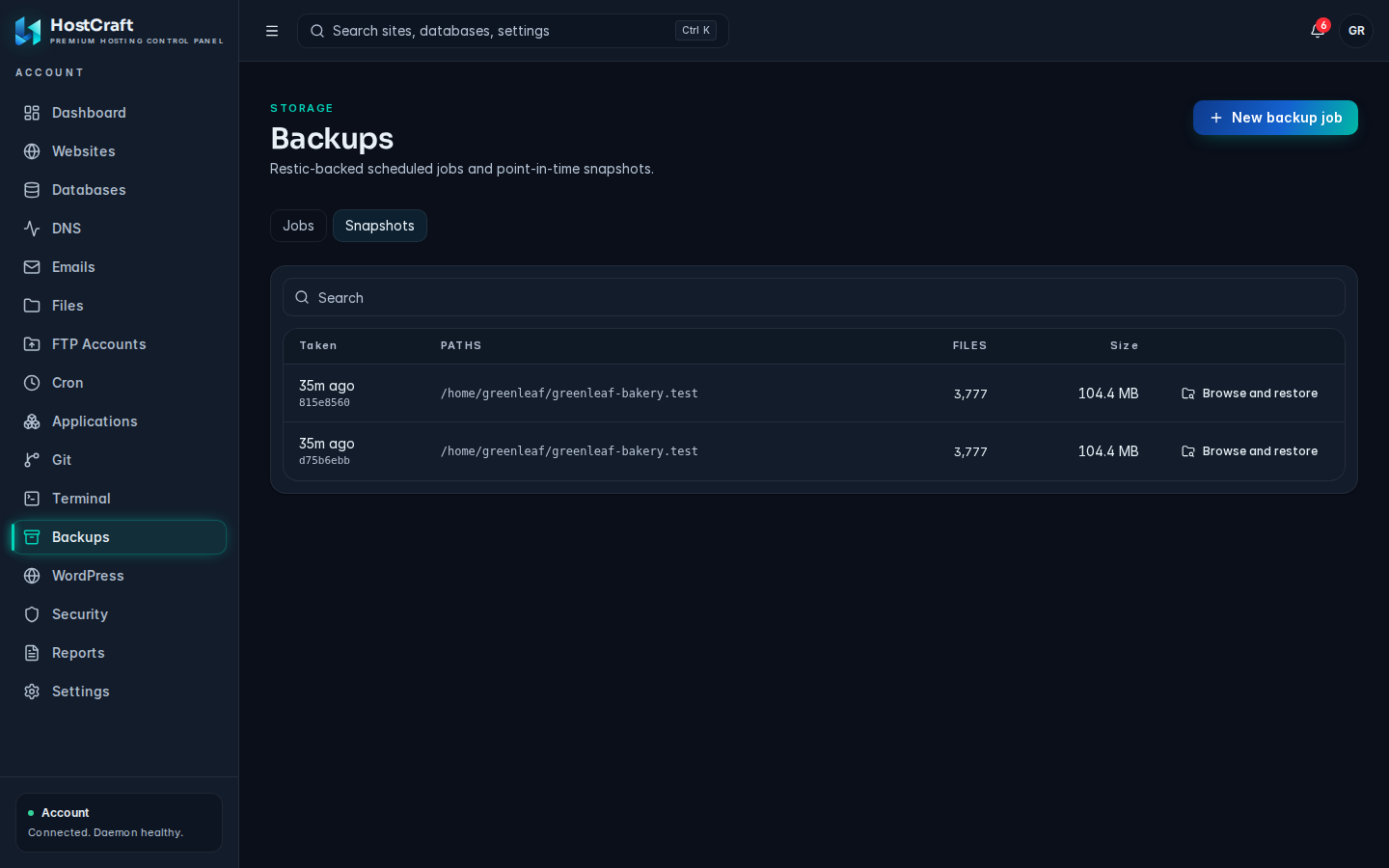
Section titled “The Snapshots tab”Lists every snapshot for your account, newest first: Taken (with the short snapshot ID), Paths, Files and Size. Search by snapshot ID. Click a row, or Browse and restore, to open it.
Restore files from a snapshot
Section titled “Restore files from a snapshot”Restores never overwrite your live files. They are written into a separate folder so you can compare and copy back what you need.
- On the Snapshots tab, click Browse and restore on the snapshot you want.
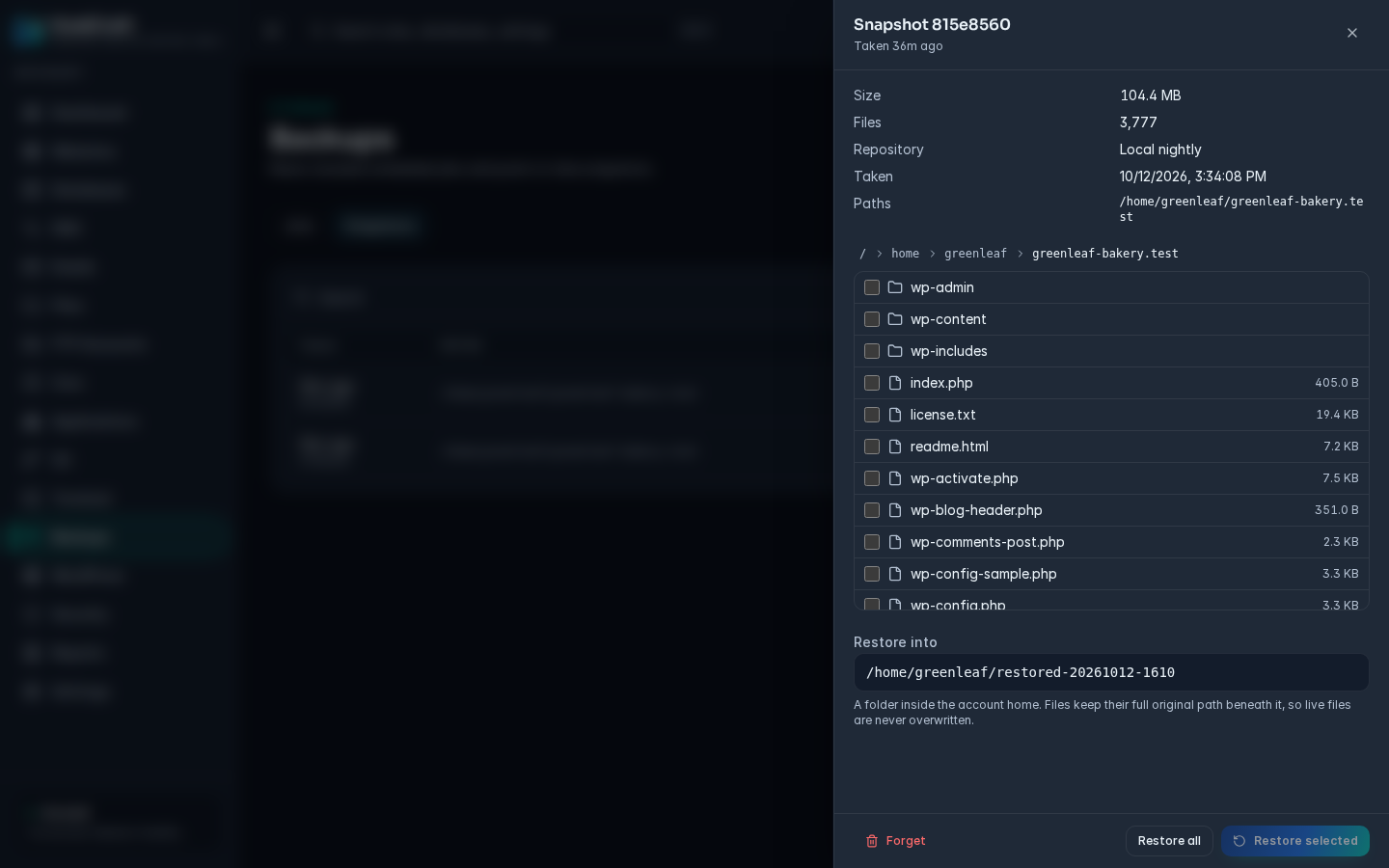
- The drawer shows the snapshot's Size, Files, Repository, Taken time and Paths. An includes database dumps badge means the snapshot contains SQL dumps.
- Browse the file tree. Click a folder to open it, and use the path breadcrumbs at the top to go back up.
- Tick the files and folders you want to restore.
- Check Restore into. It defaults to a new folder in your home directory named
restored-plus the date and time. Files keep their full original path beneath this folder, so live files are never overwritten. You can change it to any folder inside your home directory. - Click Restore selected. A message shows how many items are being restored and where.
- When it finishes, open Files and move the restored files into place.
Restore a database
Section titled “Restore a database”Database dumps live inside the snapshot at .hostcraft-backup/databases/NAME.sql.
- Restore that file using the steps above.
- Import the
.sqlfile into the database, for example with phpMyAdmin from the Databases page, or withmysql NAME < NAME.sqlin the Terminal.
Take a fresh backup with Run now before importing, in case you need to undo the import.
Forget a snapshot
Section titled “Forget a snapshot”In the snapshot drawer, click Forget, then confirm with Forget snapshot. This removes the snapshot from the repository. Storage space is reclaimed only when an administrator prunes the repository.
Resellers: pool snapshots
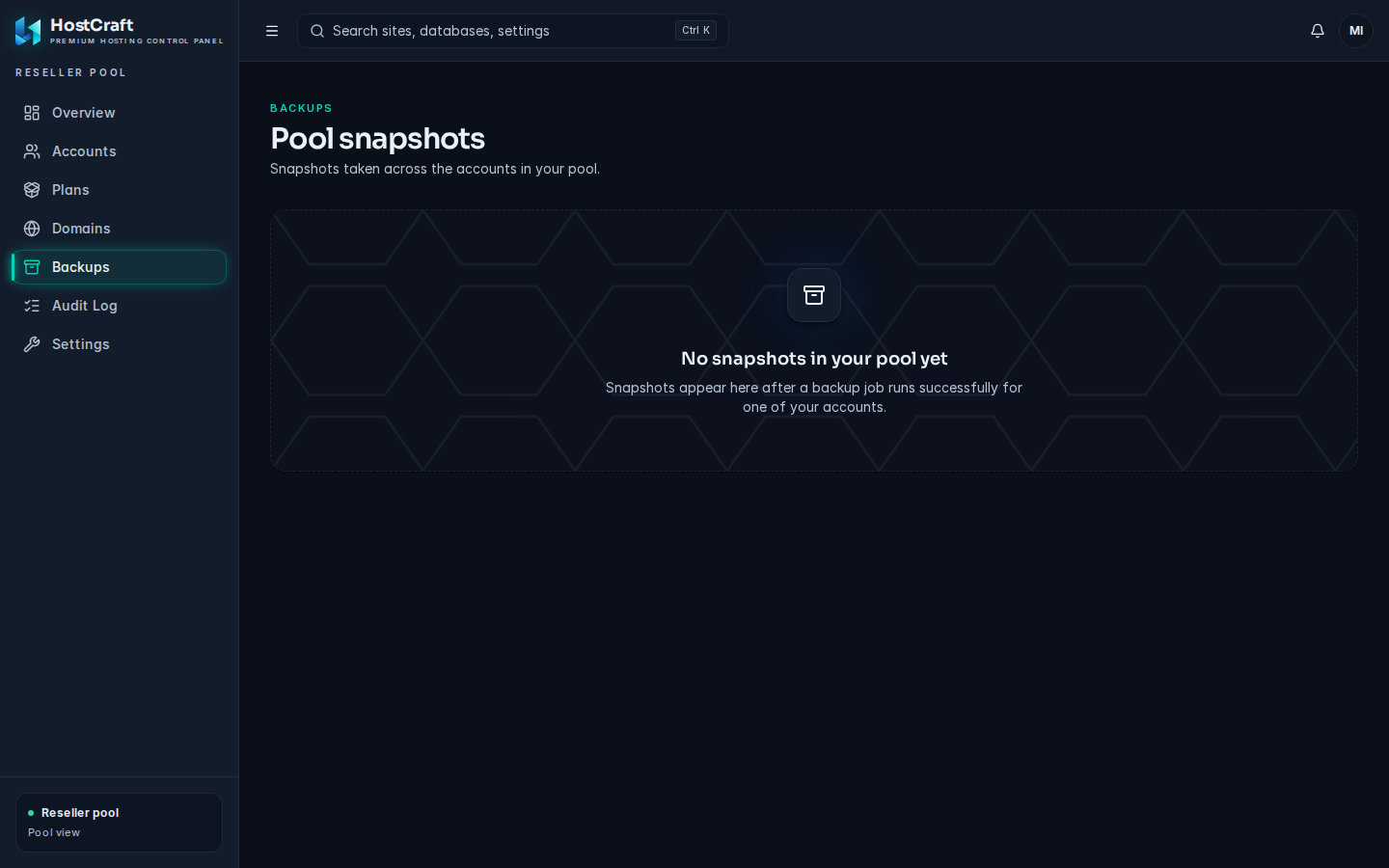
Section titled “Resellers: pool snapshots”The reseller Backups page shows Pool snapshots: snapshots taken across all accounts in your pool. If you have no accounts yet it says "Your pool is empty" with a Create account button. Job and repository management is done by the account owner and the server administrator.
Administrators: the Backups page
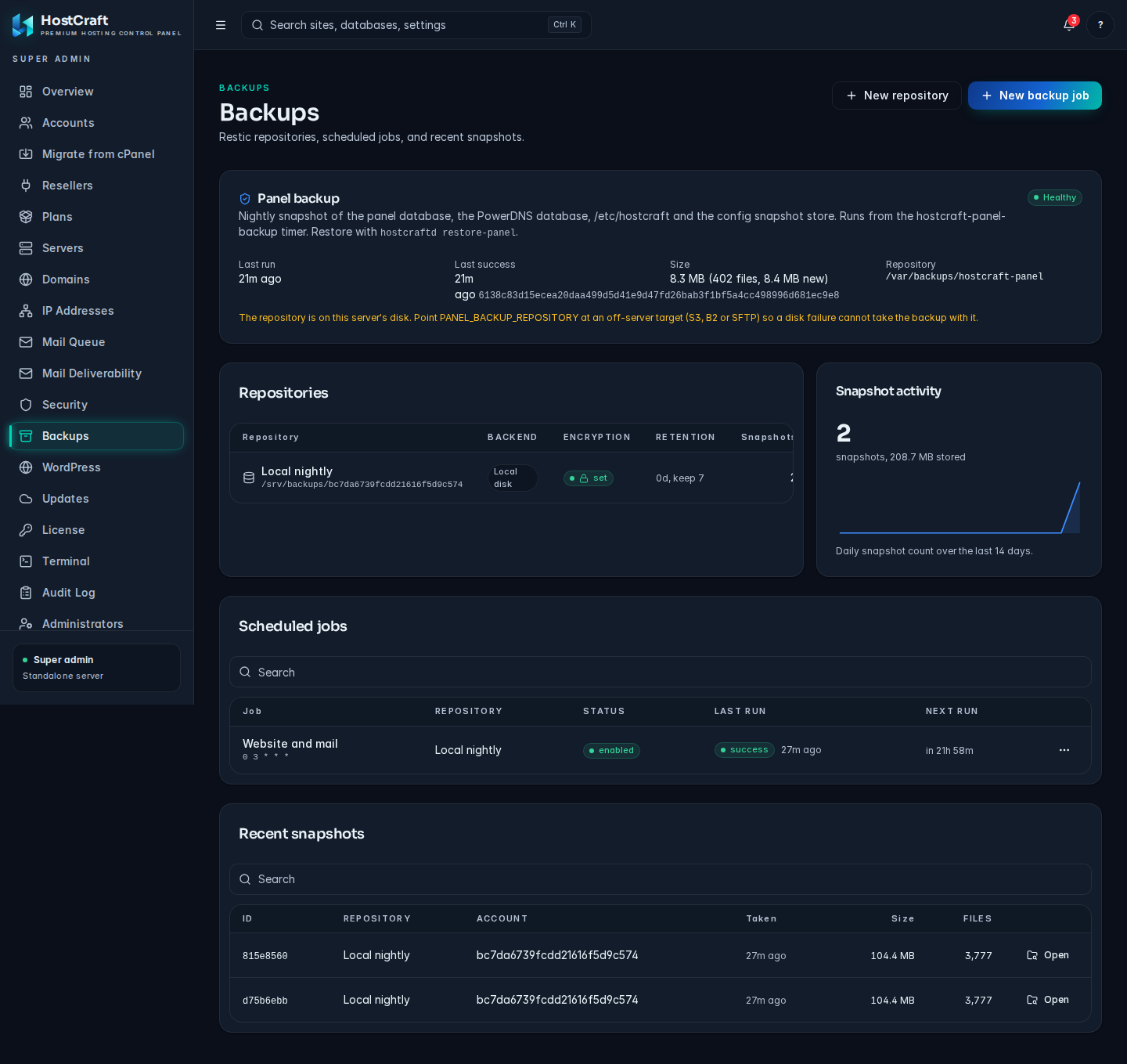
Section titled “Administrators: the Backups page”Backups in the admin sidebar shows, from top to bottom: the Panel backup card, Repositories, Snapshot activity, Scheduled jobs and Recent snapshots.
Create a repository
Section titled “Create a repository”- Click New repository.
- Fill in New backup repository:
-
Account: the account the repository belongs to. Only that account's jobs can use it.
-
Name: a label, for example
B2 offsite. -
Backend: S3 compatible, Backblaze B2, SFTP or Local disk.
-
Location, in the form for the backend:
Backend Location example S3 compatible s3.amazonaws.com/bucket/pathorhttps://s3.example.com/bucket/pathBackblaze B2 bucket:pathSFTP user@host:/pathLocal disk /var/backups/restic -
Encryption password: encrypts the repository. Store it somewhere safe outside the server. Without it the data cannot be read.
-
Retention days (default 30) and Keep last (default 7): how long and how many snapshots the retention policy keeps when the repository is pruned.
-
Backend credentials (KEY=value per line), for S3 and B2. For S3 use
AWS_ACCESS_KEY_ID=...andAWS_SECRET_ACCESS_KEY=.... For B2 useB2_ACCOUNT_ID=...andB2_ACCOUNT_KEY=.... -
SSH private key and SSH port (default 22), for SFTP. The key is stored encrypted. The server's host key is trusted on first connection and pinned after that.
-
- Click Create. HostCraft initialises an encrypted restic repository at the destination.
Local disk repositories are fast to restore from but do not protect against losing the server's disk. Use an off-site backend for real protection.
Repository actions
Section titled “Repository actions”Open the ... menu on a repository row:
- Stats and retention: shows Stored size, Snapshots, Files and Dedup ratio, and lets you rename the repository and change retention: Days, Keep last, Weekly and Monthly. Click Save.
- Test connection: reports whether the repository is reachable and initialised, or why it is unreachable.
- Prune now: after confirmation, applies the retention policy and reclaims space from forgotten snapshots.
- Delete repository: removes it from HostCraft. A second prompt asks whether to also delete the remote restic data. That cannot be undone.
Jobs and snapshots for any account
Section titled “Jobs and snapshots for any account”Scheduled jobs and Recent snapshots work like the account owner's tabs, with the same row actions. When an admin creates a job, the dialog also has an Account field. Pick the account first; the Repository list then shows only that account's repositories.
Panel backup
Section titled “Panel backup”The Panel backup card covers HostCraft itself: a nightly snapshot of the panel database, the PowerDNS database, /etc/hostcraft and the config snapshot store, run by the hostcraft-panel-backup timer. Its badge shows Healthy, Overdue, Last run failed, Waiting for first run or Not configured, with the last run, last success, size and repository.
To configure it, set PANEL_BACKUP_REPOSITORY and PANEL_BACKUP_PASSWORD in /etc/hostcraft/panel-backup.env on the server. To restore the panel, run hostcraftd restore-panel on the server.
Common problems
Section titled “Common problems”| Problem | Fix |
|---|---|
| No repository for this account in the job dialog | An administrator must create a repository for that account first. |
| Create job stays greyed out | Choose a repository (and an account, if you are an admin). |
A job shows failure |
Open Run history for the error. As an admin, use Test connection on the repository to check credentials and reachability. |
| A path is rejected | Paths must be inside the account home directory. Use relative paths such as public_html. |
| Storage keeps growing after forgetting snapshots | Space is reclaimed only by Prune now on the repository. |
| Stats unavailable in Stats and retention | The repository cannot be reached. Run Test connection. |
| Restored files are not where you expected | They are under the Restore into folder, with the full original path beneath it. |