
Pre-release. HostCraft is in testing and not yet for sale. These docs describe the current build and may change. Join the waitlist to hear when it launches.
Terminal
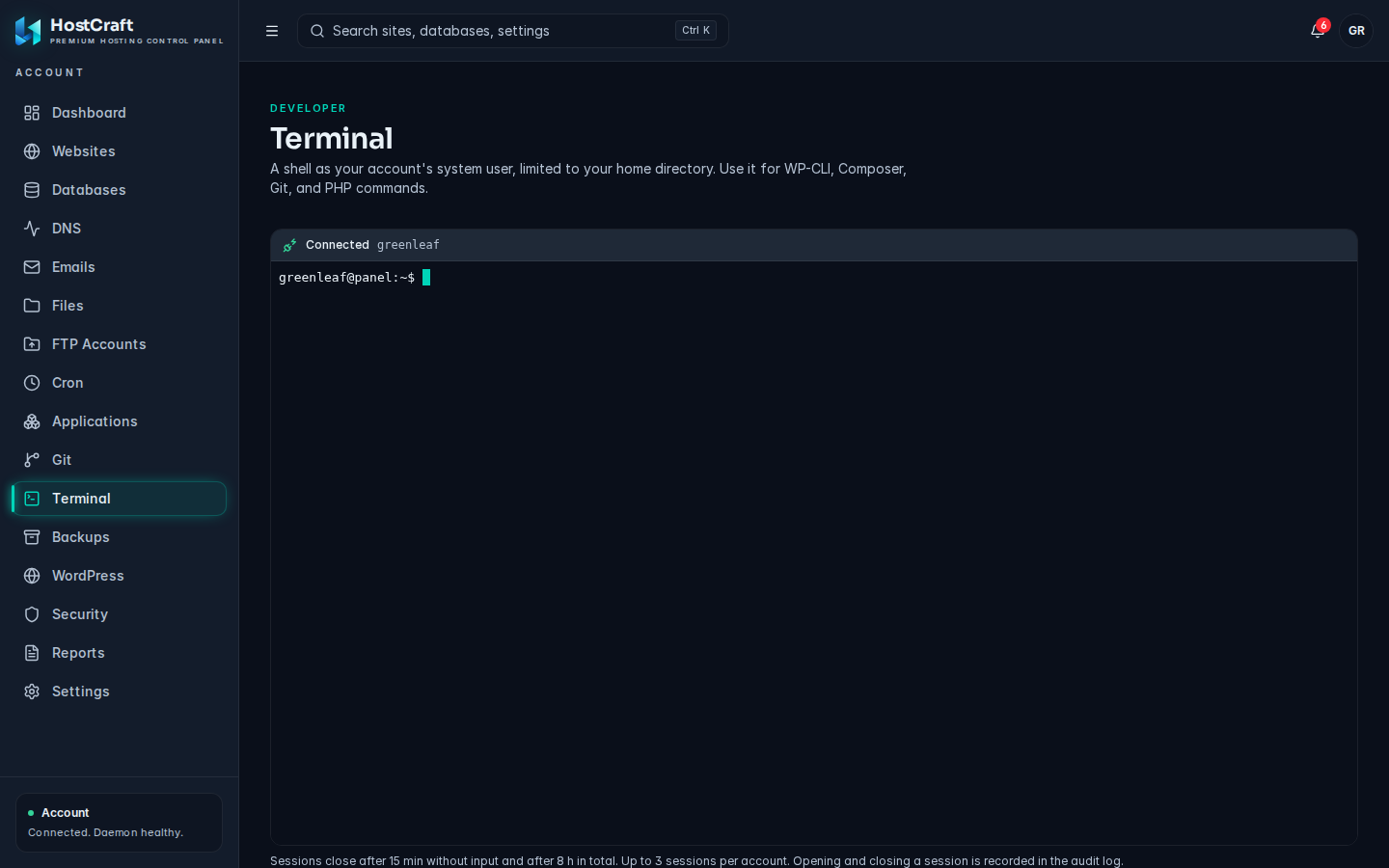
The Terminal page (sidebar, under Developer) opens a command line shell in your browser. The shell runs as your account's system user and is limited to your home directory, so it is safe to use for everyday tasks such as WP-CLI, Composer, Git and PHP commands.
Who can use it
Section titled “Who can use it”| Role | Where |
|---|---|
| Account owner | Terminal in the account sidebar, for their own account. |
| Sub-user | Only if the account owner granted terminal access. |
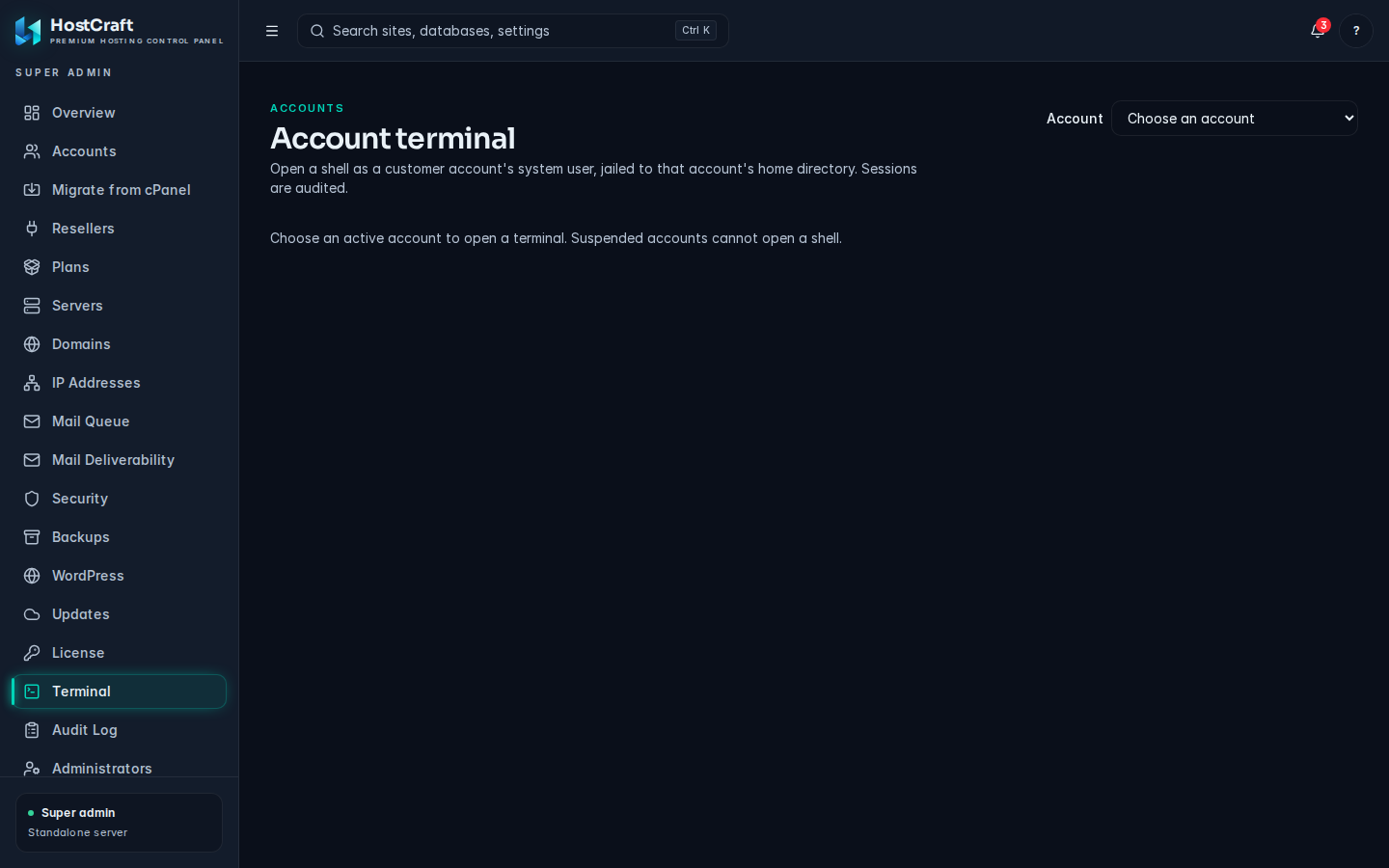
| Server admin | Terminal in the admin sidebar (Account terminal), for any customer account. |
| Reseller, mailbox user | No access. |
Open a session
Section titled “Open a session”- Click Terminal in the sidebar.
- The status above the terminal shows Connecting, then Connected.
- Click inside the terminal and type commands as you would over SSH.
Examples:
cd public_htmlwp plugin listcomposer installgit pullphp -vSession limits
Section titled “Session limits”The line below the terminal shows the limits on your server. The defaults are:
- A session closes after 15 minutes without input.
- A session closes after 8 hours in total.
- Up to 3 sessions per account at the same time.
Opening and closing a session is recorded in the audit log.
When a session ends, the status changes to Disconnected and a message explains why:
| Message | Meaning |
|---|---|
| The shell exited. | You typed exit or the shell stopped. |
| Closed after a period of inactivity. | No input for the idle timeout. |
| Closed after reaching the maximum session length. | The session hit the total time limit. |
| Connection lost. | Your network dropped or the browser lost the connection. |
| Disconnected. | The session was closed from the browser. |
Click Reconnect to start a new session. Anything still running in the old shell stopped when it closed, so use cron for long jobs (see Cron jobs).
Open a terminal for a customer account (server admins)
Section titled “Open a terminal for a customer account (server admins)”- In the admin sidebar, click Terminal.
- Under Account, choose the customer account from Choose an account.
- A shell opens as that account's system user, jailed to its home directory. The session is audited.
Common problems
Section titled “Common problems”| What you see | Cause and fix |
|---|---|
| Terminal unavailable | The web terminal is not available on this server. The message underneath gives the reason, for example that it needs a Linux host with systemd. Contact your host. |
| The server refused the session. | Usually you already have the maximum number of sessions open. Close another terminal tab and reconnect. |
| account is suspended | Terminal access is blocked while the account is suspended. |
| account is not active | The account is still being set up or is being removed. Try again later. |