
FTP Accounts
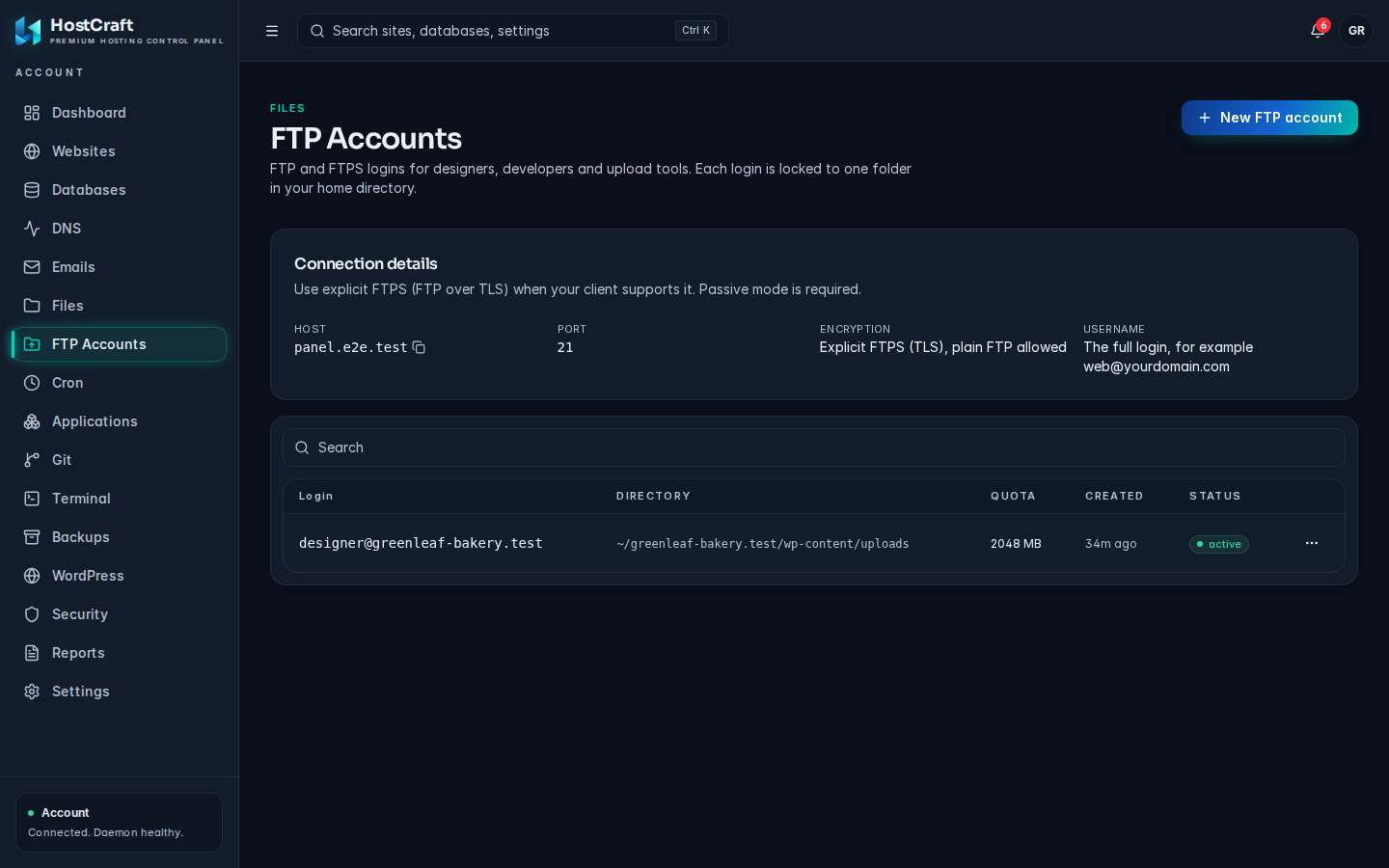
The FTP Accounts page (sidebar) lets you give designers, developers and upload tools a login that can only see one folder in your home directory. They can upload and download files there without access to the rest of your account. Files they upload belong to your account.
Who can use this page
Section titled “Who can use this page”| Role | What they can do |
|---|---|
| Account owner | Create, edit, disable, enable and delete FTP logins for their own account. |
| Sub-user | Only what the account owner granted. The read only support preset sees the list without actions. |
| Reseller | Read only access to FTP logins of accounts in their pool (through the API). The reseller panel has no FTP page. |
| Server admin | Full access across every account. |
| Mailbox user | No access. |
Your plan can cap the number of FTP accounts. When the cap is reached, creating another login fails with "plan FTP account limit reached".
Connection details
Section titled “Connection details”The Connection details card shows what to enter in your FTP client:
| Field | Value |
|---|---|
| Host | the server address (click the copy button next to it) |
| Port | usually 21 |
| Encryption | Explicit FTPS (TLS), plain FTP allowed |
| Username | the full login, for example [email protected] |
Use explicit FTPS (FTP over TLS) whenever your client supports it, so passwords and files are encrypted. Passive mode is required. In FileZilla, choose "Require explicit FTP over TLS" as the encryption.
Create an FTP account
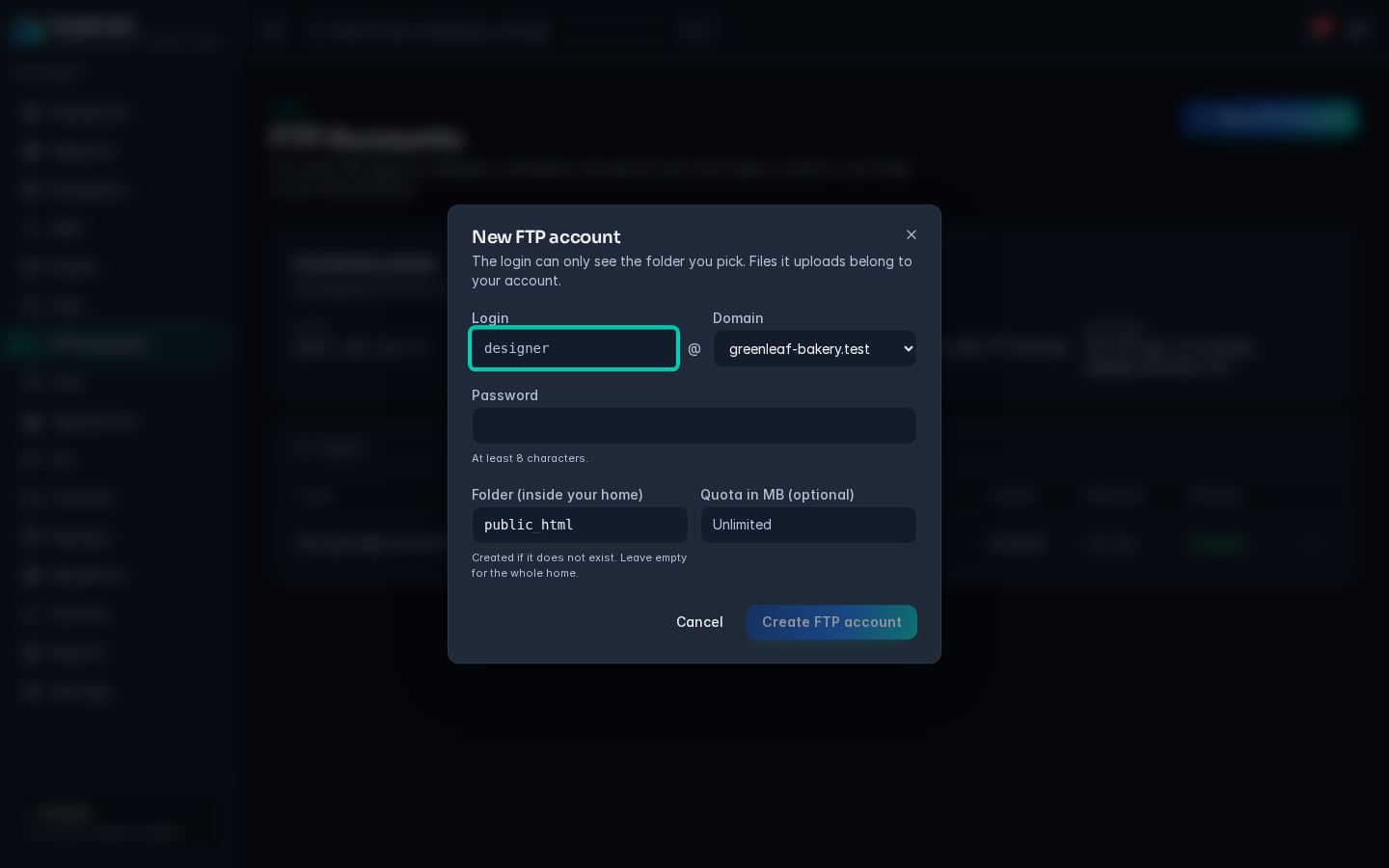
Section titled “Create an FTP account”- Click New FTP account.
- In Login, type the part before the
@, for exampledesigner. Use lowercase letters, digits, dots, dashes and underscores, starting with a letter or digit, up to 32 characters. - In Domain, pick one of your domains. The full login becomes
[email protected]. If the list says "Add a domain first", add a domain on the Websites page. - Enter a Password of 8 to 72 characters.
- In Folder (inside your home), enter the folder the login is locked to. It defaults to
public_html. Leave it empty to give access to your whole home directory. - Optionally set Quota in MB. Leave it empty for unlimited.
- Click Create FTP account.
Edit an FTP account
Section titled “Edit an FTP account”- Open the actions menu on the login and choose Edit.
- Change any of:
- New password: leave empty to keep the current password. A new one must be at least 8 characters.
- Folder: the folder the login is locked to.
- Quota in MB: empty means unlimited.
- Click Save.
Disable or enable a login
Section titled “Disable or enable a login”Open the actions menu and choose Disable login to block a login without deleting it, for example when a contractor's work is finished. Choose Enable login to let it in again. The Status column shows active, disabled, or account suspended when the whole hosting account is suspended.
Delete a login
Section titled “Delete a login”Open the actions menu, choose Delete, and confirm. Only the login is removed: files in its folder are kept.
Logins migrated from cPanel
Section titled “Logins migrated from cPanel”FTP accounts brought over from a cPanel server show migrated from cPanel under the login, and keep working with their existing passwords. If a migrated password was stored in a format the FTP server cannot use, you see "password hash format not supported by pure-ftpd": set a new password with Edit.
Common errors
Section titled “Common errors”| Message | Cause and fix |
|---|---|
| login already exists | That login is taken. Choose another name. |
| invalid login; use letters, digits, dot, dash, underscore | The name contains other characters or is too long. |
| domain does not belong to the account | Pick a domain from your own list. |
| directory must be inside the account home | The folder points outside your home. Use a path such as public_html/uploads. |
| password must be at least 8 characters | Use a longer password. |
| plan FTP account limit reached | Delete an unused login or ask your host for a bigger plan. |
| Client times out listing folders | Turn on passive mode in your FTP client. |