
WP Toolkit
The WP Toolkit is HostCraft's built-in WordPress lifecycle manager. It wraps wp-cli and adds the operational features that customers actually use day to day: clone-to-staging, smart-update with rollback, a hardening profile that closes the common attack vectors, and a vulnerability scanner backed by Patchstack, WPScan, and the NVD CVE feed.
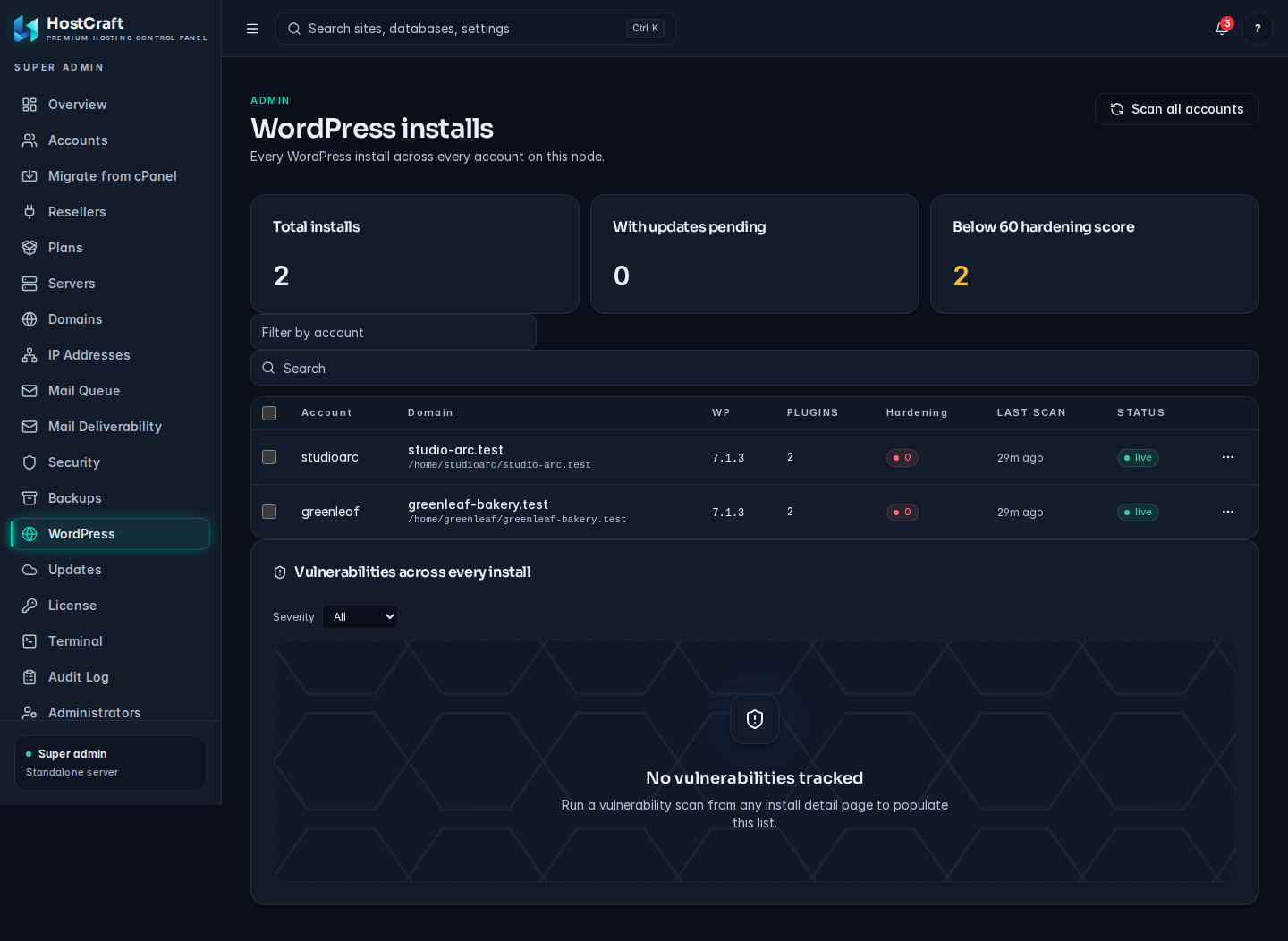
Scanning for WordPress installs
Section titled “Scanning for WordPress installs”Before managing a site, the toolkit scans the account to discover existing WordPress installs. This is useful when migrating from cPanel or when the customer has manually uploaded WordPress.
hostcraftd wp scan --account=acmeOutput lists every discovered install with its path, detected core version, and whether the installation is healthy (valid wp-config.php, database reachable, keys set).
From the panel: Sites -> WordPress -> Scan account.
Installing WordPress
Section titled “Installing WordPress”From the panel: Sites -> Add WordPress.
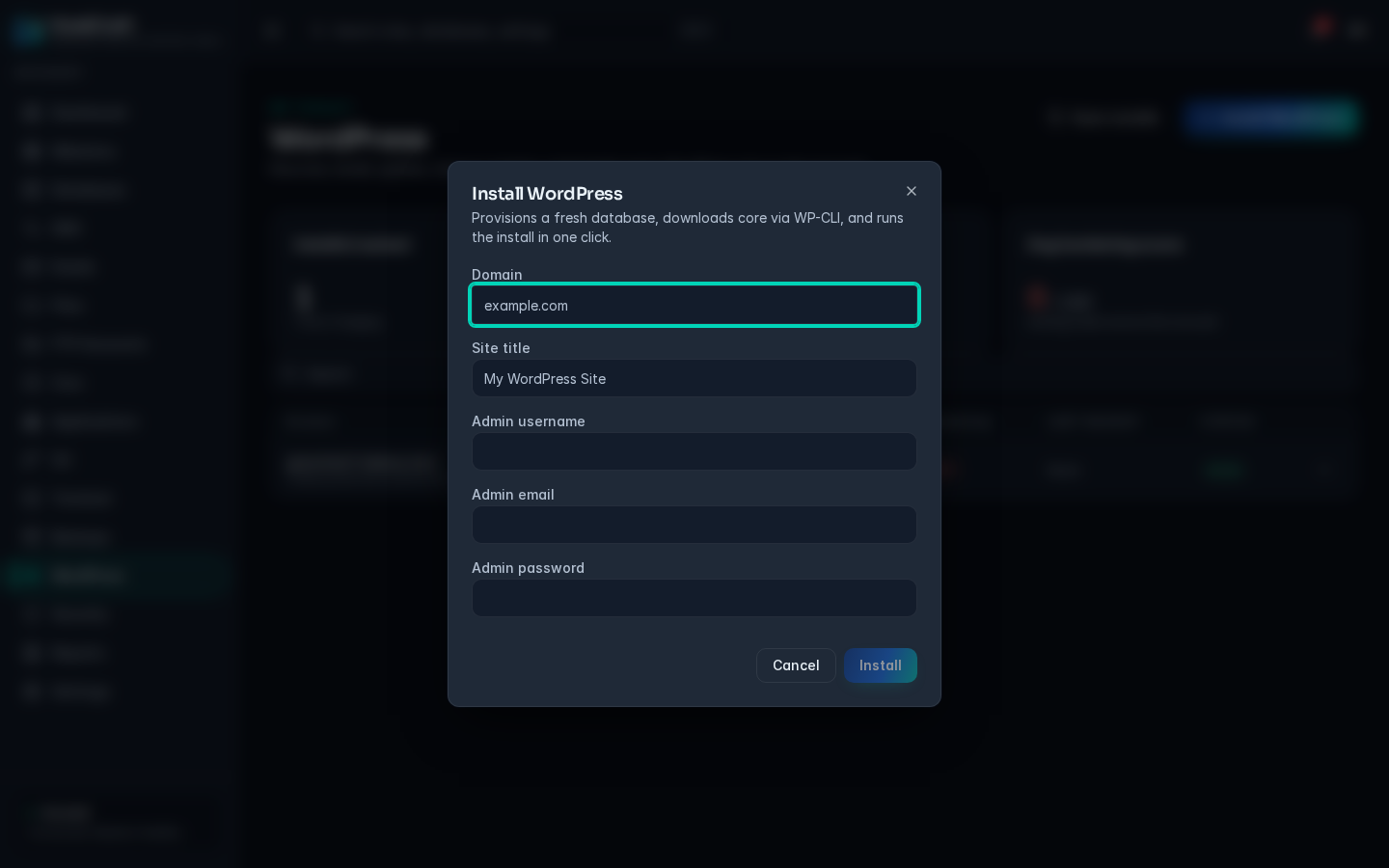
Required:
- Site domain
- Admin email
- Admin username (default
adminis rejected; pick something specific) - Admin password (panel offers to generate)
Optional:
- Locale
- Database name (default
<account>_wp_<n>) - Table prefix (default
wp_; randomized prefix recommended for new installs)
Equivalent CLI:
hostcraftd wp install \ --site=acme.com \ --account=acme \ --admin-user=acme-admin \ --admin-password='change-me'Updating
Section titled “Updating”The toolkit handles three update axes:
| Axis | Default cadence | Source |
|---|---|---|
| WordPress core | Auto-update on minor and patch releases. Major requires confirmation. | wp.org |
| Plugins | Auto-update by default. Disable per-plugin if known to break on update. | wp.org or supplied repo |
| Themes | Auto-update by default. | wp.org or supplied repo |
CLI:
hostcraftd wp update --site=acme.com # all axeshostcraftd wp update --site=acme.com --core # core onlyhostcraftd wp update --site=acme.com --pluginsSmart-update
Section titled “Smart-update”Smart-update is the differentiator. Before any plugin or core update runs on the live site, the toolkit:
- Clones the live site to a hidden staging slot.
- Freezes the live FPM pool (drains in-flight requests; new requests queue) so the live site does not diverge during the test window.
- Runs the update on the staging copy.
- Takes a screenshot of the home page, the most-trafficked product page (from analytics), the cart or checkout if present, and the wp-admin dashboard.
- Diffs the screenshots against the pre-update baseline.
- Hits a small set of canary URLs and checks for HTTP 5xx, PHP fatal errors, and JavaScript console errors.
- If clean, atomically swaps the updated staging docroot onto the live site and releases the FPM pool freeze.
- If not clean, releases the freeze (live site was untouched), surfaces the diff to the operator, and waits for a manual choice.
CLI:
hostcraftd wp smart-update --site=acme.comSmart-update is on by default for plugins flagged as "high risk" (any plugin with a CVE within the last 12 months, any e-commerce plugin, any builder plugin). Operators can switch it on globally per site under Sites -> WordPress -> Smart Update.
Clone to staging
Section titled “Clone to staging”Clone the live site to a staging slot (a separate subdomain by default staging-<n>.acme.com):
hostcraftd wp clone --site=acme.com --to=staging-1.acme.comClone copies the doc root and the database. URLs are rewritten via wp search-replace so internal links resolve to the staging subdomain. The staging slot is gated by HTTP basic auth by default so it does not appear in search results or get accidentally trafficked.
Promote staging back to live:
hostcraftd wp promote --from=staging-1.acme.com --to=acme.comPromotion takes a snapshot of live first, runs wp db export on staging, imports to live, copies the doc root, runs the URL rewrite, then atomically swaps the docroot path.
Hardening
Section titled “Hardening”The WP Toolkit applies a 12-item baseline hardening profile to every site at install. Operators can disable specific items per site if a customer's plugin requires it.
| # | Hardening | Effect |
|---|---|---|
| 1 | Disable XML-RPC | Blocks the xmlrpc.php brute-force vector. Disable if Jetpack or similar is in use. |
| 2 | Disable file editor | define('DISALLOW_FILE_EDIT', true) so admins cannot edit themes from the panel. |
| 3 | Block direct PHP execution in /wp-content/uploads/ |
nginx rule that returns 403 for *.php under uploads. |
| 4 | Hide the WP version number | Removes the meta tag and RSS-feed disclosure. |
| 5 | Limit login attempts | Five fails per IP in fifteen minutes via Coraza, escalates to CrowdSec ban. |
| 6 | Force admin password rotation every 12 months | Customer prompt at login. |
| 7 | Random table prefix | Set at install (when the customer accepts the default). |
| 8 | Snuffleupagus profile | PHP RASP rules tuned for WordPress: blocks unserialize on user-controlled input, blocks dangerous file inclusion, blocks XXE in upload handlers. |
| 9 | Disable directory listing | nginx autoindex off for the entire docroot. |
| 10 | Protect wp-config.php |
nginx deny rule for direct requests to wp-config.php. |
| 11 | Disable application passwords | define('WP_APPLICATION_PASSWORDS_ENABLED', false) unless the site uses REST API auth. |
| 12 | Enforce HTTPS for admin | define('FORCE_SSL_ADMIN', true) to prevent admin cookie leakage over HTTP. |
CLI to inspect and manage the profile:
hostcraftd wp hardening status --site=acme.comhostcraftd wp hardening enable --site=acme.com --profile=baselinehostcraftd wp hardening disable --site=acme.com --rule=xmlrpc-block --reason="Jetpack required"Vulnerability scanner
Section titled “Vulnerability scanner”The toolkit scans every WordPress install for known vulnerabilities in core, plugins, and themes. Three feeds are aggregated:
| Feed | Priority | Coverage |
|---|---|---|
| Patchstack | Primary (requires wp_vuln.patchstack_api_key) |
WordPress-specific CVEs, virtual patches |
| WPScan | Secondary (requires wp_vuln.wpscan_api_key) |
Plugin and theme advisories |
| NVD CVE | Fallback (always active, cached locally) | Generic CVE database refreshed every 24 hours |
Scan results surface in the panel under Sites -> WordPress -> Vulnerabilities for each install, and in the server-wide view under Security -> WP Vulnerabilities.
Severity badges
Section titled “Severity badges”Each finding is labelled with a severity badge derived from the CVSS base score:
| Badge | CVSS range | Colour |
|---|---|---|
| Critical | 9.0 - 10.0 | Red |
| High | 7.0 - 8.9 | Orange |
| Medium | 4.0 - 6.9 | Yellow |
| Low | 0.1 - 3.9 | Blue |
Actions per finding
Section titled “Actions per finding”For each vulnerability, three actions are available:
- Update Now: applies the update immediately (runs through the smart-update flow if smart-update is enabled for the site).
- Acknowledge: marks the finding as reviewed. Use this when you have applied a workaround or are waiting on an upstream fix. Acknowledged findings still appear in the list but are de-emphasised.
- Ignore: permanently dismisses the finding for this install. Use only when the vulnerable component is not reachable (for example a plugin installed but not activated).
Acknowledged and ignored findings are included in the server-wide vulnerability export but excluded from alert counts.
Reset admin password
Section titled “Reset admin password”hostcraftd wp reset-password --site=acme.com --user=acme-adminOr from the panel: Sites -> WordPress -> Reset admin password. A new password is generated and emailed to the admin email on file.
Debug toggle
Section titled “Debug toggle”hostcraftd wp debug --site=acme.com --enable # sets WP_DEBUG=true, WP_DEBUG_LOG=truehostcraftd wp debug --site=acme.com --disable # restores production settingsDebug mode logs to <docroot>/wp-content/debug.log. The panel shows a yellow banner on the site card while debug is active as a reminder to disable it before traffic returns.
Search-replace
Section titled “Search-replace”Replace a string across the WordPress database (handles serialized data safely via wp search-replace):
hostcraftd wp search-replace \ --site=acme.com \ --from="http://old.acme.com" \ --to="https://acme.com" \ --dry-runRemove --dry-run to execute. The operation takes a database snapshot first.
Per-install backup and restore
Section titled “Per-install backup and restore”The toolkit maintains its own snapshot repository (wptoolkit-snapshots) separate from the account-level restic backup repository. This allows restoring a single WordPress install without touching the rest of the account.
Snapshots are taken automatically before every toolkit operation (update, hardening change, search-replace). The retention is 30 days for toolkit snapshots regardless of the account's general backup retention policy.
# List snapshots for a sitehostcraftd wp snapshots list --site=acme.com
# Restore from a specific snapshothostcraftd wp snapshots restore --site=acme.com --snapshot=<snapshot-id>
From the panel: Sites -> WordPress -> Backups -> WP Toolkit snapshots.
What is not yet in v1
Section titled “What is not yet in v1”- Multisite (network) support beyond basic install. v1 supports single-site and the WP Toolkit features assume single-site.
- Custom plugin / theme repository (private S3 bucket as a source). Planned for v1.1.
- Automated translation of the smart-update screenshot diff into a plain-English "what changed" summary; the human operator looks at the diff in v1.