
Security
HostCraft runs a layered security stack on every server: the Coraza web application firewall (WAF), CrowdSec, ClamAV malware scanning, Snuffleupagus PHP runtime protection (RASP), file integrity monitoring (FIM) and an outbound network monitor. It runs automatically. The Security pages show what it is doing and give you the controls that matter.
| Role | Page | What they can do |
|---|---|---|
| Admin | Security (/admin/security) |
Server-wide events, blocked IPs, quarantine, malware scans, security policy, any account's firewall and file integrity |
| Account owner | Security (/security) |
Their account's events, malware scan of their home directory, firewall rules, country blocks, file integrity review |
| Sub-user | Security | Visible only with the security events permission. The Read-only support preset can look but not change anything |
| Reseller, mailbox user | none | No Security page |
Two-factor sign-in, passwords and sessions are on the Settings page.
Account owners: the Security page
Section titled “Account owners: the Security page”Open Security in the sidebar.
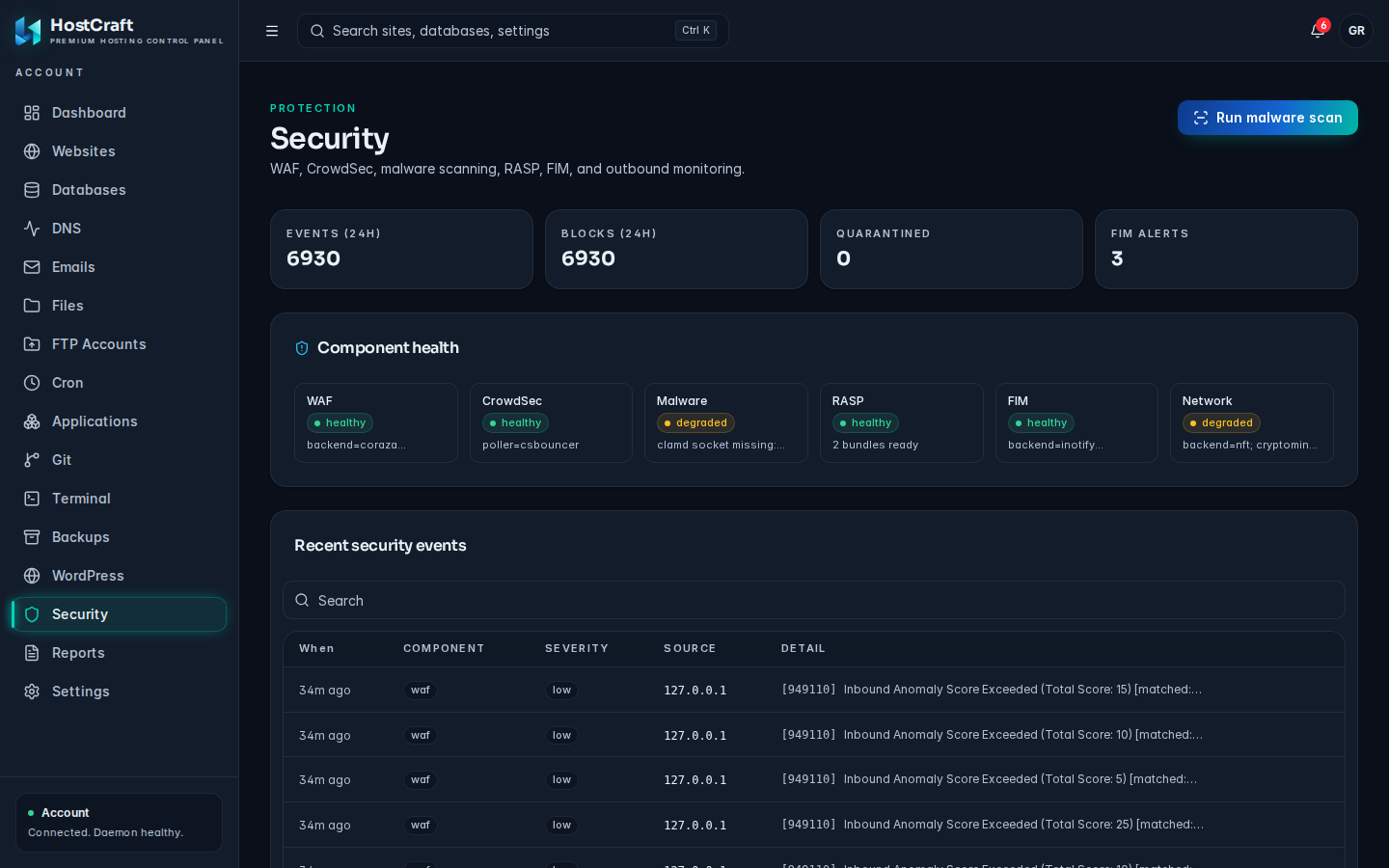
Overview
Section titled “Overview”The top row shows the health of each component: WAF, CrowdSec, Malware, RASP, FIM and Network. Below it are four counters:
- Events (24h): security events in the last 24 hours.
- Blocks (24h): requests or IPs blocked in the last 24 hours.
- Quarantined: files the malware scanner has isolated.
- FIM alerts: file changes waiting for review.
Recent security events
Section titled “Recent security events”The table lists events for your account with When, Component, Severity, Source and Detail. Click a row to open the Security event drawer, which shows the component, severity, time, Rule, Source IP, Account, Site, Event ID and the full detail.
"No security events" means nothing has tripped the WAF, CrowdSec or FIM recently.
Acknowledging an event is an administrator action. Account owners see whether an event has been acknowledged.
Run a malware scan
Section titled “Run a malware scan”Click Run malware scan at the top of the page. ClamAV scans your home directory in the background and "Malware scan started." confirms it. Detections appear as events. If your administrator has turned on automatic quarantine, infected files are moved to quarantine. Restoring or deleting quarantined files is done by an administrator, so contact your host if a file was quarantined by mistake.
Firewall rules
Section titled “Firewall rules”The Firewall card allows or denies traffic to your account by IP, network or country.
To add a rule:
- Choose Deny or Allow.
- Choose IP or Network (CIDR) and enter the source, for example
203.0.113.7or203.0.113.0/24. - Choose the protocol: TCP, UDP or Any.
- Optionally enter a Port (0 to 65535) and a Note so you remember why the rule exists.
- Click Add rule.
Each existing rule has Disable / Enable and a delete button (with a confirmation).
Block a country
Section titled “Block a country”Under Blocked countries, type a two-letter ISO country code (for example CN) and click Block country. The button stays disabled until you enter exactly two letters. To lift a block, click the remove button next to the country.
Server-level blocks lists blocks set by the server (for example by CrowdSec) that affect your account. You cannot remove those yourself.
File integrity
Section titled “File integrity”The File integrity card lists changes to watched files since the last accepted baseline. Each change is tagged new, modified or deleted.
- If you made the change (for example a plugin update), tick it and click Accept selected, or click Accept all and confirm. Accepted changes become the new baseline.
- If you did not make the change, do not accept it. Run a malware scan, check the file, and restore a clean copy from Backups if needed.
"No pending changes" means every watched file matches the baseline.
Administrators: the Security center
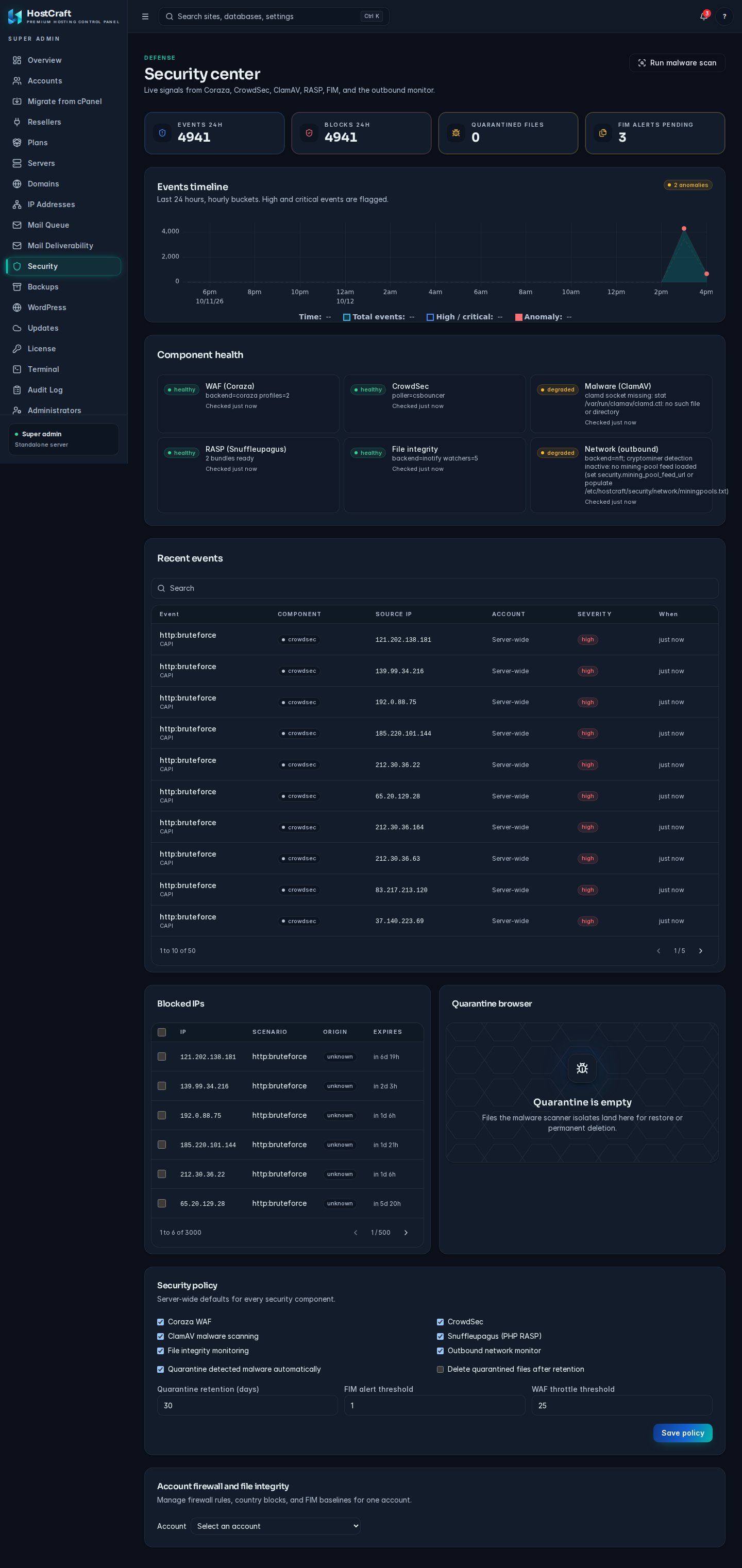
Section titled “Administrators: the Security center”Security in the admin sidebar opens the Security center. If the daemon reports that the security stack is not wired on this server, the page shows "Security stack not enabled" instead.
Component health and events
Section titled “Component health and events”- Component health shows the state of WAF (Coraza), CrowdSec, Malware (ClamAV), RASP (Snuffleupagus), File integrity and Network (outbound).
- Events timeline charts events over time, with Total events and High / critical counts.
- Recent events lists events across every account with When, Event, Component, Severity, Source IP and Account. Click an event and use Acknowledge to mark it as handled.
Run a full malware scan
Section titled “Run a full malware scan”Click Run malware scan in the page header. This scans the whole server, not one account. The confirmation shows the scan ID.
Blocked IPs
Section titled “Blocked IPs”Lists CrowdSec decisions and manual bans with IP, Scenario, Origin and Expires. Tick rows and use Unblock selected, or Unblock on a single row, to lift a block early. "No active blocks" means nothing is currently banned.
Quarantine browser
Section titled “Quarantine browser”Files the malware scanner isolated, with Path, Detection, Account, Size and when they were caught.
- Restore selected (or the restore button on a row) puts a file back at its original path. Only do this for false positives.
- Delete selected (or the delete button on a row) permanently deletes the file after confirmation.
Security policy
Section titled “Security policy”Server-wide defaults for every component:
- Coraza WAF, Snuffleupagus (PHP RASP), File integrity monitoring, Outbound network monitor: turn each component on or off.
- Quarantine detected malware automatically: move detections to quarantine without waiting for an admin.
- Delete quarantined files after retention: purge quarantine automatically.
- Quarantine retention (days): how long quarantined files are kept.
- FIM alert threshold: how many file changes trigger an alert.
- WAF throttle threshold: how many WAF hits from one source trigger throttling.
Save the card. "Policy saved." confirms it.
Account firewall and file integrity
Section titled “Account firewall and file integrity”Under Account firewall and file integrity, pick an account in Select an account to manage its firewall rules, country blocks and file integrity baseline, exactly as the account owner would.
Common problems
Section titled “Common problems”| Problem | Fix |
|---|---|
| A legitimate visitor is blocked | As an admin, find the IP under Blocked IPs and unblock it. As an account owner, check your own Firewall deny rules and Blocked countries. |
| A component shows unhealthy | Ask your administrator. On the server, check the matching service (for example CrowdSec or ClamAV). |
| Block country is greyed out | Enter exactly two letters, for example DE. |
| A file you need was quarantined | Ask an administrator to use Restore selected in the quarantine browser. |
| Many FIM alerts after an update | Review them, then Accept all if they all come from the update. |
| Acknowledge is missing | Only server administrators can acknowledge events. |